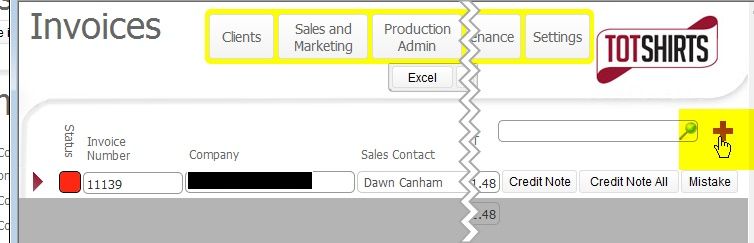
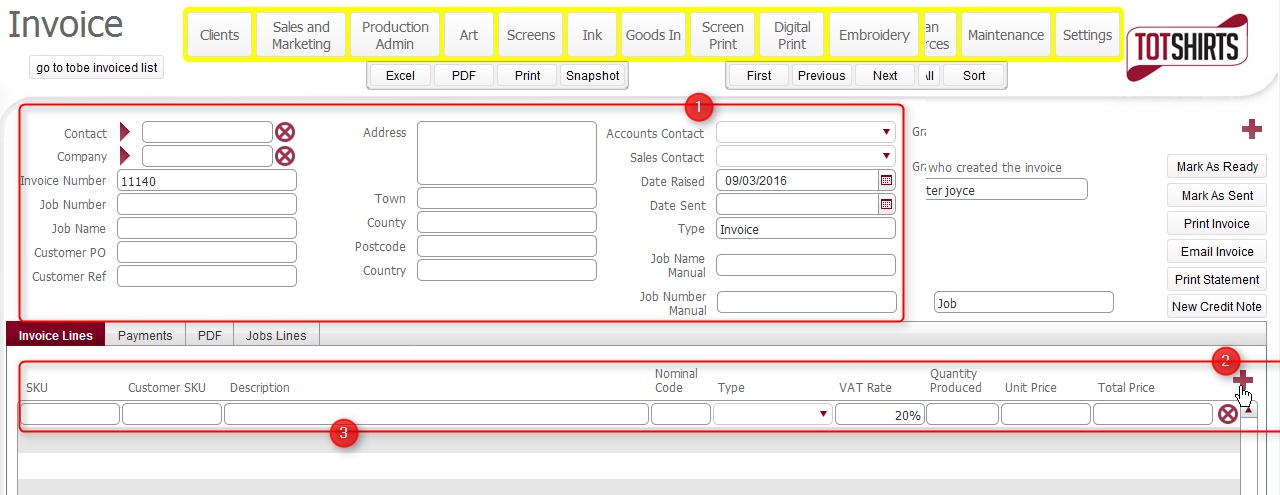
Artwork origination charges are typically incurred on the creation of a new artwork design. - that is, the first time a stroke one "/1" job which requires artwork is undertaken.
When the job is repeated:-
- The artwork might be unchanged, in which case there should be no artwork charges.
-
Or there may be some artwork changes (e.g. a slight amendment or ink changes) which will mean there are artwork charges.
Traffic light approach
To facilitate a robust mechanism to capture Artwork charges, a new status icon "Art Charges Complete" has been added to the Artwork record on the Tech spec tab, and appears against each job order number that the Artwork is associated to:-
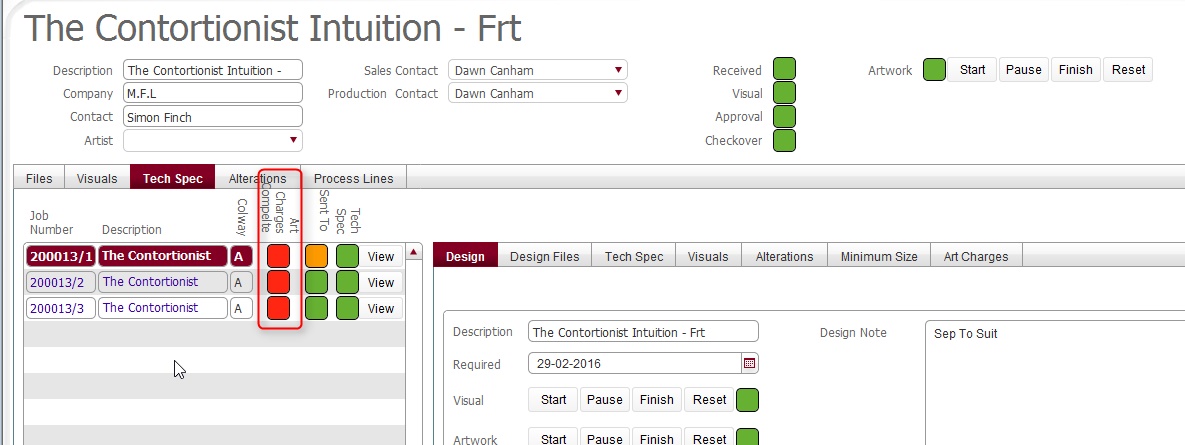
The icon defaults initially to red- which denotes that the Artwork record has not been assessed nor any charges dealt with.
It is the Art Room's responsibility to:-
- Assess every artwork required record (both ones which require new visuals and those only requiring Checkovers) to see if it is eligible for charging to the client.
-
- If there are eligible charges:-
-
- Capture them on the artwork record,
- Include these on the colour visual that is sent to the client
- Upon client approval set the Art Charges Complete status light to Green (completed).
- If there are no eligible charges:-
-
- Set the Art Charges Complete status light to Green (completed)
- Set the Art Charges Complete status light to Green (completed)
- If during a Checkover, the assessment identifies that although there are no actual Artwork design changes, but there are art related charges eligible (for example, the ink type to be used will change) then the charges need to be:-
-
- Recorded against the artwork record
- Communicated to and agreed with the client
- And the client approval recorded
- Only then, set the Art Charges Complete status light to Green (completed).
- In short, you are responsible for setting the Art Charges Complete status each time (whether on a new design or a Checkover) and in doing so, you are taking responsibility that ArtWork charges:-
-
- Have been recorded.
- Have been communicated to the client.
- Have been approved by the client
- Can therefore be invoiced by the Accounts department.
or - There are no eligible artwork charges for the job.
Recording Art Room Charges
Art Room charges are recorded on the ArtWork Charges tab
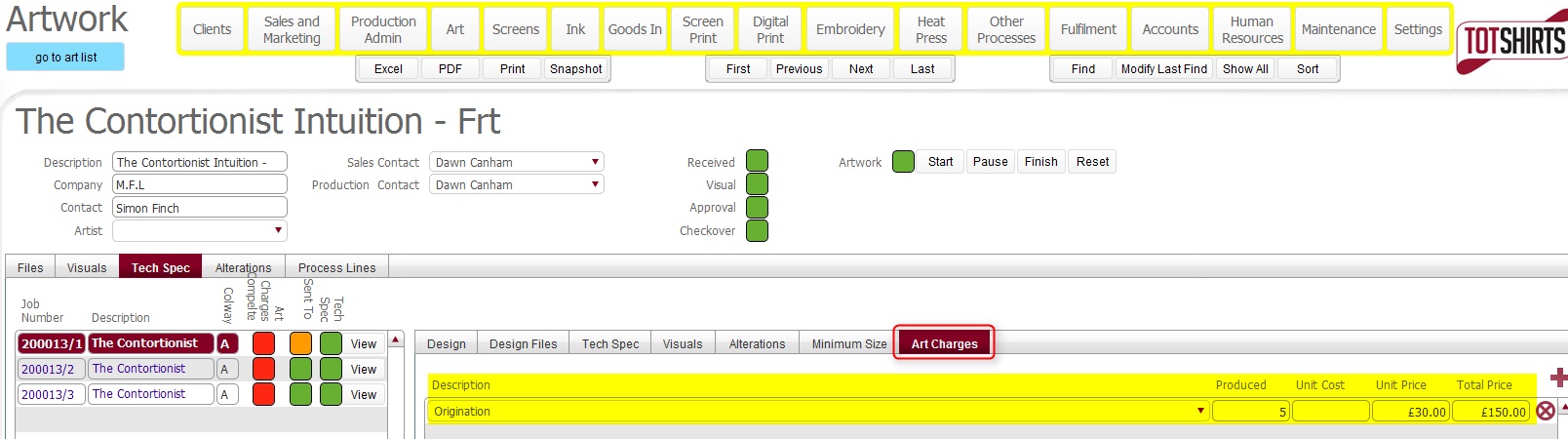
They should be always be populated in a consistent manner to ensure that the Accounts department can easily and predictably locate and include them on client invoices.
Charges should always be recorded against the Artwork record which instructs the actual artwork to be done. This is particularly important when there is the multiple usage of the same Artwork Record.
For example, consider a simple new job for a front print with a single artwork design, but requiring two colour ways as for 1/2 the job the image will be printed in red ink and 1/2 in black ink. There is only a single origination cost for art work as only one image is required.
The artwork origination charges should be recorded against the record for ColourWay A as this is the record that has the instruction requesting a chargeable action -"Separate to Suit"
There are no charges for the record for ColourWay B as this re-uses the same Artwork record.
The correct way to record charges in this scenario:-

The incorrect way to record charges in this scenario:-

Recording costs against the wrong record is further compounded should the same artwork record be re-used across multiple jobs

In this scenario, the Accounts department will be unable to invoice Artwork costs on job 100/1 as the artwork costs have been incorrectly recorded on job 100/2.
Other Art Room related Costs
There are sometimes additional art room costs / once off costs associated with a job order that need to be recorded. The following are a couple of common examples:-
Charges for Colour Way Changes
For example, sometimes if a print run contains 2 or more different colourways, the client is charged for the costs associated with changing the colour during the run.
The charges represent, the costs of pausing the print run, removing the screens, washing them out, and then re-inking them with the new colour.
Charges for Usage of specific inks
Some inks have surcharges, and depending on the specifics of the ink requested for use on a job, a supplementary charge - a.k.a ink surcharge - may be added, to cover the miscellaneous expenses incurred by TOT Shirts Limited for its usage.
For example, a discharge ink has a finite shelf life. Should a client request a specific ink mix that requires a reasonable quantity to be used to produce an accurate mix for usage in the job, any residual mixed ink remaining after the print run will rapidly deteriorate and have to be discarded. The costs of this wasted ink are thus passed onto the client in the form of an ink discharge fee.
These and other examples of fixed price surcharges against a single process line need to be accurately recorded against the job order so that they can be captured for invoicing onto the client.
Recording these miscellaneous costs is simply a case of adding an extra line to the Art Costs tab for appropriate associated process line so that the Accounts department will pick it up accordingly
Example:-

As with earlier art costs, the charges should be input against the first instance, that is, Colour Way A
Note: if the job were repeated without alteration the colour change charge would repeat whereas the artwork charges wouldn't
Aggregate ArtWork Costs Status Icon
An aggregate ArtWork Costs icon will be introduced at the level of the job order.
This will update to green when the ArtWork charges Complete status for all of the artwork records that is associated to the job have been set to green.
The Aggregate ArtWork Costs Status icon will be exposed in the Invoices layout, and when set as green, it denotes to the Accounting department that from an invoicing perspective, all the Artwork on the job record is ready for invoicing.