Manually Allocating Blank Stock via the Garment Sheet
Background
During the process of populating
the garment sheet, there are differing methods of setting the To
Be Given quantity field:-
This topic is written to cover the second of the above scenarios
The garment sheet records the
garments that are required to
fulfil a job order.. Once the required input and output garments have
been recorded on the garment sheet, the blank input garments need to be
allocated
Allocating can be thought of conceptually as reserving
the items of blank stock that will be decorated by the job order processes.
When you allocate a quantity of a SKU on a garment sheet you are effectively
reducing the available balance of that SKU by the quantity allocated.
It is not always possible to fully allocate the quantity you require
if there is insufficient available stock.
About this Task
This topic outlines the steps necessary to accurately manually allocate blank stock to a job order
via the Garment Sheet.
Constraints
The maximum amount of a Blank SKU that can be allocated, "max_allocatable_quantity" is the
sum of the Available
and Expected quantities.
This can be illustrated in the following table.
SKU |
Expected
Balance |
Available
Balance |
Required |
Allocatable |
1 |
0 |
200 |
160 |
160 |
2 |
50 |
100 |
150 |
150 |
3 |
40 |
50 |
100 |
90 |
4 |
50 |
0 |
70 |
50 |
5 |
0 |
0 |
50 |
0 |
For a blank SKU, the expected balance
represents items that have been ordered via purchase orders, but are not
yet delivered and booked into the stock inventory system.
Should you need to allocate a quantity in excess of the max_allocatable_quantity
there are several options as to how you can proceed:-
- Partially allocate with
what is available
- Check to see if there is an purchase
order for the blank stock which has not yet been raised which
would cover the partial allocation
but the likelihood is that some form of remedial action (such as ordering
the required blank stock) will be needed.
Prerequisites
Ensure that the Garment Sheet has been populated as per How
to Populate Garment Sheets Required on a Job
Procedure
- Navigate to the job lines section
at the bottom of the Garment Sheet

(Note: In the below sections/text,
the numbers in (bold parenthesis)
refer to the annotations in the above screen-shot)
- This section shows the following essential information per blank
SKU that has been added to the Garment Sheet as being required for
the job order
Quantity to be Given (1) -
the quantity of the blank SKU that is required on this garment sheet
for the job process lines for this job.
(Note this quantity maybe be
slightly higher than the Required
figure (from the actual job order) to accommodate any rejects that
could occur during the production processes).
Blanks Available (2) -
the quantity of the blank SKU that is currently physically available.
- There are four mechanisms by which you can allocate blank stock.
The Allocate button (3) -Allows
you to specify the quantity
to allocate. You can specify the quantity up to the lower of either
the max_allocatable_quantity
or To Be Given quantity
The Allocate All button (4) will automatically fully allocate
max_allocatable_quantity
>= To Be Given or partially
allocate if insufficient.
Specifically, it will automatically allocate the lower of To Be Given
or max_allocatable_quantity
Allocation is done per specific SKU. That is, it is performed one row
at a time.
Dev Enhancement:
The macros level allocate all function does not work @ Aug 2016
To specify the Amount you wish to allocate, proceed to step 4); to
automatically allocate proceed to step 10)
- Locate the item that you wish to allocate. For the purpose of explanation,
we will select the top row - SKU 102621
 I
I
- Click the item's corresponding Allocate
button (3)
- The Quantity to Allocate
dialog appears.
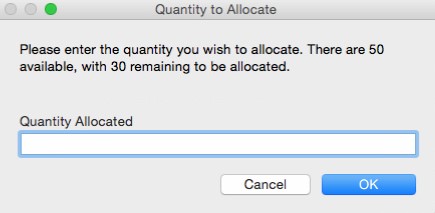
Note that the verbiage refers to
the number of the blank SKU that is Available, and the quantity that
is remaining to be allocated
(To Be Given - Allocated)
- Enter the quantity you wish to
allocate. For the purpose of explanation we will enter 30.
- The system validates your entry to
ensure that you are not over allocating what is required or
the max_allocatable_quantity
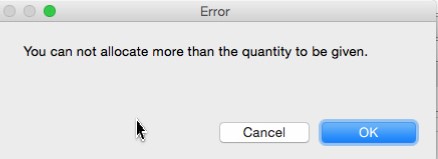
- If your entry is greater than To Be Given, a validation is
thrown. Click
to see message
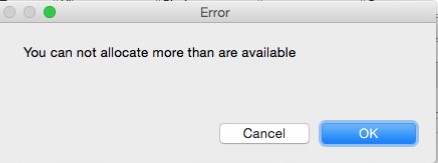
- Similarly, if your entry is greater than max_allocatable_quantity,
a validation is thrown. Click
to see message
- Assuming your entry passes validation, then the following occurs:-
- Blanks Available (1) is debited
by the Quantity specified
in step 7)
Quantity
Allocated (2) is
credited
by the Quantity specified
in step 7)
As the SKU is fully allocated,
the status indicator (3)
for allocation updated to completed
As the SKU is fully allocated,
the options to add this sku to the bucket for ordering (4)
are disabled.

Locate the item that you wish to
automatically allocate. For the purpose of explanation, we will select
the middle row - SKU 102622

- Click the item's corresponding Allocate
All button.
- The system automatically allocates as much as it can without resulting
in an over-allocation. That is, it allocates the lower of max_allocatable_quantity
and (To be Given minus any amount already allocated).
In this example, To Be Given is 30, but only 20 is available.
Specifically:-
- Blanks Available is debited
by Min (max_allocatable_quantity, To Be Given), i.e.20
Quantity
Allocated is credited
by Min (max_allocatable_quantity, To Be Given), i.e.20
As the SKU is partially allocated,
the status indicator for allocation is updated to Amber
(In progress)
- As the SKU is partially allocated, the options to add
this sku to the bucket for ordering remain enabled.

- Repeat steps 4) to 12) until you have allocated / partially allocated
each SKU on the garment sheet.
- If the job order has numerous garment sheets, repeat the whole
process per garment sheet.
Note: if
you accidentally allocate an incorrect amount, or allocated all instead
of a specific quantity, you can reverse the allocation using the De
Allocate All function.
Dealing With Situations where there is insufficient Blank Stock
You can only allocate the max_allocatable_quantity
of a SKU.
You may have situations where there is insufficient quantities of a
SKU to meet the quantity you wish to allocate:-
- Max_allocatable_quantity
may be less available than then amount required, allowing you
to partially allocate
- max_allocatable_quantity
may be zero
In either of the above scenarios you must take some remedial actions,
such as ordering blank stock.
In the case of a) you may wish to only order the residual amount, whilst
in b) you may wish to order the full amount
strokeone
provides numerous methods of ordering blank stock from the garment sheet.
See the topic Raising
Purchase Orders from the Garment Sheet for an overview of these methods
as for links to detailed explanations of each.
Related
Topics
De Allocating Blank Stock
Raising Purchase Orders from the Garment
Sheet