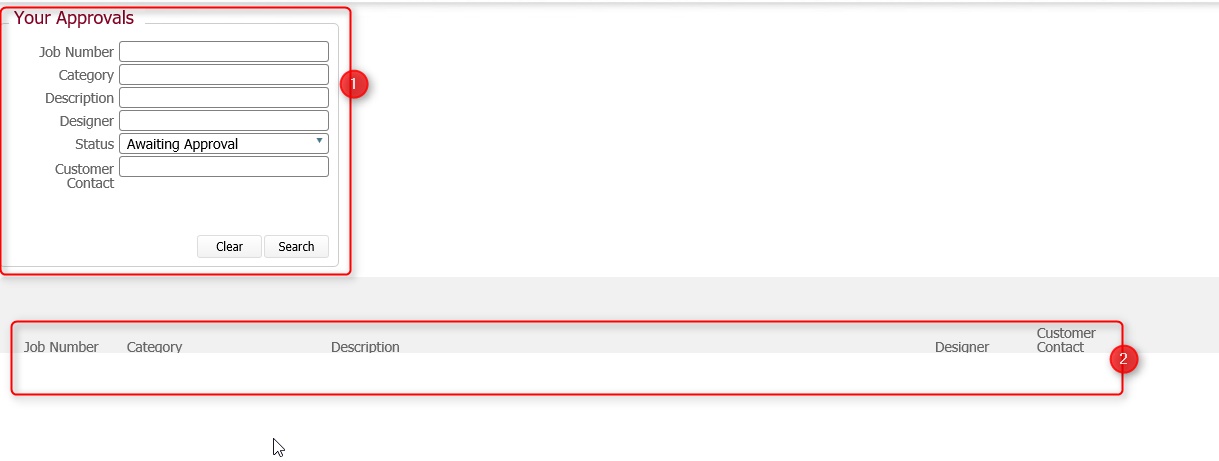
The Approvals Page provides you with the following broad functionality:-
Note: Currently this page is conceptually structured around a data model of artwork at a job order level. Given that artwork can relate to multiple jobs, it is expected that in the future this model will alter.
(Note: In the below sections/text, the numbers in (bold parenthesis) refer to the annotations in the above screen-shot)
For maximum performance, the page opens in find mode. That is, no records are shown, and by default it is assumed you will search for visuals that are awaiting your approval (you can alter this when you define your search)
The approvals page is thus made up of two sections.
The search pane (1) allows you to define the criteria by which to search for colour visuals whilst the results pane (2) displays the details of those colour visuals that match the submitted search. Additionally, within the results pane, you can approve or otherwise, the visuals that we have created for you.
In the search pane, you define one or more criteria by which you want to search for your jobs.
The following fields are available to use for search criteria:-
|
Field Name |
Comments |
|
Job Number |
Our internal reference number for the job order Enhancement: This should be ArtWork Number and data model revised as such |
|
Category |
Category usually refers to the band name or a grouping description for jobs that have a common theme. |
|
Description |
Description works in conjunction with category and to further classify and identify the job order. It is often populated with a description related to the actual design / imagery that the colour visuals represent. |
|
Designer |
Our internal artist whom has created the colour visuals Dev: Rename to Artist |
|
Status |
The current approval status for the colour visuals we have created for you at the process line level.
Select one value from the drop-down:-
Awaiting Approval: Colour Visuals which we have created and require your approval on. Approved: Colour Visuals which you have approved Unapproved: Colour Visuals which you have told us that you do not approve.
Note: This field is defaulted with Awaiting Approval. You can alter this if you wish.
|
|
Customer Contact |
This is the name of the person from your organisation whom placed the order, and therefore the person we are expecting to approve the colour visuals. |
Tip: If you enter any values by mistake, you can click the Clear button which will reset the search criteria back to their default (blank) state.
Once you have defined your search criteria, click Search to process the find.
Once processed, the matching records are displayed in the results pane directly below the search pane.
Note: Blank values for a field are interpreted as meaning All values. That is, they do not restrict the records being returned. Please bear this in mind when defining your searches, especially if the record set is likely to be large.
When a search is processed, colour visual records that match the defined search criteria are listed in the results pane.
For example, when the below search was submitted, two matching colour visual records were returned.
To be absolutely clear, returned colour visual records needed to match all of the search criteria defined.
That is, the all the following were true:-
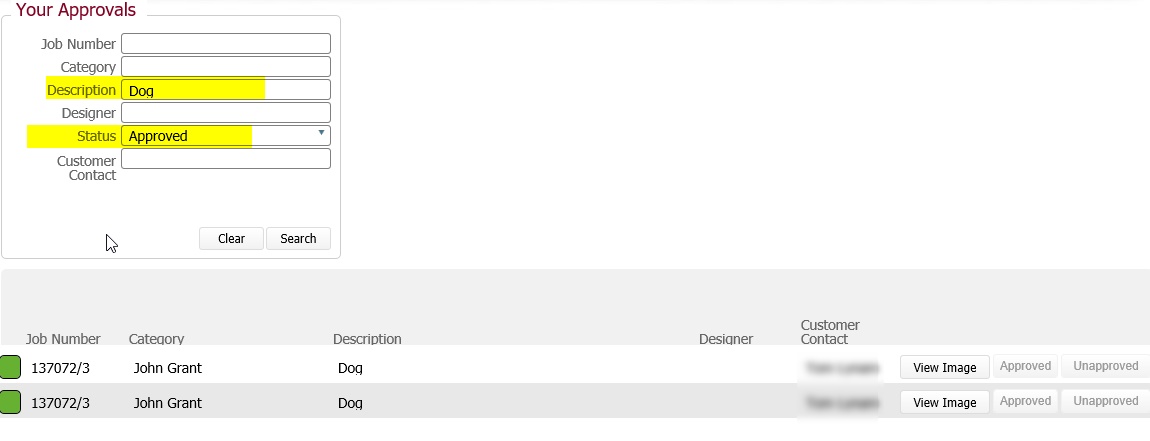
Note: In the above screen-shot, some field values have been deliberately obscured.
For each colour visual record listed in the results pane, the following information is shown.
|
Field Name |
Comments |
|
Colour Visual Approval Status |
This icon denotes the approval status of the colour visuals we have created for you based on your instructions. It has one of three statuses indicated by colour:- Red: The Visuals are awaiting approval by you. Green: You have approved the colour visuals.
|
|
Job Number |
Our internal reference number for the job order to which these colour visuals are linked Dev: Rename to Art Number along with data model revision |
|
Category |
As per search fields. Category usually refers to the band name or a grouping description for jobs that have a common theme. |
|
Description |
As per search fields. Description works in conjunction with category and to further classify and identify the job order. It is often populated with a description related to the actual design / imagery that the colour visuals represent. |
|
Designer |
Our internal artist whom has created the colour visual representation for your approval. Dev: Rename to Artist |
|
Customer Contact |
This is the name of the person from your organisation whom placed the order, and therefore the person we are expecting to approve the colour visuals. |
|
View Image |
Will allow you to drill down and see graphical representations of the colour visuals we have created for you. (see below section) |
|
Approve |
Click this button to approve the colour visual record. |
|
Unapprove |
Click this button to specifically tell us that you do not approve the colour visual record we have created for you. |
To see a graphical representation of the colour visuals that we have created for you click the View Image button beside the respective record in the details pane.
This will open a pop-up window which contains two graphical images:-
There will typically be two image files:-
On the left hand side is a detailed representation of the artwork image that we are intending to create on your behalf.
On the right hand side is a graphical representation showing the artwork's placement.
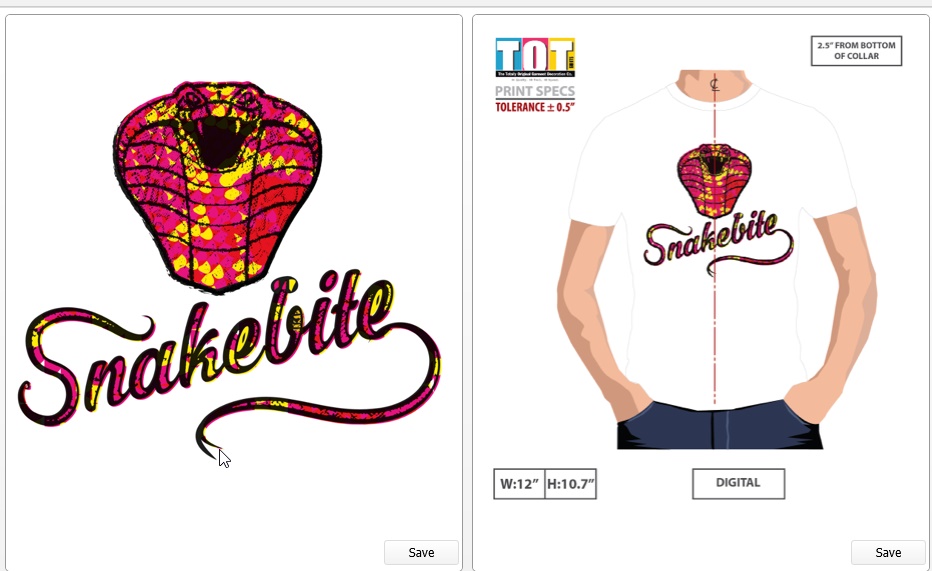
At the bottom of each image is a save button which when clicked, allows you to save a copy of the graphical file locally to your computer.
Approving
To approve a colour visual record, click the Approve button beside the respective record.
Note that the approval status updates to Green (Approved)
Once a colour visual has been approved, the Approve and Unapprove Buttons disable.
In other words, you can only approve a colour visual record that is not already approved.
Marking as Unapproved
To mark a colour visual record as unapproved, click the Un approve button beside the respective record.
Note that the approval status updates to Purple (Not Approved)
Enhancements Needed
Shift the approve / unapprove buttons onto the pop up image window
consider a reject reason that clients need to provide when rejecting (unapproving) a visual record
Ability to drop these images into an email for clients to provide to their clients
Consider revising data model to not be at job order level but at Artwork record level
Consider providing an option to includArtWork costs onto this record
clients who wish to see the costs can do so
clients who don't wish to see costs, as they act in agency manner and forward details onto their ultimate client will not wish them to see the costs