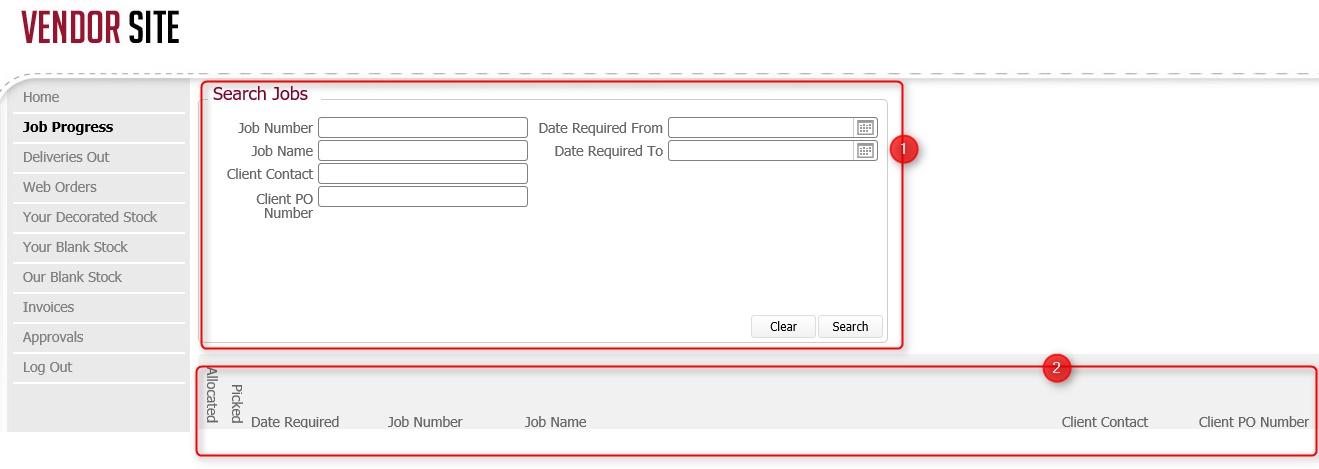
The Job Progress Page allows you to search for any job orders that you have placed (see note 1), and to see their detail and current processing status.
(Note: In the below sections/text, the numbers in (bold parenthesis) refer to the annotations in the above screen-shot)
For maximum performance, the page opens in find mode. That is, no records are shown.
The jobs progress page is made up of two sections.
The search pane (1) allows you to define the criteria by which to search for jobs, whilst the results pane (2) displays the details of those jobs that match the submitted search
In the search pane, you define one or more criteria by which you want to search for your jobs.
The following fields are available to use for search criteria:-
|
Field Name |
Comments |
|
Job Number |
The internal reference number for the job order within TOT. |
|
Job Name |
The name by which the job is known internally within TOT. |
|
Client Contact |
This is the name of the person from your organisation whom placed the order. |
|
Client PO Number |
This is your reference number for the order. |
|
Date Required From |
Date Required refers to the date by which the order needs to be completed. |
|
Date Required To |
Tip: If you enter any values by mistake, you can click the Clear button which will reset the search criteria back to their default (blank) state.
Example Search Criteria
In the below screen-shot, two criteria have been defined:-
Job Name (ted)
and
Date Required range (20th April 2016--> 25th April 2016)
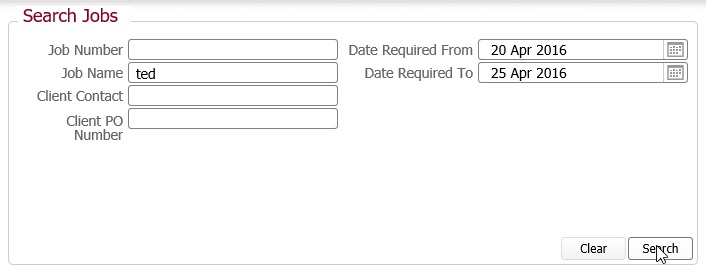
Once you have defined your search criteria, click Search to process the find.
Once processed, the matching records are displayed in the results pane directly below the search pane.
Note: Blank values for a field are interpreted as meaning All values. That is, they do not restrict the records being returned. Please bear this in mind when defining your searches, especially if they record set is likely to be large.
When a search is processed, the job orders that match the defined search criteria are listed in the results pane.
For example, when the above search was submitted, three matching job orders were returned.
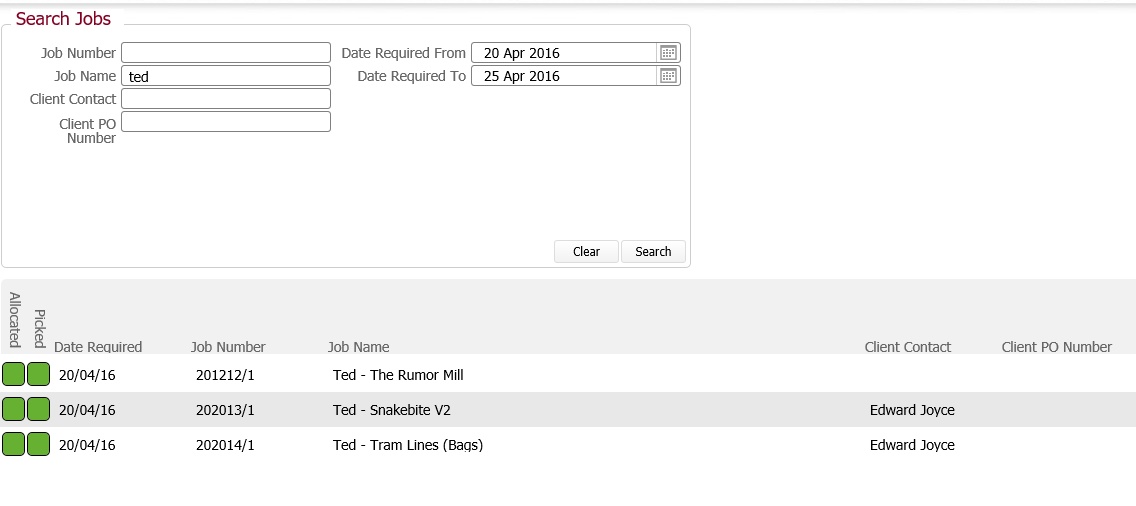
For each job order shown in the results pane, the following information is shown.
|
Field Name |
Comments |
|
Allocated Status |
This icon denotes the status of allocating garments to the job order. Allocated can conceptually be thought of as "reserved for". It has one of three statuses indicated by colour:- Red: No garments have yet been allocated to the job order. Green: All garments have been allocated to the job order.
|
|
Picked Status |
This icon operates identical to Allocated, but denotes the picking status of garments for a job. Again, it is colour coded for each status:-
Green: All garments required on the job order have been picked.. |
|
Date Required |
The date by which the order needs to be completed |
|
Job Number |
The internal reference number for the job order within TOT. |
|
Job Name |
The name by which the job is known internally within TOT. |
|
Client Contact |
This is the name of the person from your organisation whom placed the order. |
|
Client PO Number |
This is your reference number for the order. |
The following functionality has been slated for development to enhance this page.
Notes
Related Topics