Saving a CSV file
To save information from the Vendor site to your local computer as a comma delimited value file follow these steps :-
- Click the Save as CSV button.
- The Export Field to File dialog opens..
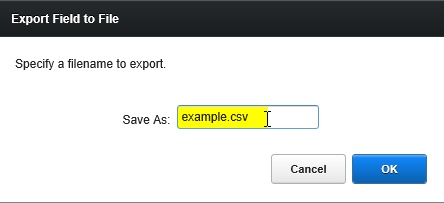
- In the Save As field, either accept the suggested name, or over-type this with one of your choice.
Note: If there is not a csv suffix add the end of the filename, ensure you add it..
- Click the OK button.
- The Download Files dialog opens, and the vendor site will prepare your data in the file format requested.
When it is available, the button, with a text label per the filename selected in step 3) will enable.
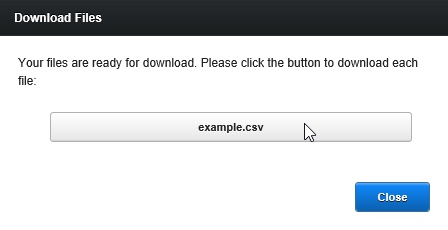
click this button to proceed.
- The file will be downloaded to your browser's default download location.

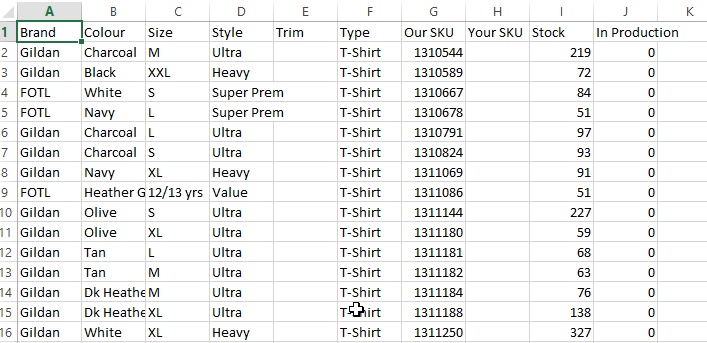
- Depending on the configuration of your browser, your computer operating system and the software you have installed, the file may automatically get opened by a compliant application.
- If the file doesn't automatically open, you can navigate to your browser's download location, and open it.
Notes:
- Steps 6) to 8) may vary according to your computer's configuration.
- If you wish to open the CSV with Excel, you need to ensure that CSV files are associated to Excel.
Enhancements
Ensure that a .csv is suffixed onto the filename when a user exports data as csv.