How to Pick Ink
About this Topic
This topic outlines how to search for and select an Ink for usages in
populating Technical
Specifications
Background
When you select Set ink in the Technical
Specifications, you will be taken to the Item
Picker screen, which has been pre-filtered
with the following criteria
Type: Ink
Favourite: Yes
to display all the matching ink stock lines that exist in TOT Shirts Limited
Tip: As inks that have been marked
as favourites will display by default, it is recommended that
when ink stock line items are set up, that commonly used ones are flagged
as favourites.
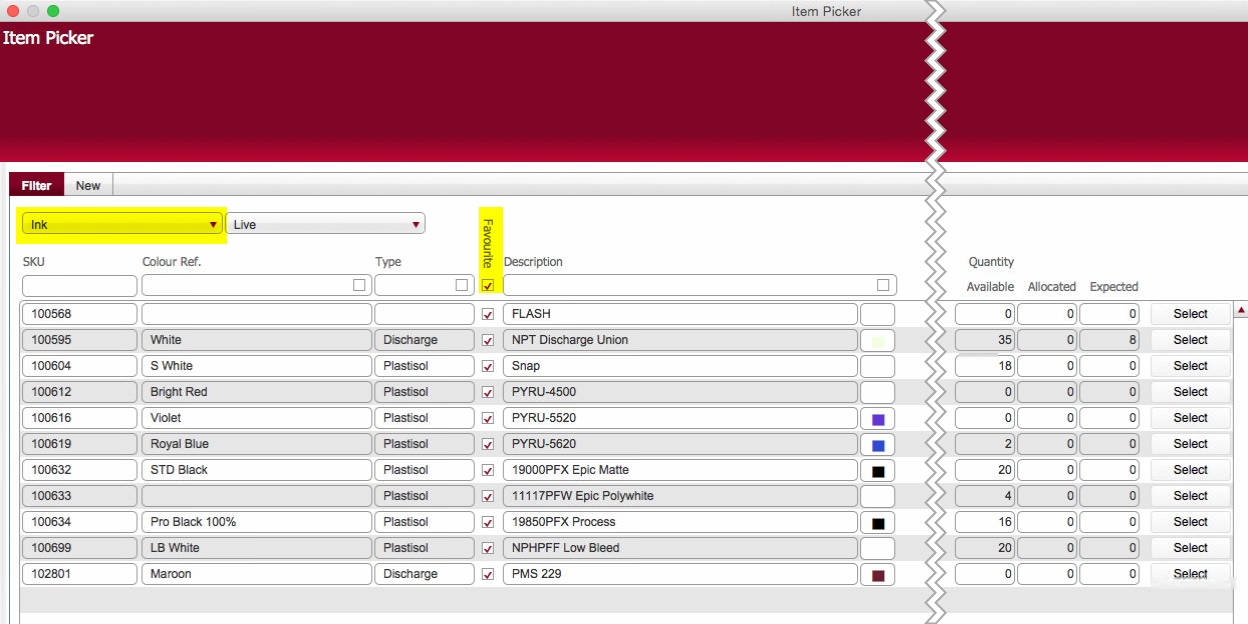
The stock line for ink has several key attributes
- Colour
- Type
- Reference / Description
- Favourite (pre-set as checked)
Procedure
- Ensure Ink is selected
in the top left hand drop down.
- To search for your required ink colour, you can enter in some search
criteria in one or more of the attribute header fields to filter the
record set.
You can filter any or all of the attributes.
For example, to filter the display to show only "red"
"plastisol" inks,
enter the appropriate text in the field headers.
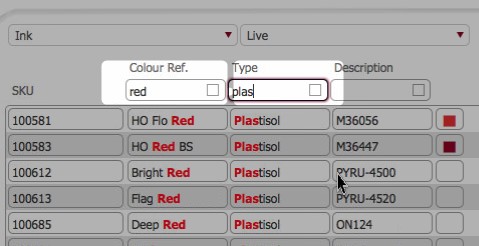
Note: that multiple criteria
is logically processed as "and" queries.,
i.e. a returned record in the above example would have a colour
containing Red, and a Type
containing Plastisol.
- Once you have found your required ink, click the corresponding
Select button at the right hand side of the record.
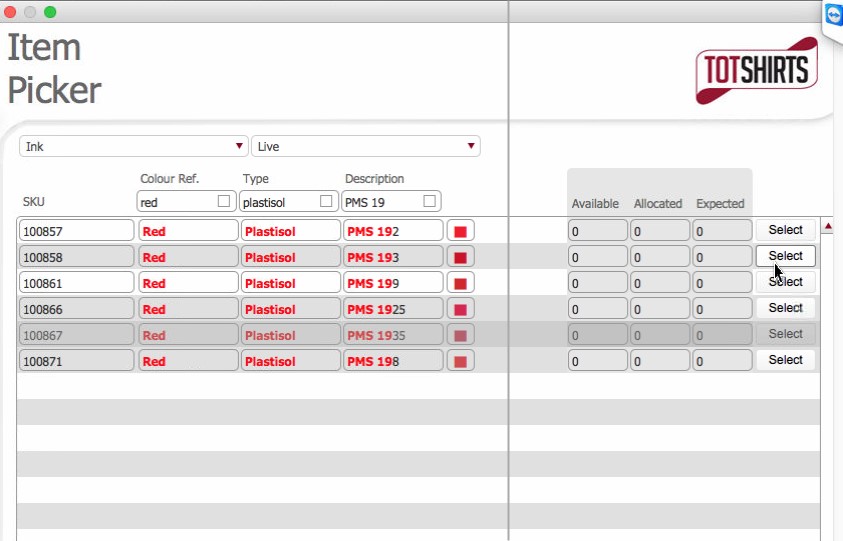
- The ink selected in step 3) is inserted into the Technical
Specification record
Related Links
Understanding ArtWork