Enter some criteria in one or more of the fields to process
the find.
Tip: Product
Type is a logical choice.

The screen will populate with the corresponding stock item records
per the search criteria in step 3)
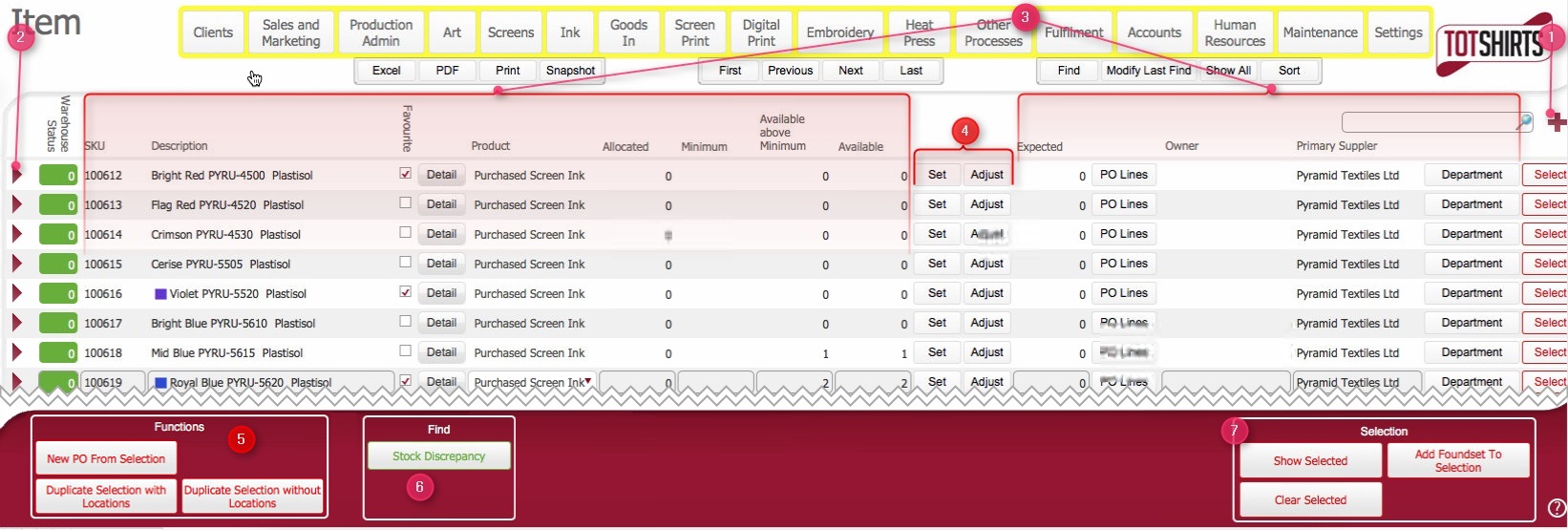
The stock items list layout represents the repository of all stock items that exist within strokeone.
Examples of types of Stock Items are:-
Each unique stock item has a SKU. Stock item uniqueness is made up from the value combination of several key attributes on the actual item.
The number of key attributes varies by the type of the stock item.
For example, a blank garment is differentiated by seven attributes [Owner, Brand, Type, Style, Colour, Trim, Size, Gender, whereas a Blank Screen only has two [Mesh, Size]]
Stock list items are grouped within the repository by SKU.
This topic will instruct you how to open, interrogate, understand the contents of, and the actions allowable from, the Stock Items list layout.
Ensure that you have logged onto strokeone, and that you can see and access the Goods In button in strokeone home banner.
Enter some criteria in one or more of the fields to process
the find.
Tip: Product
Type is a logical choice.
The screen will populate with the corresponding stock item records
per the search criteria in step 3)
This layout is composed of the following elements:-
(1) New record icon - Will
create a new stock line
item record.
(2) Open record icon - will open
up the detailed
record for the Stock Item
(3) Stock
line item basic data fields. Specifically,
for each stock line item listed, the following information is shown:-
Field |
Comments |
SKU |
Stock Keeping Unit. Unique numeric code to identifying the item. |
Description |
Basic Description of the item |
Favourite |
This check-box allows you to mark a stock line item as a
favourite. |
Detail Button |
Upon clicking will cause a pop-up window showing some of the key attributes of the stock item. |
Product |
The type of the product for the stock item. See Understanding Product Types for more help if needed. |
Allocated |
TBC: to remove ? ** |
Minimum |
The minimum number of units of this stock item that should always be in stock as available. |
Available above minimum |
Calculated field as [Available - Minimum]
That is:- Amber: If ( Available + Expected) >= Minimum |
Available |
The quantity of the item currently available |
Expected |
The quantity of the item that has been ordered, but not yet booked in. |
PO Lines |
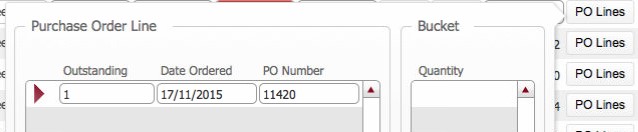
Upon clicking will cause a pop-up window showing some of the basic details of any open purchase orders for the stock item. |
Owner |
The owner of the stock line item |
Primary Supplier |
The preferred supplier of the stock line item |
Department Button |
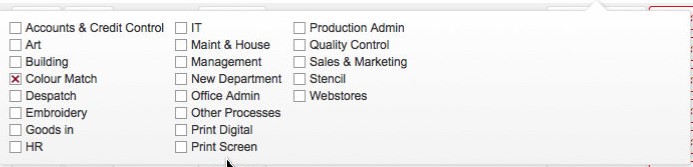
Upon clicking will cause a pop-up window showing the departmental users of this stock list item |
(4) Stock Item adjustment
buttons
(5) Scripted buttons to allow you to
- raise a purchase order for a stock line item.
- duplicate a stock line item
(6) Find Discrepancy button -TBC: need to define this ***
(7) Scripted Sorts
Related Topics
How to create a stock line item
Adjusting Stock Line Item Amounts
Viewing Opening Purchase Orders