Logging onto the system
Prerequisites
In order to log on to strokeone,
you require two criteria to be met:-
- An installation of
FileMaker
software on your computer, or FileMaker Go if you wish to access strokeone on a tablet / smartphone.
- A set of valid user credentials
(username and password)
to enable access to strokeone
If you have not met the above criteria, contact your supervisor / system
administrator for further assistance
Procedure for Computer
If you are an experienced user
follow steps 1) to 3), alternatively follow steps 4) to 8)
Launch FileMaker
Navigate to your FileMaker
production server and open Strokeone
When prompted, enter your user
credentials
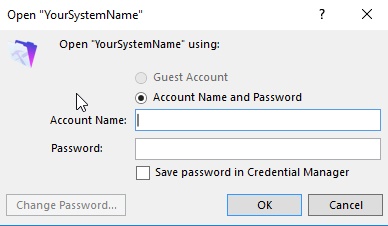
and click OK to proceed.
(Note: "YourSystemName"
will vary depending on your installation and environment)
If you are a less experienced computer user, the below worked example
can help you locate and open strokeone
Please bear in
mind that actual settings may differ based on your environment and specific
software and hardware configuration. Should you require additional
help, please refer to your internal support staff.
Launch FileMaker from
your computer.
From the menu bar in
FileMaker, select File>Open
Remote.
You should see an Open Remote
File dialog form as below
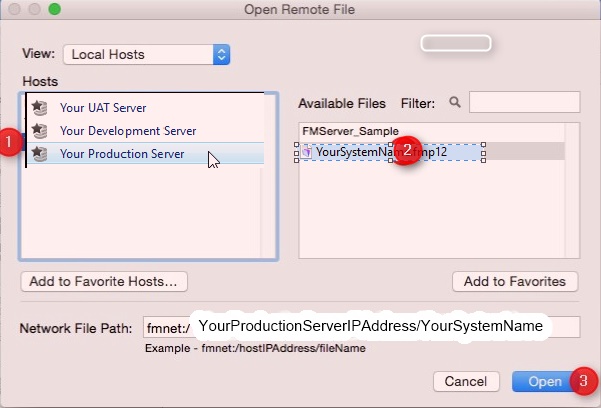
(Note: In the below sections/text,
the numbers in (bold parenthesis)
refer to the annotations in the above screen-shot)
In the Hosts pane (1) select your FileMaker production server. and in the
Available Files pane, select
Strokeone (2)
and then click Open (3)
When prompted, enter your user
credentials
and click OK to proceed.
Procedure for tablet / Smartphone
- Locate Filemaker Go app
on your device.

- Launch Filemaker Go.
- Touch the hosts icon at
the bottom of the screen

- At the top left of the screen under Hosts
link, you should see an entry for Your
FileMaker Production Server , if you do, proceed to step 7),
if you don't proceed to step 5)
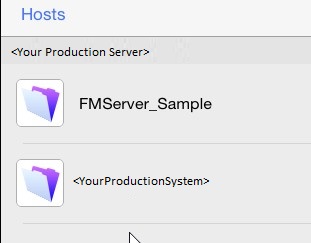
- Touch the Hosts link at
the top left of the screen.
- Within the Hosts pop up
dialog, under the Local Hosts choices, touch Your
FileMaker Production
UpdateReq:Screenshot
needs to reflect generic production server
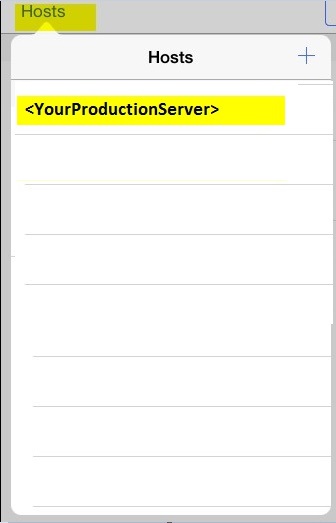
Note: if you can't see the
Your Production Server, contact your IT support contact.
- Under the Hosts, touch
the strokeone
entry that is under Your
Production Server
UpdateReq:Screenshot
needs to reflect generic production server
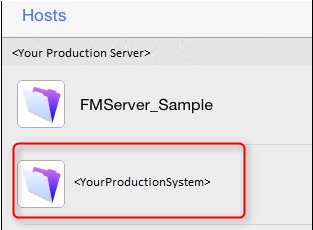
- When prompted enter your user
credentials
UpdateReq:Screenshot
needs to reflect Log In to Strokeone
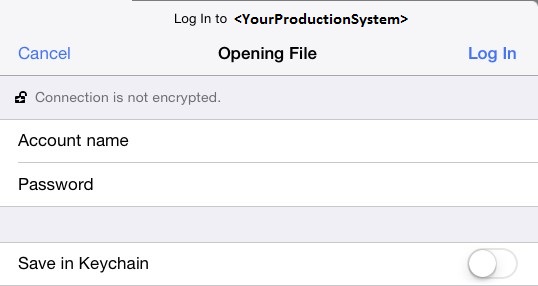
and touch Log In to continue.
Results
Assuming that your credentials are valid, you will be authenticated
by strokeone and navigated
to a layout that suits the department that is marked as the default
department on your user
record. All departmental layouts contain the common main header navigation
bar, which can be thought of as a Home
banner.

Related
Topics
Home Banner
Logging
off the system