How to create a stock line item
About this task
This topic will instruct you how to create
a stock line item.
Prerequisites
Ensure that you opened the stock
list item screen.

Procedure
- Click the new
record icon on the upper right of the screen.
- The stock line item detail
layout opens.

Populate the fields as follows:-
- In the Type drop-down
field, (1) select the
type of product applicable
to the new stock line item.
- Populate, thekey attributes (2)
fields for the stock list item.
These will vary depending on the product
type selected in step 3) The following table summarises these
click
to see table
- Populate the additional attributes
(3) for the stock line item>
- Note that the SKU has been
automatically populated.
- If you are aware of the Customer's
SKU reference identifier for the item, populate this
- In the VAT Rate drop-down
select the applicable rate for the stock line item.
(VAT rates are maintained in system
settings)
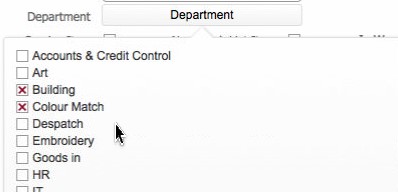
- Click the Department button,
and then set the check boxes for the department(s) that will use this
stock line item.
- If you are adding a stock line item for an intangible
service (i.e. there is no physical element to the stock line
item) then set the Service Item
field check-box. Otherwise leave it clear.
(Note: Stock items marked as intangible service, are not
associated to physical warehouse
locations when they are booked
in)
- If you are adding a stock line item for a physical product, but
you wish to suppress it from the stock list screen (e.g, a replacement
part for a machine), set the Non
Stock List check-box. Again, otherwise leave clear.
- In the EAN13 Code field,
you can enter the 12 digit
International
Article Number for the stock line item.
(Note: As per the EAN syntax standards, the number you enter here must
be 12 digits long.)
- In the EAN13 Price field
you can enter the price for the stock line article
- The EAN13 Barcode field
shows the barcode representation
of the EAN13 Code,
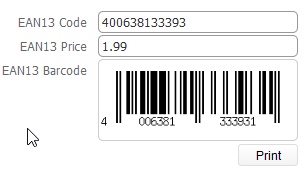
- The Print button allows
you to print out a label of the this barcode which you can physically
attach to the product / product wrapping..
- If you
want to maintain a minimum stock holding of the stock level item,
populate this quantity in the Minimum
field.

Whilst it is not the remit of this help guide to prescribe how you
should decide what a minimum stock level should be, a sensible strategy
would be to identify two variables:-
Consumption Rate: The average
quantity of the item consumed daily.
Delivery Days: The number of
days between ordering and receiving the item.
Minimum could then be calculated as (Consumption Rate * Delivery Days)
+ Consumption Rate
The number entered here is used in the derivation of identifying
stock shortfalls.
- It is worth noting that per SKU,
the Current Storage Price
is a calculated field which
holds the current cost for
storing this current balance
of this SKU.
It is calculated as the Quantity Available
of the SKU multiplied by its
Item Storage Price.
Item Storage Price is defined per product type in system
settings
Customers can be charged
for storing their items by using the Current
Storage Price.
Next,
the Supplier(s) of the stock line item need to be recorded
- Click to select the Suppliers
tab
- Click the new
record icon to select a supplier company.
- This will invoke the Find
/ Create New Company
dialog box to allow you to set a supplier company.
- The functionality for selecting / creating a company is identical
to that used when creating a contact so please see
How
to Create a New Contact for instructions
.
- If there are multiple
suppliers for this stock item, repeat step 10) until all suppliers
have been recorded.
Denote which of the suppliers added in step 10) is the Primary Supplier by clicking on
the Make Primary Supplier
button.

The supplier actioned is step 12) is now labelled as Primary
Supplier

Notes
a) There can only be one primary
supplier per stock line item. You can amend the primary supplier by
repeating step 12) for a different supplier. Doing so will demote
any existing primary supplier to supplier, and update the actioned
supplier to Primary Supplier.
b) Primary Supplier is a field exposed on the Stock
Items List form so can be used in finds / selecting found sets
so should be set accordingly.
Next, optionally
populate the Supplier SKU's or other attributes for the stock
line item. It is valuable to record this as this may be quoted with deliveries
of ordered stock so can be used to cross reference the corresponding purchase
orders.
Select the Customer or Supplier
Attribute tab.
Click the New
Record Icon to insert a row.
In the Customer or Supplier drop-down field, you
can select one of the suppliers that was added in step 10)

In the Value field, record the suppliers SKU for the stock line
item.
Repeat steps 15) to 17) if you have multiple suppliers, and
want to record the SKU reference for each of them,
Finally,
record the suppliers prices for the Stock Line items. These are the prices
that will be used when a purchase order is raised for this stock line
item. Note multiple prices for the same supplier can be recorded. These
should be recorded in tiers.
- Click to select the Prices
Tab
- Click the new
record icon to insert a row.
- In the Supplier field,
select one of the suppliers added in step 10) and add a description
- Populate the Quantity and
Price fields.
- Add another price record if you want to define pricing tiers for
a supplier..
For example, in the below screen-shot three price records have been
added for Firebrand.
When a purchase order is raised with Firebrand for this product, the
quantity ordered is compared
to the tier level and priced
accordingly:-
Quantity
Ordered |
Price
per item |
<100 |
£2.00 |
>=100 <200 |
£1.00 |
>=200 |
£0.50 |
- Repeat steps 20) to 23) if you want to record prices for multiple
suppliers.
Related Topics
Viewing the
Stock Items List
How to view
Stock Item Detailed Record
Raising Order
for Stock Items