When goods have been received
and checked
on a purchase order, the next stage of processing is Booking
In.
Booking in is the process by which the received goods are added
to the stock inventory of TOT Shirts Limited,
and two key items of information are stored:-
However, there is an important consideration to bear in mind before booking in a stock line item - one or more items on the purchase order may be job related and awaited on from on a scheduled production job.
( see Identifying that Purchase Order Goods are required on a Job for guidance on how to distinguish these)
If they are, then you might decide to book in / allocate / pick the goods
in one step and directly move the items received on the purchase order
to the production area, rather than book in and physically file these
goods in the warehouse's storage areas.
This topic assumes that the items on the purchase order are not job related and therefore can be booked in.
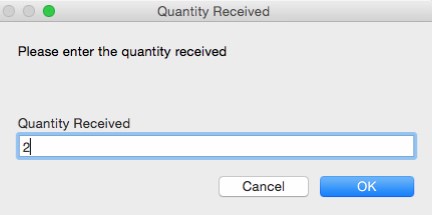
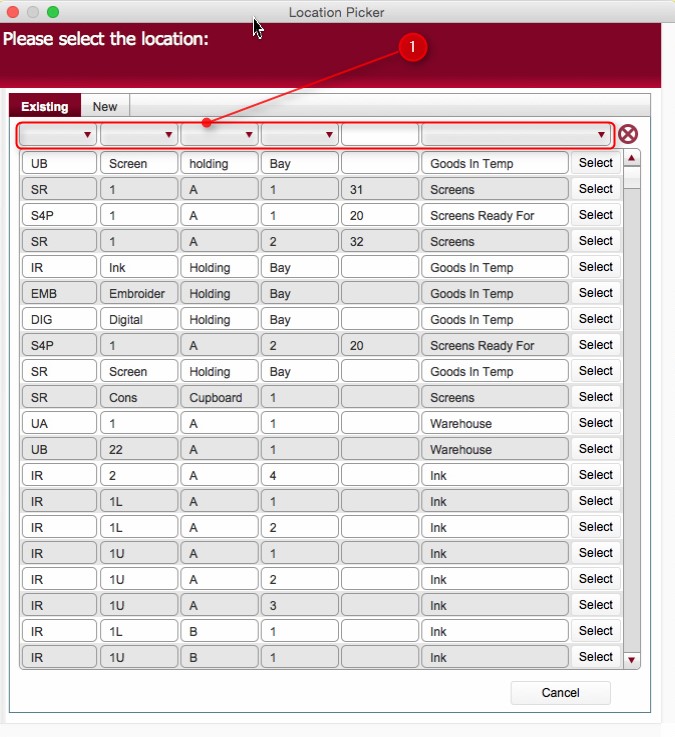
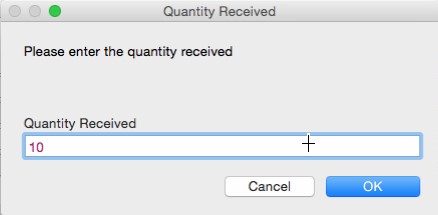
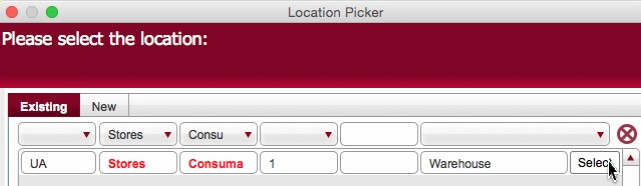
This topic will instruct you how to book in stock line items received on a purchase order.
Ensure that you have logged onto strokeone, and have opened the detailed layout of the purchase order that you want to book in goods for.
The Purchase Order Lines tab.
lists the items ordered on the purchase order, and for each item
shows the quantity ordered, received, cancelled and currently outstanding.
(See: Viewing
a Purchase Order's Details if you need more information on these fields)
There are differing mechanisms which book in stock items on a purchase order, and the usage of a specific method will depend on the differing scenarios you may encounter.
Whilst it is beyond the remit of this help guide to exhaustively outline all possible scenarios, there are essentially six common ones.
These are summarised in the below table and exemplified in detailed walk throughs below.
When considering the scenarios, please refer
to the above screen shot to see the corresponding button(s)
that are used to process them.
# |
Scenario Details |
Button(s) to Use |
1 |
You are booking in less than the quantity outstanding for a single stock line and want to book it into one or more physical locations |
|
2 |
You are booking in more than the quantity outstanding for a single stock line and want to book it into one or more physical locations |
|
3 |
You are booking in the full quantity outstanding for a single stock line and want to book them into a single physical location |
|
4 |
You are booking in the full quantity outstanding for a single stock line and want to book them into a single physical location |
|
5 |
You are booking in the full quantity outstanding for multiple, but not all stock lines on the order and want to book them all into a single physical location |
|
6 |
You are booking in the full quantity outstanding for all stock lines on the order and want to book them all into a single physical location |
|
These scenarios are outlined below in worked examples
Once you have booked in items on the purchase order, you may wish to send confirmation that the delivery has been checked, as this confirmation includes the quantities that have been booked in as received.
Considerations for Service Items
Note that should any of the stock line items be set up as Service Items, then you will not be prompted for a stock location during the booking in process, as the item has physical element.
Related Topics
Viewing a Purchase Order's Details
Sending Confirmation that a Delivery has been checked on a Purchase Order


 &
&