How to Create a New Contact
Background
A contact
is the representative at a company
with which Strokeone Software Limited
has a business relationship.
It is worth noting the data model rule
with regards to contacts and companies:-
This topic outlines the steps required
to create new contact record.
Note:
It is also possible to create
a new contact from within the Companies layout.
Prerequisites
Ensure that you have logged
onto strokeone, and
that you can see and access the Clients
button in strokeone home
banner.
Procedure
- From the home banner, click the Clients
and then Contacts buttons.
- The Contacts
List layout appears.
- Click the new
contact icon to the right of the screen

- As a contact must be associated to a company, strokeone
displays the
Company Module picker
dialog box.
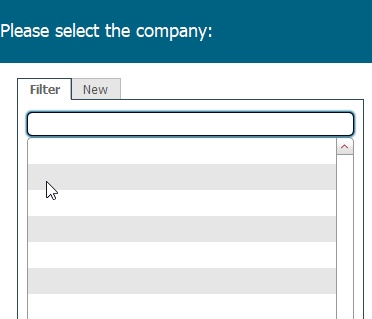
- Ensure the Filter tab is
selected, and begin to type the first three or four characters of
the name of the company to whom the contact should be associated.
The system will filter
the returned data set accordingly, and allow you to select it.
Assuming the required company is available and selected, proceed to
step 7)
- If the required company could not be found, click the New
tab to create a new company
Complete the form as follows:-
enter Company name
select Internal contact from
the drop down list
select How they found Strokeone Software Limited
from the drop down list
Proceed to step 7)
Note:
a ) for guidance on how to populate these company fields see here
b) If you have created a new company via this method, you should return
to the actual company form later to fully
complete all data fields.
- The Contacts layout opens.
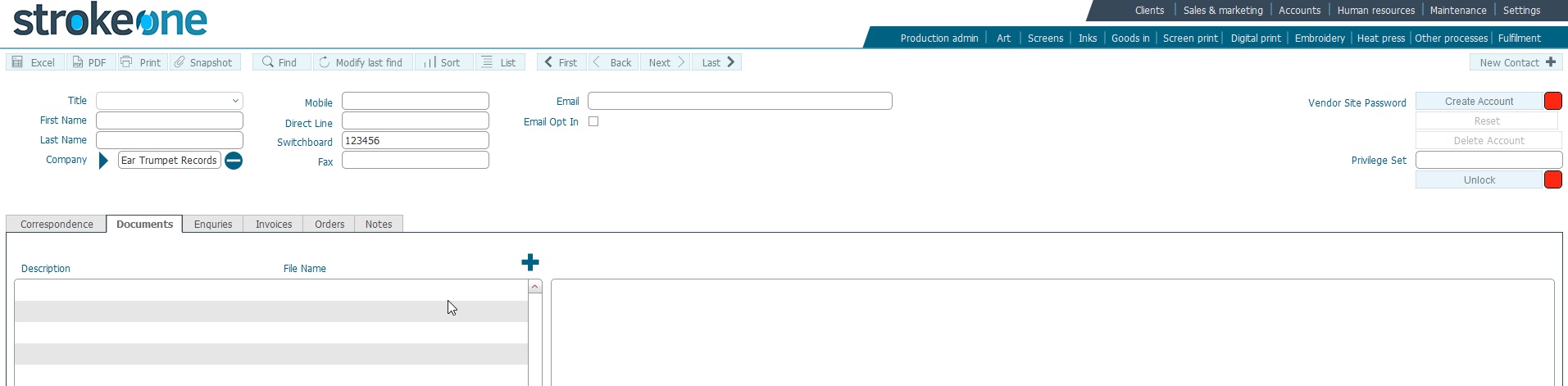
- Populate
the following contact details:-
Field |
Instructions |
Title |
Select the applicable title from the drop-down list |
First Name |
Enter the first name for the contact |
Last Name |
Enter the last name for the contact |
Company |
This will be pre-populated with the Company value either
selected in step 5) or created in step 6) |
Mobile |
Enter the mobile phone number for the contact |
Direct Line |
Enter the direct line phone number for the contact |
Switchboard |
Enter the switchboard number for the contact's company |
Fax |
Enter the fax number for the contact. |
Email |
Enter the email address for the contact.
Notes:
- Only a single email
address is supported
- An email address must
be populated for those clients to whom you will
grant
Vendor Site access .
|
Email Opt In |
reserved for future usage |
If you wish to grant the contact
access to the external vendor site, see Granting
Contacts Access to Vendor Site
Related
Topics
How to create
a Company Record
How to Edit a Contact
How to view Contacts
Granting Contacts
Access to Vendor Site