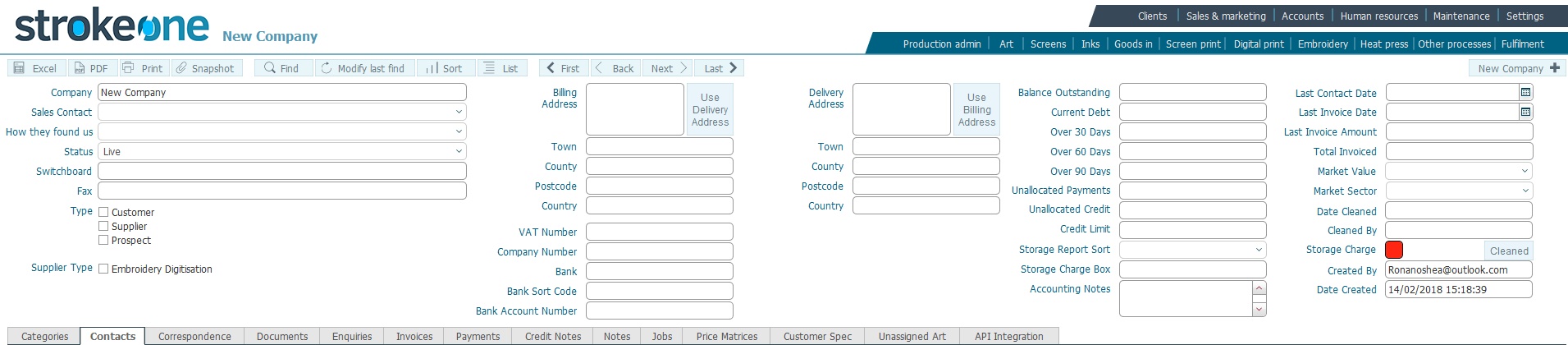
A company is an entity with which Strokeone Software Limited has a business relationship with. The nature of the relationship is governed by the type of the company.
There are three types of company:-
Irrespective of the type of company to be created, the procedure to create is identical.
This topic outlines the steps required to create a new company record.
Ensure that you have logged onto strokeone, and that you can see and access the client button in strokeone home banner.
Field |
Instructions |
Company |
Enter the name of the Company that you are creating the record for. |
Sales Contact |
Select the Internal Sales Contact responsible for the Company
from the drop-down
list. Note: The Sales Contact
field recorded on job orders looks up this field value at the
time the job order is created. It is a one way look up from job
order to company at the time the job order is created, Therefore:-
|
How they found us |
From the drop-down list, select
the way by which the Company found out about Strokeone Software Limited |
Status |
Select the Status of the company from the drop down list. |
Switchboard |
Telephone number for Company |
Fax |
Facsimile number for Company. |
Type |
Select from one or more of the following values |
Supplier Type Embroidery Digitisation |
Setting the checkbox enables the company to appear as a selectable value for DST suppliers in Embroidery Technical specifications. |
Enter the Billing address for the Company (used for invoices) |
|
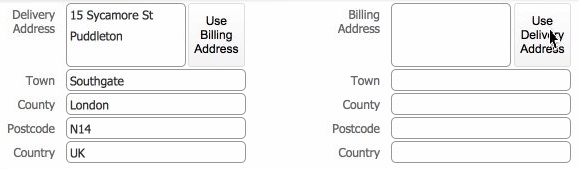
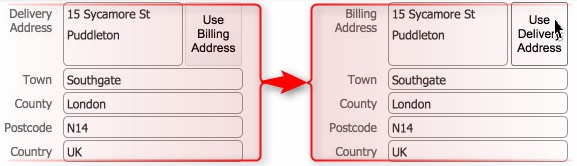
Use Delivery Address button |
Clicking this button will copy all the Delivery Address fields into the corresponding Billing Address fields. Click for example. |
Town |
Enter the Billing address town for the Company |
County |
Enter the Billing address county for the company |
Post Code |
Enter the Billing address Post code for the Company. |
Country |
Enter the Billing address Country for the Company. |
VAT Number |
Enter the VAT registration number for the Company |
Company Number |
Enter the Company Incorporation/ registration number for the Company |
Bank |
Record the name of the Company's Bank |
Bank Sort Code |
Record the Sort Code for the Company's Bank |
Bank Account Number |
Record the Company's Account Number |
Delivery Address |
Enter the delivery address for the Company |
Use Billing Address button |
Clicking this button will copy all the Billing Address fields into the corresponding Delivery Address fields. Click for example. |
Town |
Enter the delivery address town for the Company |
County |
Enter the delivery address county for the company |
Post Code |
Enter the delivery address Post code for the Company. |
Country |
Enter the delivery address Country for the Company. |
Calculated field: @sum of all invoices that have not been
paid minus any Unallocated Payments. Should this figure be > Credit
Limit then extra measures need to employed before undertaking
any job orders, billable devices or despatching fulfilments until
the Balance Outstanding is reduced. |
|
Current Debt |
Calculated field: @sum of all invoices dated < 30 days which have not been paid. |
Over 30 days |
Calculated field: @sum of all invoices dated > 30 but <60 days which have not been paid. |
Over 60 days |
Calculated field: @sum of all invoices dated > 60 but <90 days which have not been paid. |
Over 90 days |
Calculated field: @sum of all invoices dated > 90 days which have not been paid. |
Unallocated Payments |
Calculated field: @sum of all payments received from the
Company which have not been allocated against invoices. |
Unallocated Payments |
Calculated field: @sum of all credit notes awarded to the Company which have not been allocated against invoices |
Credit Limit |
The amount of unsecured debt that Strokeone Software Limited has allowed the Company. |
Storage Report Sort |
Select from the drop-down list how the storage report will be sorted
|
Storage Charge Box |
|
Accounting Notes |
Free form text field to allow you to record account related information |
Last Contact Date |
Derived Field. |
Last Invoice Date |
Derived Field |
Last Invoice Amount |
Derived Field |
Total Invoiced |
Derived Field
Calculated field :@sum of all Invoices raised against the company |
Market Value |
Select from the drop-down list the expected value of business that the company will transact. |
Market Sector |
Select from the drop-down list the business sector that the company is in. |
Date Cleaned |
Automatically populated with [DateStamp] of when the record was cleaned. |
Cleaned By |
Automatically populated with [UserName] of whom cleaned the record.. |
| Cleaned button | Provides a means of marking a company record as being cleaned.
You can use this in situations where you obtain company information
from an external source (mail lists etc) and wish to double check
/ cleanse the data. When you are content that the data is cleaned, click this button which will
|
| Storage Charge Status | Toggle preference for whether the Company should be received a bill for the costs associated with storing their stock. |
When the above fields have been
recorded, one or more contacts for the company should be added.
(Note: if the company type is Prospect, a contact may not be known
yet)
To
create a contact from within the Company form, click to the select
the Contacts tab

Within the contacts from, scroll
to the right and click the New
record icon.
The Contacts
form opens.
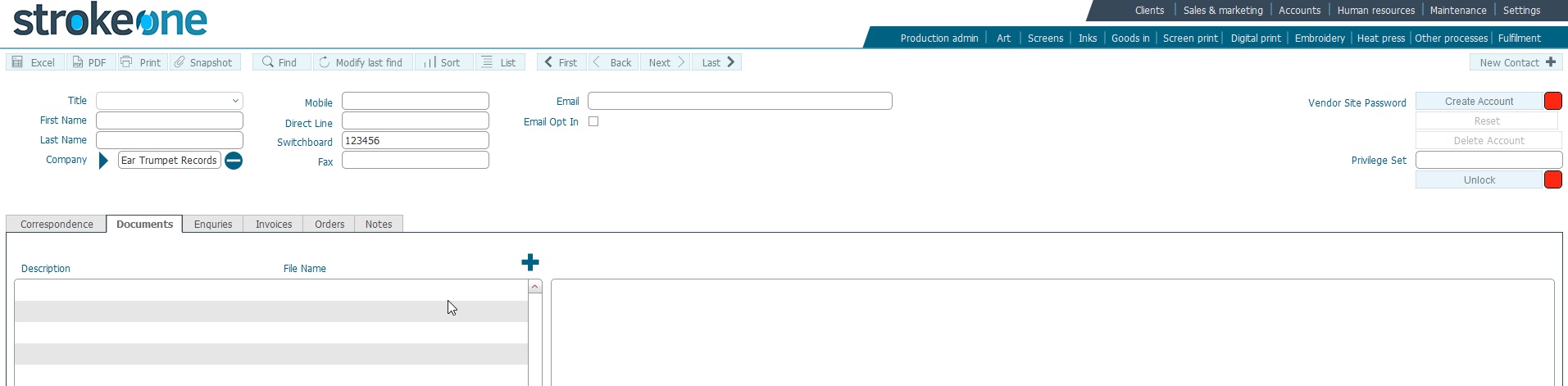
Populate the contacts form as outlined in the How to Create a New Contact topic
Note: When you initially create a new company, the On Hold status is set as Amber. You may need to review and amend this
Related Topics