Ensure that you have logged onto strokeone, and that you can see and access the companies button in strokeone home banner.
(Note: for this topic certain field values have been deliberately obscured in the screen-shots)
(Note: In the below sections/text, the numbers in (bold parenthesis) refer to the annotations in the above screen-shot)
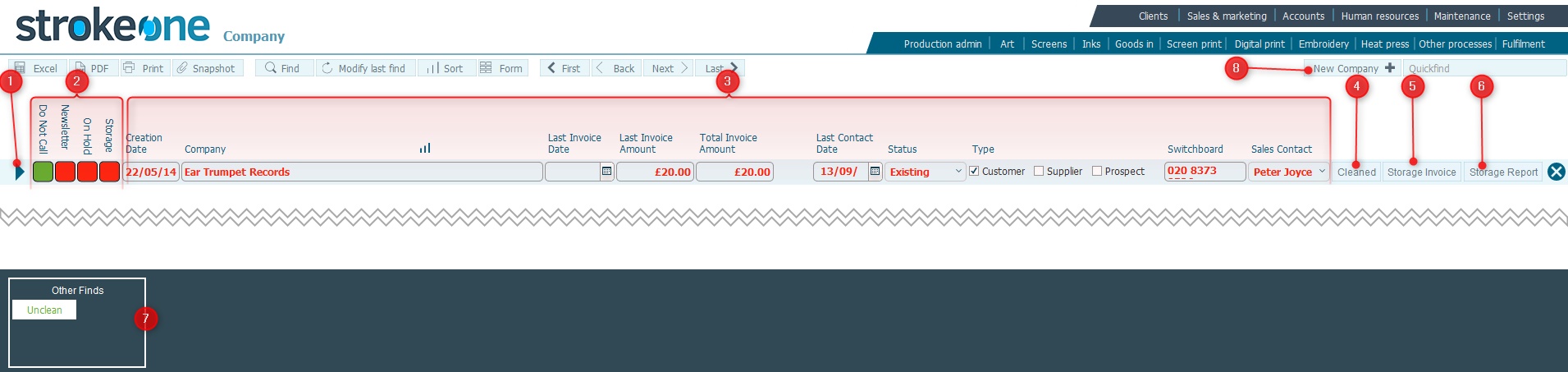
The layout is composed of the following elements:-
(1) Open record icon: Will navigate you to the Company Detail record.
(2) Preference Toggle buttons: these buttons indicate:-
Do Not Call: whether a company should be contacted.
Newsletter: whether they should receive a mailshot newsletter.
On Hold Status. This toggle button denotes whether a company is on hold (Red) on watch (Amber)
When set as on watch, the company name will appear in amber bold in various layouts throughout strokeone indicating to staff that additional checks should be taken before undertaking additional job orders, or despatching fulfilments.
When set as on hold, the company name will appear in red bold in various layouts throughout strokeone indicating to staff that additional checks should be taken before undertaking additional job orders, or despatching fulfilments.
Storage: This field can be set to denote that the Company should be received a bill for the costs associated with storing their stock.
(3) Company Record Data fields
Specifically the following fields are shown. These should be self explanatory but can be summarised as follows:-
Field |
Instructions |
Company |
Enter the name of the Company that you are creating the record for. |
Last Invoice Date |
Date the last invoice was raised for the company |
Last Invoice Amount |
The total amount of the last invoice |
Total Invoice Amount |
The sum total of all invoice amounts raised to date with the company. |
Last Contact Date |
This field lists the latest date of any contact that has been recorded with the company. |
Status |
Indicates the status of the company. The following are the
current valid statuses
|
Type |
Check boxes to indicate company's business relationship with Strokeone Software Limited
Note that a company can have multiple types. |
Switchboard |
Switchboard telephone number for the company. |
Sales Contact |
Shows the Internal Sales Contact responsible for the Company.
. This can be overwritten/set by selecting a value from the drop-down list. |
Note
that by clicking in any of the above fields you can edit
the stored value.
(4) Cleaned Button: will update the following records on the Company's Detail form:-
Date Cleaned: with Today ()
Cleaned By: withe the sign on name for the user who performed the action
The intention of these fields is to mark as "cleaned" any company
records that may have been provided by an external data source provider,
once they have been internally verified.
(5) Storage Invoice button. Clicking this will generate an invoice for storage costs
(6) Storage Report button: This will generate a report of storage costs for any client owned items that you are storing on their behalf.
(7) Built in Find button
These buttons initiate stored searches to be performed.
(8) New
Company Icon: Clicking this will create
a new company record.
Related Topics
How to create a Company Record