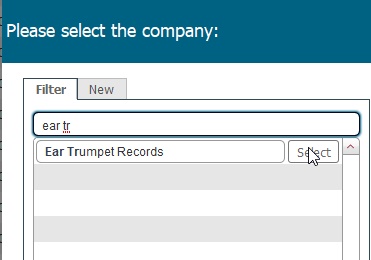
See Company Picker Dialog for more details on using this dialog

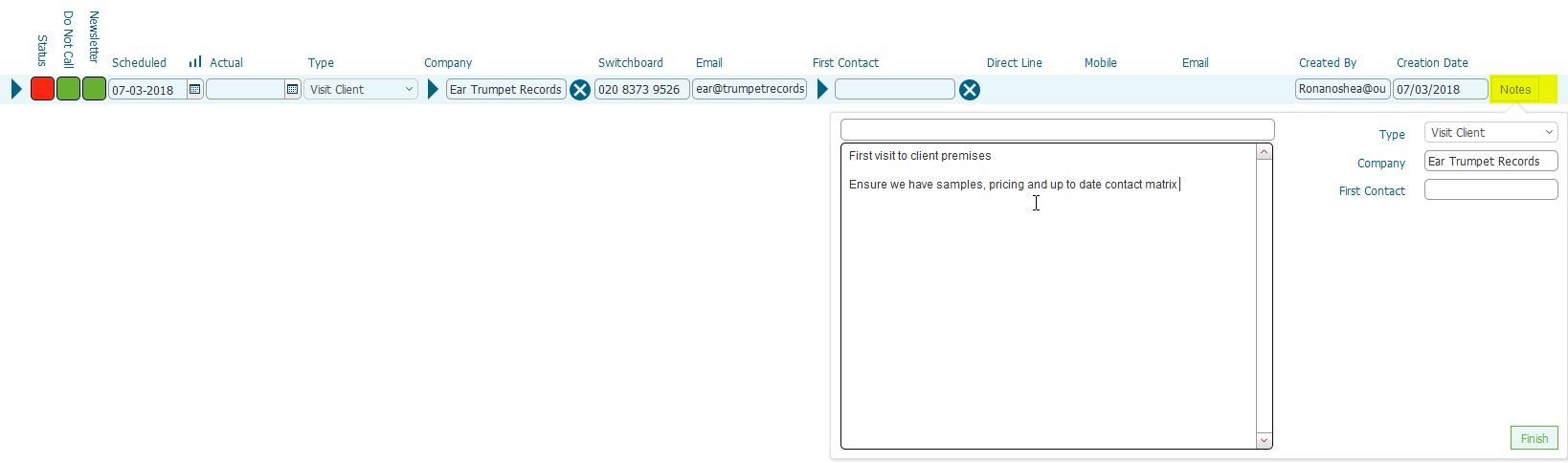
Field |
Comments |
Scheduled |
Set this with the date the call is scheduled for. |
Type |
From the drop-down, select the Type
of call, i.e. Client Visit |
Company |
The company that the call is scheduled with. This will
already have been populated with the company you selected
in step 3) |
Switchboard |
The switchboard number for the company |
The email address for the contact that the company |
|
First Contact |
The contact person at the company. |
Direct Line |
Phone number from the contact. |
Mobile |
Mobile number from the contact. |
The email address for the contact. |
|
Created By |
This is automatically stamped with your user name |
Creation Date |
This is automatically time-stamped with the date when you created the record in step 1) |