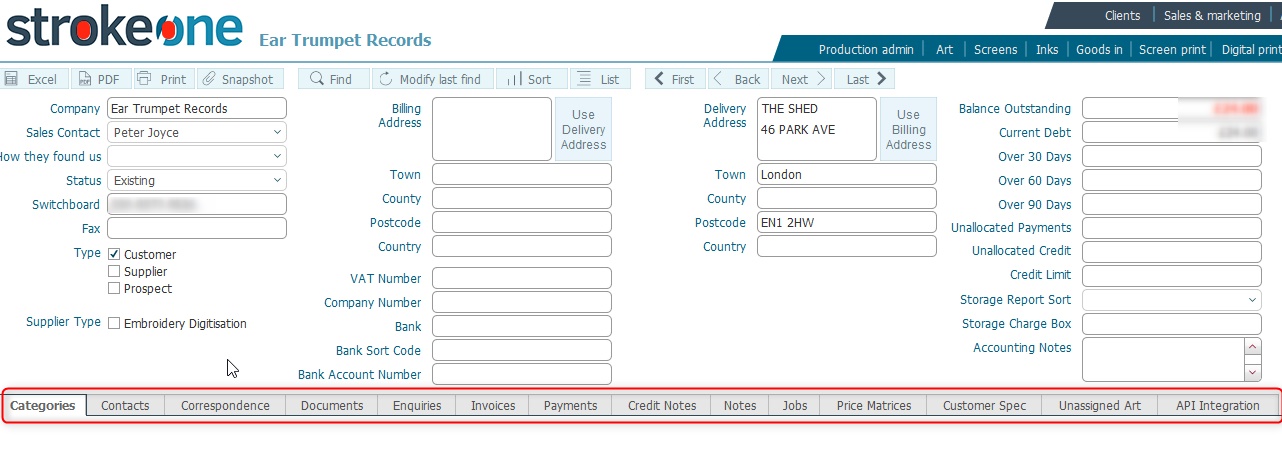
The Company Detail Record layout has a series of tabs at the bottom of the layout.
The data and functionality contained within each tab is outlined below.
This tab lists the category values that exist for the company.
Category values function as grouping names for a client's jobs which have a similar or common theme.
They are used when writing up jobs and are used throughout the system to quickly identify a group of records that belong together.
You can create a category value for the company within this tab by clicking on the new record icon on the right hand side of the layout.

entering the Category value,
and clicking OK
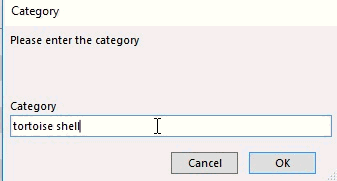
Once created, a category value
can be selected for a job order for the company.
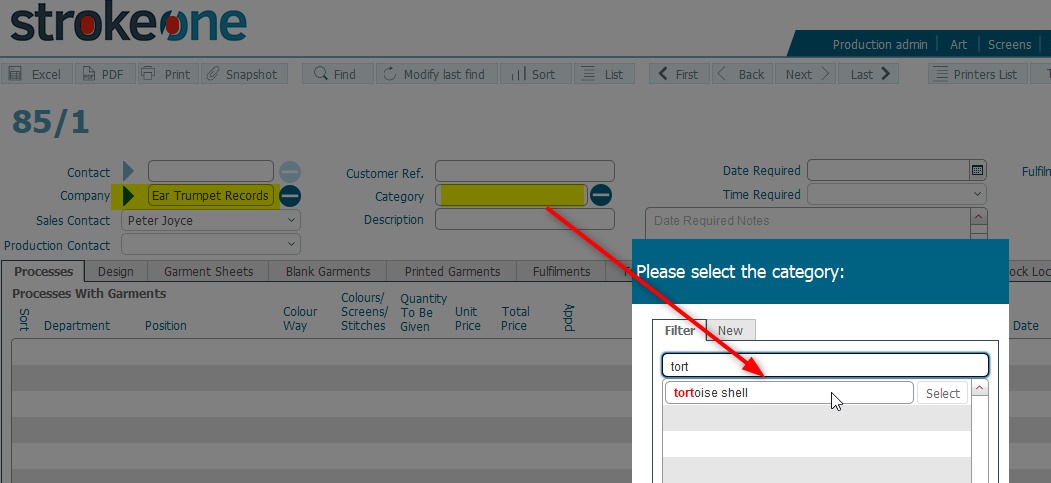
It is worth noting that category values can be created "on the fly" when a job order for a company is being written up. Any category values created in that way are stored here within the Categories tab.
As the name suggests, this tab lists contacts that have been set up for the Company, together with their email address, and contact numbers.

You can also perform the following functions from this tab:-
Clicking on  at
the left hand side of a contact will drill down to its detail
record.
at
the left hand side of a contact will drill down to its detail
record.
Clicking on  will
create a blank email with the recipient set per the address in
the Email field.
will
create a blank email with the recipient set per the address in
the Email field.
Clicking on  will allow you to create a new contact for the company - see How to Create
a New Contact for a description of the how to populate the
contact data fields.
will allow you to create a new contact for the company - see How to Create
a New Contact for a description of the how to populate the
contact data fields.
The correspondence tab lists details of any scheduled calls /communications between you and the company.
Items that are shown here are also displayed in the main Calls List Layout
Specifically the following fields are shown:-
Field |
Instructions |
Status Light |
An
indicator to show whether the scheduled correspondence has
been completed or not. |
Scheduled |
The date of when the call is due to occur |
Actual |
The date of when the scheduled call to the company actually occurred. This actual date can be set in one of following ways:-
a) Closing the Call by clicking the Finish button the Notes pop up on the main Calls List Layout b) Setting the date in this field c) Clicking on the Status light which will initiate the call close process. |
Type |
The Type of the Scheduled Call |
Contact |
The contact at the company whom the scheduled call is with. |
Additionally in this field, you can schedule a call with the company.
To do this:-
Click the new
record icon to the right of the pane
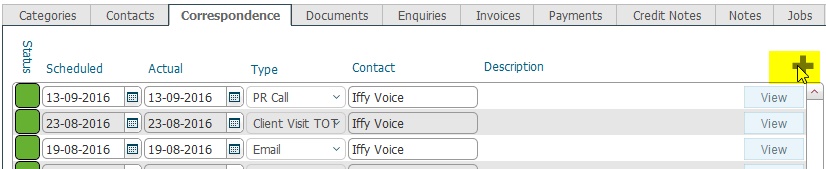
A new call record is inserted with a Scheduled date of today.

Edit / Populate the fields as needed:-
Set the Scheduled date
Set the call Type
Click the View
button, and you can enter some descriptive information into
the notes field

The call record is now also available to see / action in
the Call List Layout.

The documents tab provides container field functionality that allows you to store any externally created files or images against the company record.
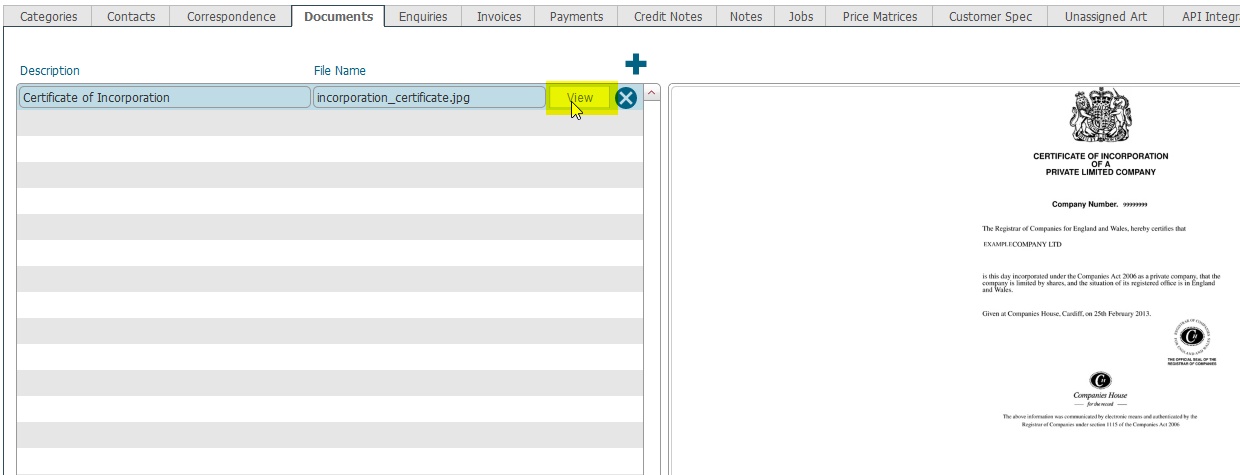 See How
to Insert a File into a container field for details of how to
insert a file using the container functionality.
See How
to Insert a File into a container field for details of how to
insert a file using the container functionality.
Click the view button on the left hand side, to see a preview of the file contents in the right hand pane. You can also extract the file to your local computer.
Functionality for this tab is not yet implemented
InvoicesSee Company Detail Invoice Tab for more details.
Dev: What is this used for that Invoices Tab doesn't cover ?
Dev: What is this used for that Invoices Tab doesn't cover ?
This tab allows you to insert a note onto the Company record
Click the new record icon
Add a description
Enter the note details into the large text pane

or you can click the view button to see the contents of any existing notes
Jobs
Dev: What is this used for ?
Functionality for this tab is not yet implemented
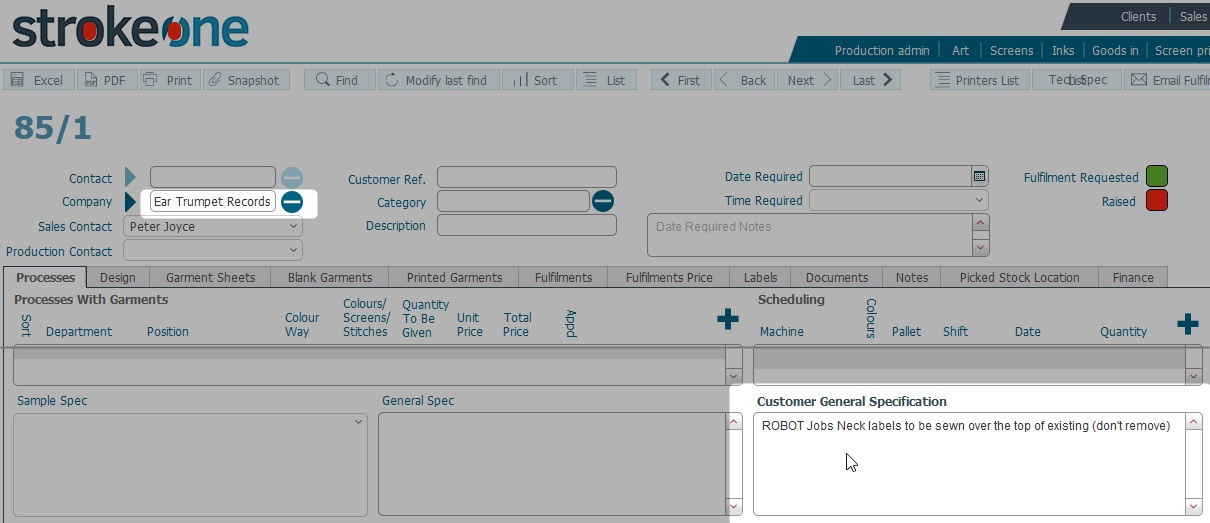
This tab allows you to enter textual information for :-
Customer General Spec
Customer Fulfilment Spec

essentially some generic instructions to be followed when the customer
places a job or fulfilment
order.
Any text that is entered into these fields on the Company Customer Spec tab is copied over and exposed on a Job order for the same company in the corresponding fields at the bottom of the for,
This tab allows you to see, and indeed add "Unassigned Art" received from a client.
Art that is received from a client but has not yet associated to a Job order is known as "Unassigned Art"

See Art Work Without A Job Layout for more details
Functionality for this tab is not yet implemented
Related Topics
© Copyright ,Strokeone Software Limited 2018