How to Populate Job Header Fields
About this Task
This topic outlines the steps necessary to accurately record the Job Header fields on a job order.
Note: This topic is written from
the perspective that a brand new
job order has been raised, and therefore assumes that all the header fields
are unpopulated.
If you have raised
a duplicate of an existing
job order, many of these fields will be pre-populated
and therefore might only require editing.
Background
Once you have raised
a new job order record, the next stage of writing up a customer job
order is to populate the Job Header
fields.
The job
header fields are shown below within the brace:-

Job header fields record basic
but vital information about the order, such as:-
Whom the job order is
for
What is the customer's internal
reference for their order,
Who are the internal
sales and production
contacts within your organisation
is responsible for the customer order.
The date by when the customer job order needs
to be completed.
It is essential that this information is
recorded fully and accurately to ensure that the job order can be processed
efficiently and without errors.
Prerequisites
Ensure that you have raised a new or duplicated job
before proceeding.
Procedure
- In the Contact
field, record the name of the person at the client company whom
the order originates from.
When you click in the Contact
field you activate the contact
picker dialog.
Use this functionality to locate
and select the client contact
Note:
- The contact picker dialog
allows you to create
a contact "on the fly" if it doesn't exist.
- A contact must be associated to a single
Company within strokeone. Therefore, when
you select a contact (or create one on the fly),the Company
field will automatically default with the corresponding
company to which the contact is associated.
- If you have already selected
a Company (step 2),
then the list of contacts shown in the contact
picker dialog will be pre-filtered
to show only those
associated to the selected company.
- The Company
field records the organisation which is placing the order. It should
automatically populate based on the selected Contact.
Note
a) It is possible to populate the Company
field before populating
the Contact field.
If you click within Company field you will activate the company
picker dialog, where you will be taken into a
filterable look ahead search dialog. to find and select the Company,
or if it doesn't exist, the company picker dialog will allow you to
create
a company record "on the fly"
b) As a Company can have one or more contacts, the corresponding Contact
field does not automatically populate
when company is selected. Therefore if you populate Company first,
you must return to the Contact field to select the corresponding client
contact.
Tip: Given
this, it is recommended wherever possible to populate the contact
first.
- The Sales Contact field
looks up the Sales Contact
person stored on the Company
record, for the Company defined in step 2).
If it does not default, (or you wish to overwrite it), use the drop-down
pick list to select the salesperson responsible for the customer
job order.
Note: This look up is a one
way relationship, in that it looks up the sales contact value when
you first select the Company
in step 2).
It is important to understand the following:-
- If the Sales Contact on a Company record is subsequently
changed it will not backfill
and populate the sales contact field on the job header with the
amended value.
Sales Contact field is used in
a couple of ways:-
It is used to denote the internal
person who should be contacted first before the client is contacted
regarding any job related matters.
It is used to denote the internal
sales person who may be attributed with revenue related commission
arising from this job order.
- Similarly, in the Production Contact
field, use the same drop-down list method to select the responsible
production staff member.
Note: the drop down list is
pre-filtered to only display those staff members flagged
with a Production Admin department
- Customer Reference field
is a free form text field used to record the customer's internal reference
for their order.
This reference will almost certainly be used by the client, both in
recognising the order and in communicating any information or assets
related to the order to your organisation and indeed in the invoicing
process.
.
Tip: Given this, It is
very important that this field is not only recorded whenever possible,
but it is recorded accurately..
- The function of the Category field is to store a grouping name
for jobs which will have a similar
or common theme. This assists with data finds /
sorts and other criteria.
An example of a category would be the band or artist name when the
job order is related to a music act.
Categories are selected via a filterable
type ahead search dialog. when you click in the field.
It is important to note that category
data is held on the Company
data object and is therefore client
specific.
Note: If category is not
available you can create it on the fly via a company
picker dialog. Functionally this works identically to company
picker dialog outlined in step 2) with the exception that it is used
for the category field.
Tip: Any category value you
create in this way is stored in the Categories
tab on the corresponding Company detail record.
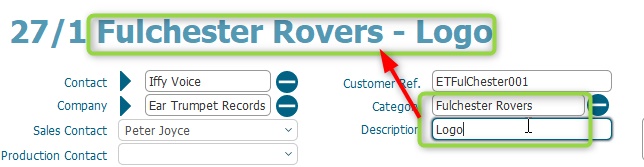
- The Description
field is used in conjunction with category field to further classify and identify
the customer order.
It is a free form text field and should be populated with a description
related to the actual design / imagery for the customer.
For example, consider an order from a customer for a series of screen
prints for a football team (Fullchester
Rovers).
One order would be for a print of the team's logo, another order would
be of the team manager's picture.
The job orders would be recorded as follows:-
Job |
Category |
Description |
1 |
Fullchester
Rovers |
logo |
2 |
manager face |
Tip:
A concatenation of the category and description
values is displayed above the job header files and is referred to as Job Name
Raised Icon.
This is a control button which when is initially set an Amber state
denotes to all other departments that the job order has not been fully
written up yet by the Production
Administration department. Production admin may have insufficient
information during the writing up of a job, and so will leave the
job in an unraised state until such time as they have all necessary
information.
Tip: Raised
status can serve as a useful field to include when sorting
and finding
job order records, as it allows you to quickly identify (and contact
the underlying customers for) those job orders that have missing or
incomplete information.
The Date Required field
records the date the customer order must be completed.
The field is a standard drop-down calendar picker
This is a key field to record, so
should always be populated.
Note: It does not denote the
time for the completed order,
nor the despatch method.
Date
Required will be enhanced to be a dynamic field, that is updated based
on the dates recorded on fulfilment records attached to the job order.
Essentially the earliest fulfilment date should overwrite this date
required (subject to validation)
Similarly, the Time Required
field is used to refine the Date Required value, and states the time
on the Date Required that the goods should leave the premises.
Date
Required Notes field is used to record information to embellish
and refine Date Required and
Time Required..
For example, it could add contain an actual time and state that the
client will collect the completed order.
Alternatively, it could contain information such as delivery to client
between a specific time slot
Given that there are a multiplicity of differing values that could
be applied here, the field is a free form text field.
Next Steps
Once the job header fields have been successfully populated, the next
steps of writing up a job order is optionally
to populate job footer
fields, and then to add
the required Process Lines
Related
Topics
Writing Up a Job Order
How
to select a value from a filterable list
How
to select an item from a drop down list
How
to Create a New Contact
How
to create a Company Record
How to Populate Job Footer
Fields
How
to Add Process Lines to a Job