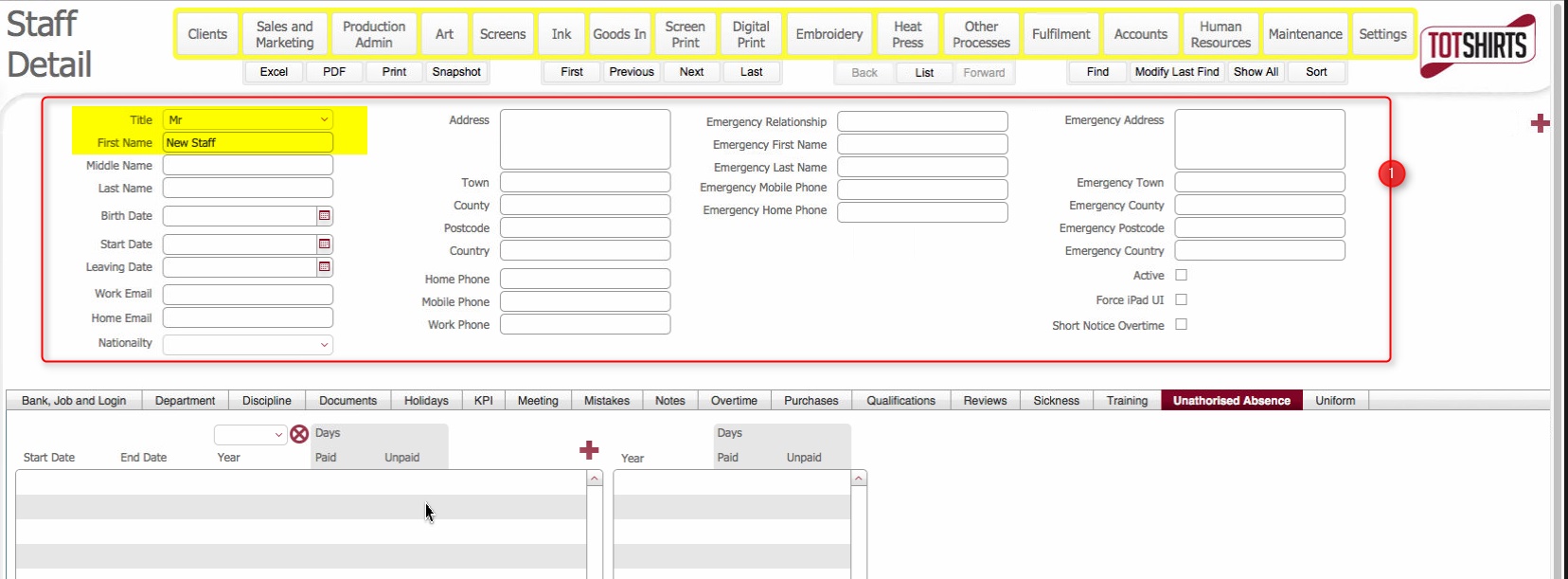
A Staff Detail record contains details pertinent to the Staff Member,
such as :-
In short, it is the primary placeholder object for recording information that relates to the Staff Member.
Additionally, having a staff member record is mandatory for any user who wishes to log into strokeone, as the logon information is held on this object.
Before you attempt to create a Staff Member detail record ensure that :-
Field |
Comments |
Title |
Select from the
drop-down the title applicable for the employee |
First Name |
Enter the first name of the staff member. Note:When a record is initially created, this defaults to "New Staff" |
Middle Name |
If applicable, enter the middle name for the staff member. |
Last Name |
Enter Staff member's surname |
Birth Date |
Enter the birth date of the staff member |
Start Date |
The start of staff member's employment. |
Leaving Date |
If a staff member leaves,.this field should be used to record their last date of employment. |
Work Email |
The work email address for the staff member. |
Home Email |
The staff member's home email address. |
Nationality |
Select from the
drop-down the employee's nationality |
Address |
Employee's Home Address details |
Town |
|
County |
|
Post Code |
|
Country |
|
Home Phone |
Employee's Home Phone number |
Mobile Phone |
Employee's Mobile Phone number |
Work Phone |
Employee's Office Phone number |
Emergency Relationship |
Relationship of Emergency contact to employee - e.g. Husband, Parent |
Emergency First Name |
Emergency Contact's First Name |
Emergency Last Name |
Surname of Emergency Contact |
Emergency Mobile Phone |
Mobile and Home telephone numbers for Emergency Contact |
Emergency Home Phone |
|
Emergency Address |
Employee's Contact's Address details |
Emergency Town |
|
Emergency County |
|
Emergency Post Code |
|
Emergency Country |
|
Active |
Dev: TBC: Need to define / identify this function |
Force ipad UI |
Dev: TBC: Need to define / identify this function |
Short Notice Overtime |
Dev: TBC: Need to define / identify this function |
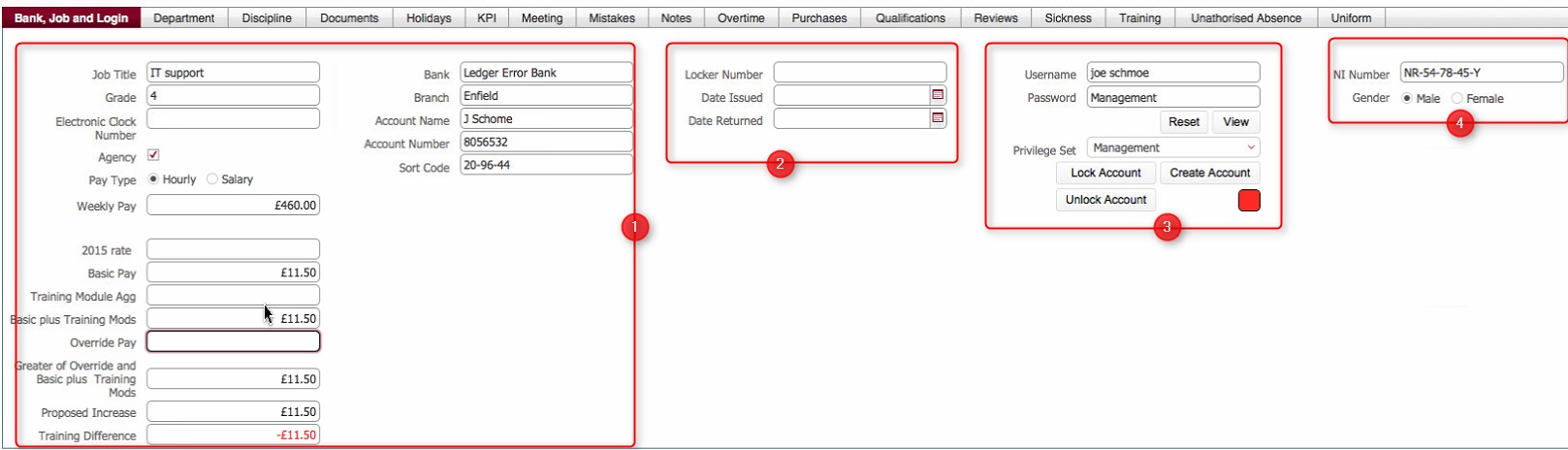
There are several tabs on the Staff Detail record that contain data fields
that should be populated
# |
Field |
Comments |
1 |
Job Title |
Enter job title classification. |
1 |
Grade |
Enter the Grade / Level that the employee is currently at. |
1 |
Electronic Clock Number |
If applicable, enter the identifier for the employee on any clocking system used. |
1 |
Agency |
Checkbox to indicate whether the staff member is directly employed or via an agency |
1 |
Pay Type |
Set the radio button to reflect how the employee's pay is calculated, whether on an Hourly or Salary basis. |
1 |
Weekly Pay |
Automatically calculated field based on (Greater of Override and Basic plus Training Mods * 40) |
1 |
2015 rate |
Records the hourly rate for the employee for the previous year. |
1 |
Basic Pay |
Enter here the standard hourly rate for an employee at the
defined grade and department. Note: This records what
the standard pay is for an employee of this grade and within their
defined department. This is not necessarily what the hourly pay
for an employee will be. |
1 |
Training Module Agg |
If the employee has passed any training modules, the monetary value of these will be shown here. |
1 |
Basic plus Training Modules |
Automatically calculated field:- |
1 |
Override Pay |
If the employee will be paid greater than Basic Pay plus the value of training modules that they have passed, you should record this "override" hourly rate here. See Understanding Relationship Between Training Modules and Pay for more details. |
1 |
Greater of Override and Basic plus Training Mods |
Automatically calculated field:- |
1 |
Proposed Increase |
Automatically calculated field:- |
1 |
Training Difference |
Automatically calculated field designed to determine whether
a staff member is overpaid relative
to the training they have completed. That is, it looks
at their current Override Pay
and determines whether this is in
excess of Basic Plus Training Mods. If it is, it results
in a positive difference amount indicating that the staff member
is overpaid. This provides managers with a metric that they should action. Namely, the staff member should undertake and pass training modules to bring their skill levels up to the commensurate pay level.[Mathematically, Basic plus Training Mods >= Override Pay]
See Understanding Relationship Between Training Modules and Pay for more details. |
1 |
Bank |
Enter the name of the employee's Bank |
1 |
Branch |
Enter the Branch of Bank that holds the employee's Account. |
1 |
Account Name |
Enter the Employee's Account Name. |
1 |
Account Number |
As above but for Account Number |
1 |
Sort Code |
Enter the Sort Code for the Bank Branch. |
|
||
2 |
Locker Number |
If applicable, enter the Locker Number issued to the employee |
2 |
Date Issued |
Enter the date that Locker Number was issued. |
2 |
Date Returned |
Should the Locker Number no longer be issued to the employee, record the date that it was returned. |
|
||
3 |
Username |
These fields govern the employee's user logon
account for accessing strokeone. |
3 |
Password |
|
3 |
Reset Button |
|
3 |
Privilege set |
|
3 |
Lock Account |
|
3 |
Unlock Account |
|
3 |
Create Account |
|
|
||
4 |
NI Number |
Enter the employee's National Insurance Number |
4 |
Gender |
Set the radio button for the employee's gender. |
# |
Field |
Comments |
1 |
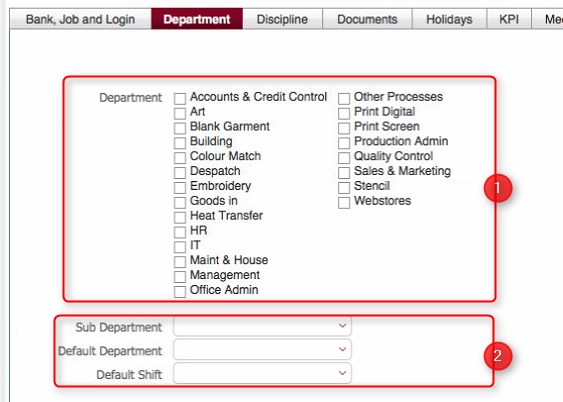
Department |
Set the check-boxes for the departments that the employee is associated to.
Notes:
|
2 |
Sub-Department |
Depending on the value selected in Default Department, you may be able to select a Sub-Department to further classify the employee.
Note: Sub Departments (and their linkage to a " parent" Department)is maintained in system, settings.
|
2 |
Default Department |
Select from the drop-down the default department for the
employee. Notes:-
|
2 |
Default Shift |
Select the shift pattern that the employee is associated to.
|
Related Topics