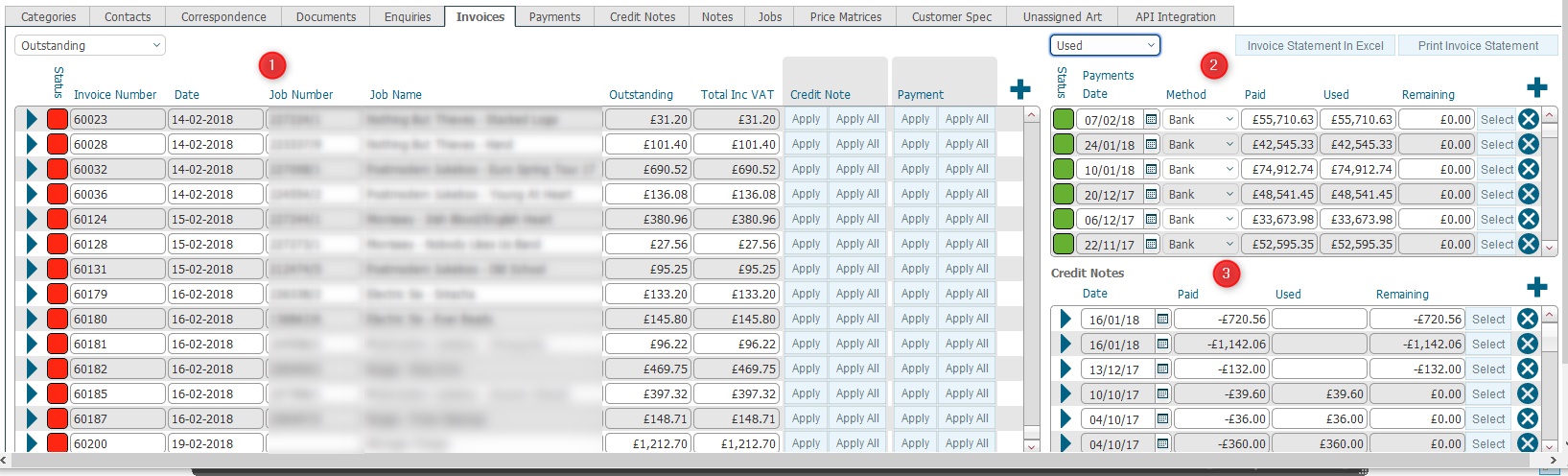
The Invoices tab contains information regarding invoices raised against the company, and the payments received from them in respect of this.
It has three main panes as outlined below.
(Note: for this topic certain field values have been deliberately obscured in the screen-shots)
(Note: In the below sections/text, the numbers in (bold parenthesis) refer to the annotations in the above screen-shot)
(1) Invoice Pane
This pane lists invoices that have been raised
against the customer.
Specifically the following information is shown.
Field |
Type |
Comments |
Payment Status selector |
Filter |
This drop down filters the list of invoices displayed in
this pane according to their payment
status. It can be also be set as :-
|
Open record |
icon |
will open the detail view for the corresponding invoice. |
Invoice Status |
Status icon |
Denotes the current paid
status of the Invoice. Amber:Payment has been applied to the invoice, but there is still an amount due, i.e. Outstanding > 0 Green:The invoice has been fully paid, i,e, . Outstanding = 0 |
Invoice Number |
Numeric |
The internal invoice reference number |
Date |
Date |
The date the invoice was raised. |
Job Number |
Numeric |
The reference number for the internal order that the invoice was raised in respect of. |
Job Name |
Text |
The Job Name field is a concatenation of the category and description fields from the corresponding Job Number |
Outstanding |
Money |
Calculated field (Total
Inc Vat) minus @sum of (all payments
allocated) to this invoice.
|
Total Inc Vat |
Money |
A calculated field which shows the grand total of all the charges on the invoice including VAT. |
Credit Note: Apply |
Button |
This allows you to allocate a defined amount of a specified credit note as payment towards the invoice. |
Credit Note: Apply All |
This allows you to allocate the whole amount of a specified credit note as payment towards the invoice. |
|
Payment: Apply |
This allows you to allocate a defined amount of received monies as payment towards the invoice. |
|
Payment: Apply All
|
This allows you to allocate the whole amount of received monies as payment towards the invoice. |
Note: The contents of the pane
are filtered so that only invoices that are wholly or partially unpaid
are displayed.
(2) Payments Pane
This pane is concerned with payments that have been received from customers
in respect of their invoices.
Specifically it provides the following functionalities
Field |
Comments |
Payment Utilisation filter |
This drop down filters the list of payments displayed in
this pane according to their utilisation
status. It can be also be set as :-
|
Invoice Statement in Excel button |
Clicking this will save an invoice statement in Excel format, allowing you to save this to your local computer. |
Print Invoice Statement button |
Clicking this button allows you to generate an invoice statement for the company. |
Status |
Denotes the status of how the received payment has been
allocated towards any
invoices:- Red: No amount of the received payment has been allocated towards invoices, i.e. Used amount = zero Amber: Part of the received payment has been allocated towards invoices, i.e. Remaining amount > 0 Green: All of the received payment has been allocated towards invoices, i.e. Remaining amount = 0
|
Date |
The date that the payment was received from the Customer. |
Method |
The method by which the customer made the payment., e.g. Cash Credit Card |
Paid |
The amount of the payment received from the customer. |
Used |
The amount of the received payment that has been allocated towards an invoice. |
Remaining |
Calculated field (Paid)
minus (Used)
|
Enhancement: Request raised to be able to generate a payments report from this pane.
(3) Credit Notes Pane
This pane is concerned with credit notes that have been issued to customers.
Specifically it provides the following functionalities
Field |
Comments |
Date |
The date that the credit note was issued to the customer. |
Paid |
The amount of the credit that was issued to the customer via the credit note. |
Used |
The amount of the credit note that has been allocated towards an invoice. |
Remaining |
Calculated field (Paid)
minus (Used)
|
Related Topics
Recording Payments Received from Companies
Generating a Customer Invoice Statement
Issuing a Credit Note to a Company