(Note: In the below sections/text, the numbers in (bold parenthesis) refer to the annotations in the above screen-shot)
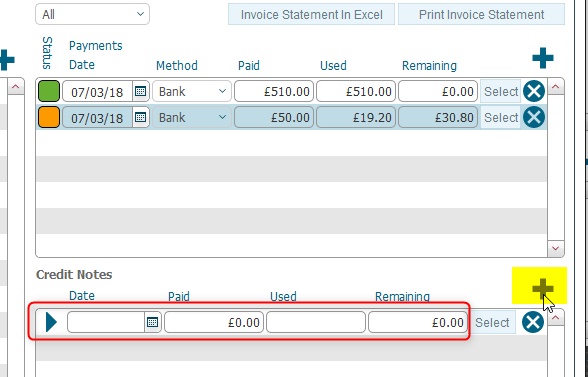 This blank record needs
populating.
This blank record needs
populating.
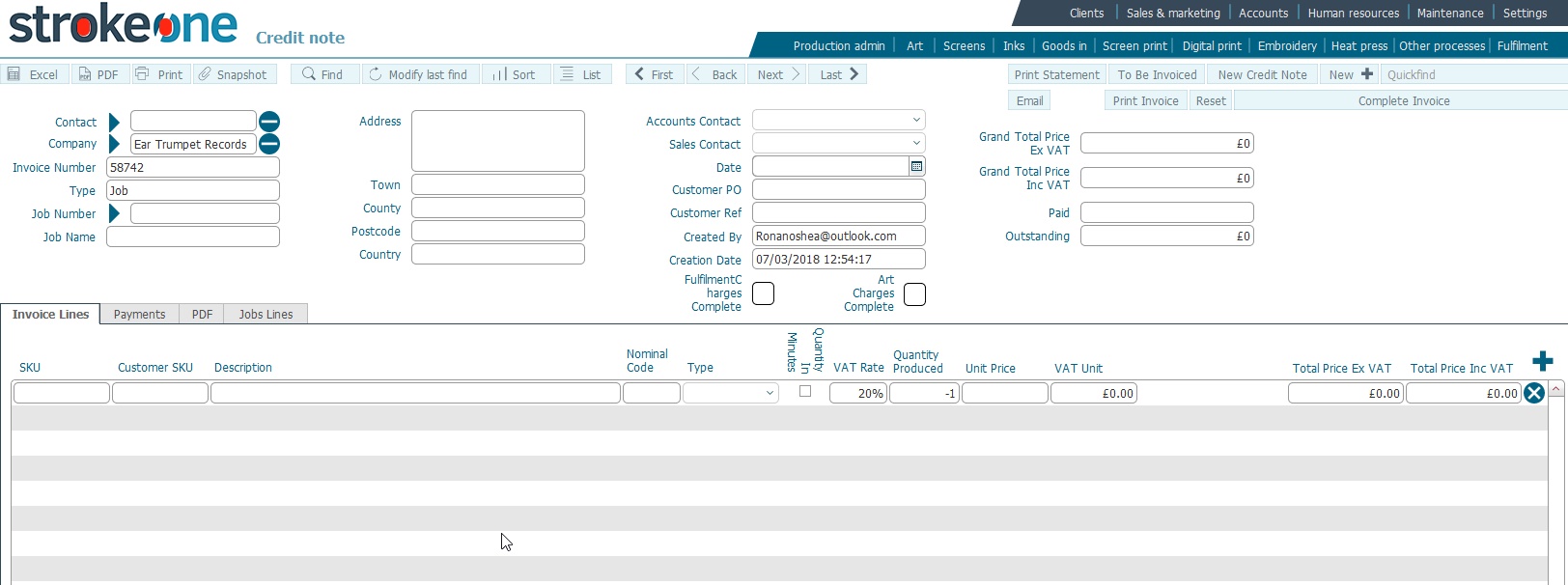 Note that
the company name and address should already have been
populated.
Note that
the company name and address should already have been
populated.
Credit notes can be issued for a variety of business reasons:-
Refunding a client.
Correcting mistakes on client orders
Providing a discount to the client.
Irrespective of the reason for why they are issued, conceptually credit notes have a monetary value that the client can use to offset against money that they owe.
Viewed from this perspective, they function identically to payments that the clients makes, in that :-
They have a monetary value that needs to be recorded.
They can be used to pay-down the outstanding amount(s) of invoices. That is they can be allocated towards invoices.
They key exception being that they do not represent physical money received
to your Bank from the client.
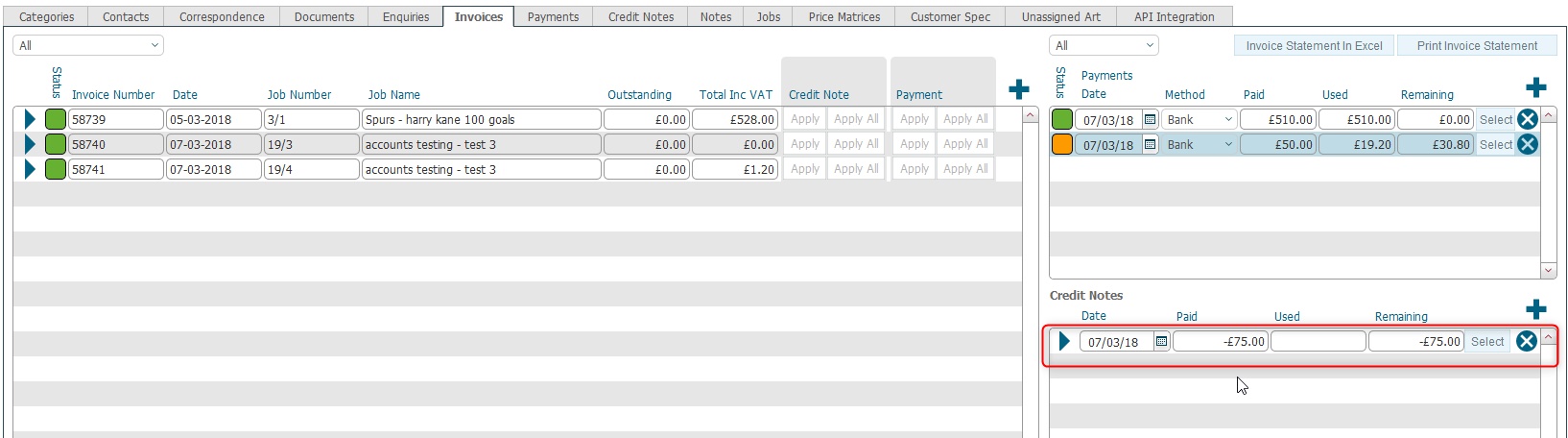
This topic outlines how to record in strokeone that a credit note has been issued to a company.
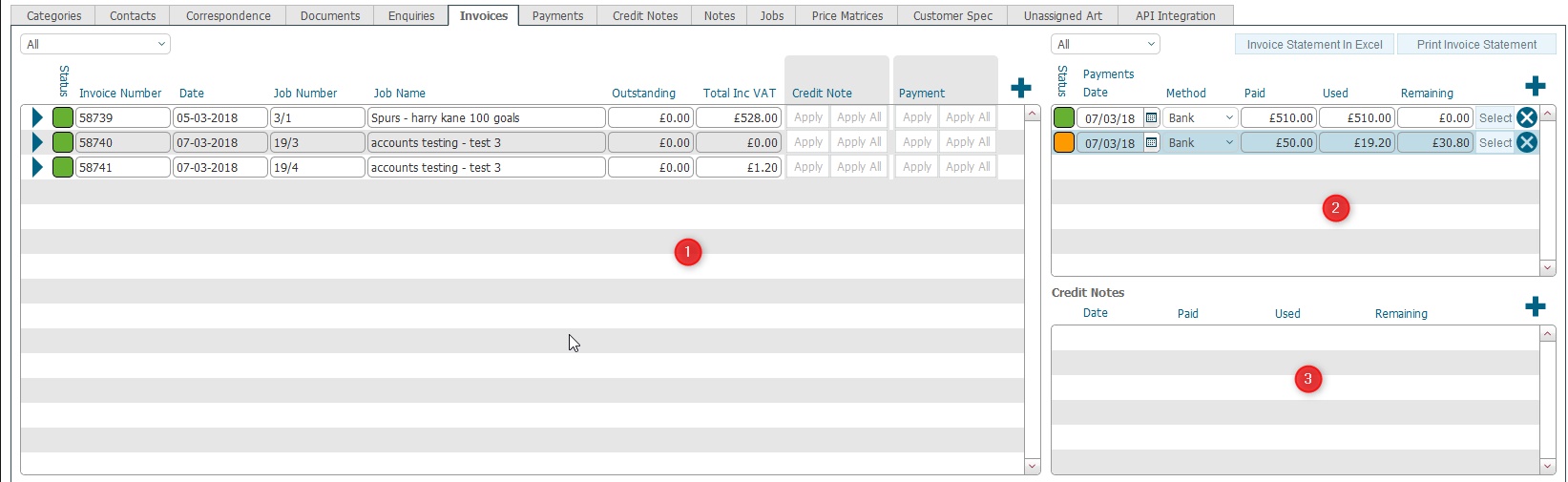
Ensure that you have logged onto strokeone, and that you can see and have opened the detailed layout of the company whom have issued the credit note to.
(Note: In the below sections/text, the numbers in (bold parenthesis) refer to the annotations in the above screen-shot)
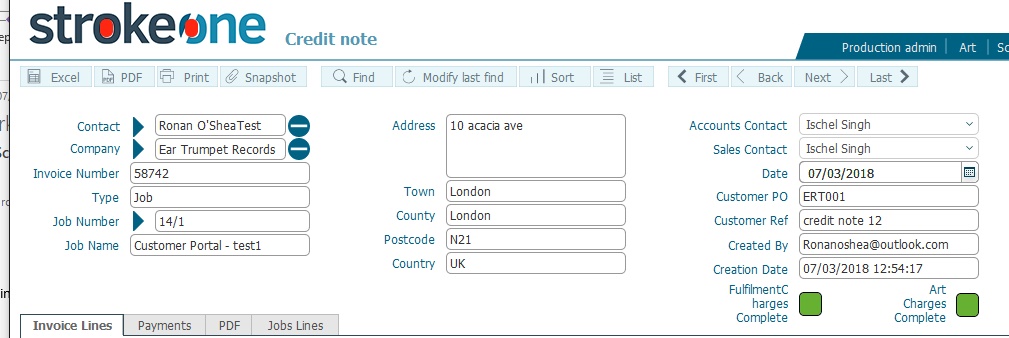
This blank record needs
populating.Note that
the company name and address should already have been
populated.
Stage One: Populating
Credit Note Header fields
Stage
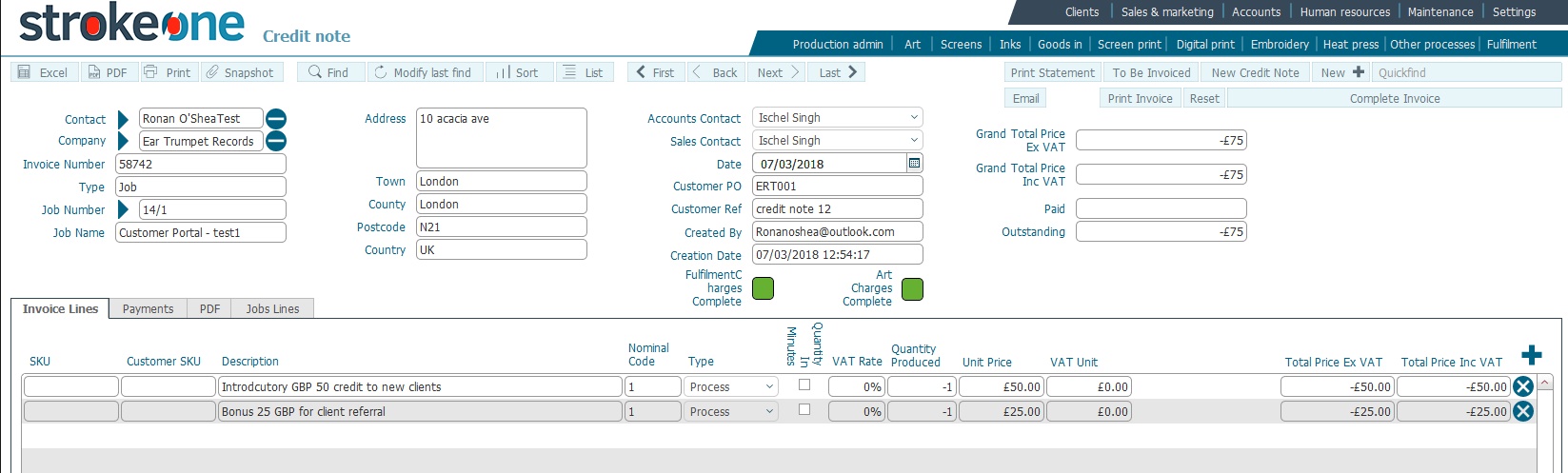
Two Populating Credit Note details

Related Topics