Marking an Invoice as Ready
Background
Once an invoice has been fully populated with all charges that it should contain, the next stage in the processing life-cycle is to mark is as ready. This essentially denotes that the invoice is finalised from a content creation perspective and is ready to be sent to the customer for payment.
Note: For control and security purposes, once an invoice is marked as ready, then it is locked down. That is, the substantive content of the invoice cannot be amended in anyway. Should any entries be erroneous, then they will be needed to be compensated for by other means (issuing a credit note or similar)
In short, invoices should be marked as ready once they have been checked for accuracy and completeness.
About this Task
This topic outlines the steps necessary to mark an invoice as ready
Prerequisites
This topic assumes that
-
You have completed populating invoice content.
-
You are in the detail view of the invoice that you wish to mark as ready.
Procedure
- Click the Mark as Ready button in the Invoice Header
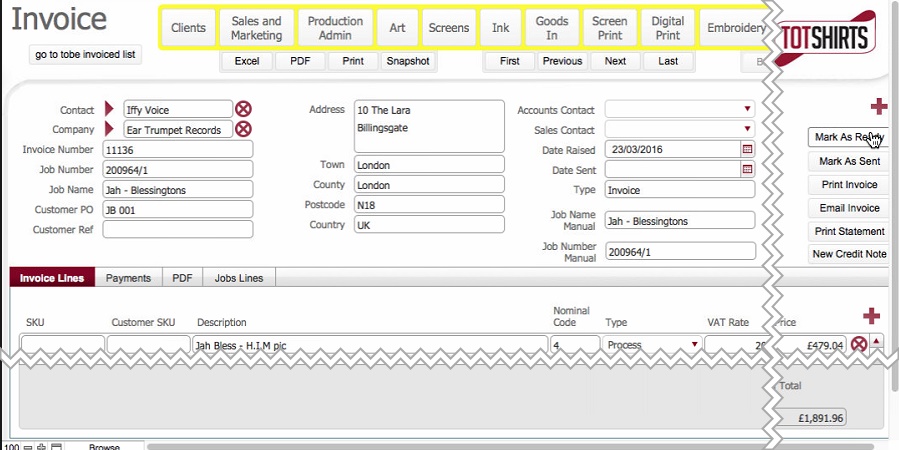
- Note the following that occurs:-
- The Mark as Ready button disables.
- The add record icon on the Invoice Lines tab is removed - i.e. it is no longer possible to manually add a charge onto the invoice.
- The delete record icon besides each data row on the Invoice Lines tab are removed. That is, it is no longer possible to
- The life-cycle status of the Invoice record is updated to Yellow
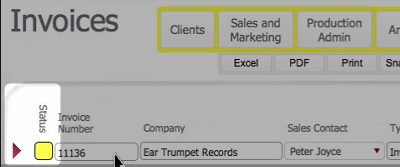
- The invoice is now ready to be sent to the customer.
Next Steps
The next stages of processing the invoice is to send it to the customer. Note that it might be sent by email, physically mailed or communicated in an alternate manner.
Related Topics
Marking an Invoice as Sent