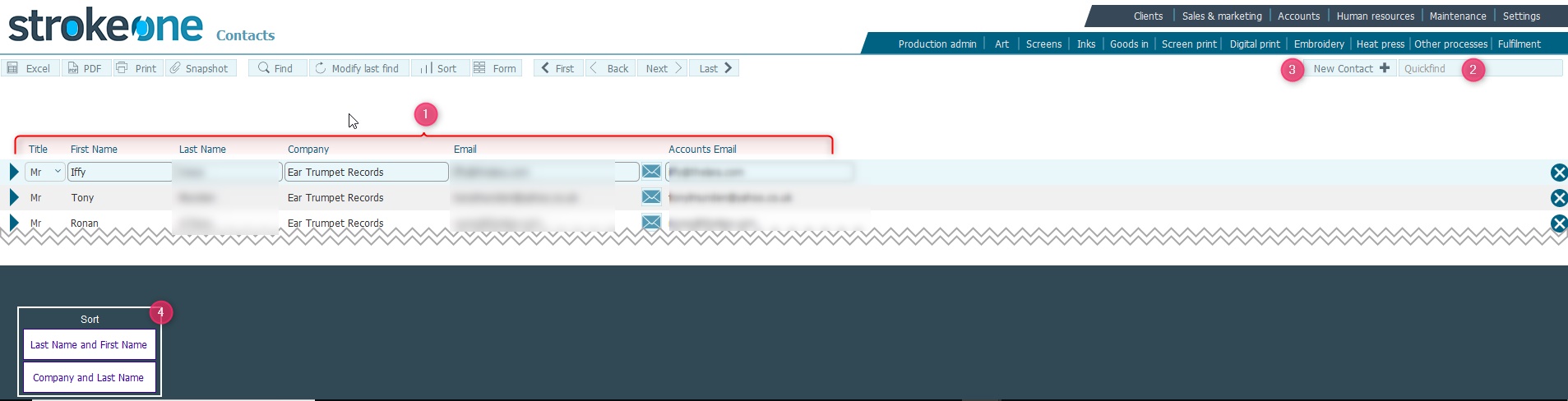

Ensure that you have logged onto strokeone, and that you can see and access the client button in strokeone home banner.
Field |
Instructions |
Title |
A drop-down list field to denote the contact's title. |
First Name |
A free form text field detailing the contact's Fore name(s) |
Last Name |
As above but for Surname |
Company |
The Company to whom the Contact is associated |
The primary email address for the contact |
|
Accounts Email |
The email address for the accounts contact at the Company |
Note Should you need to edit any
contact field that is not shown on this list view layout, you will need
to drill down to see the detail
contact record.
Related Topics