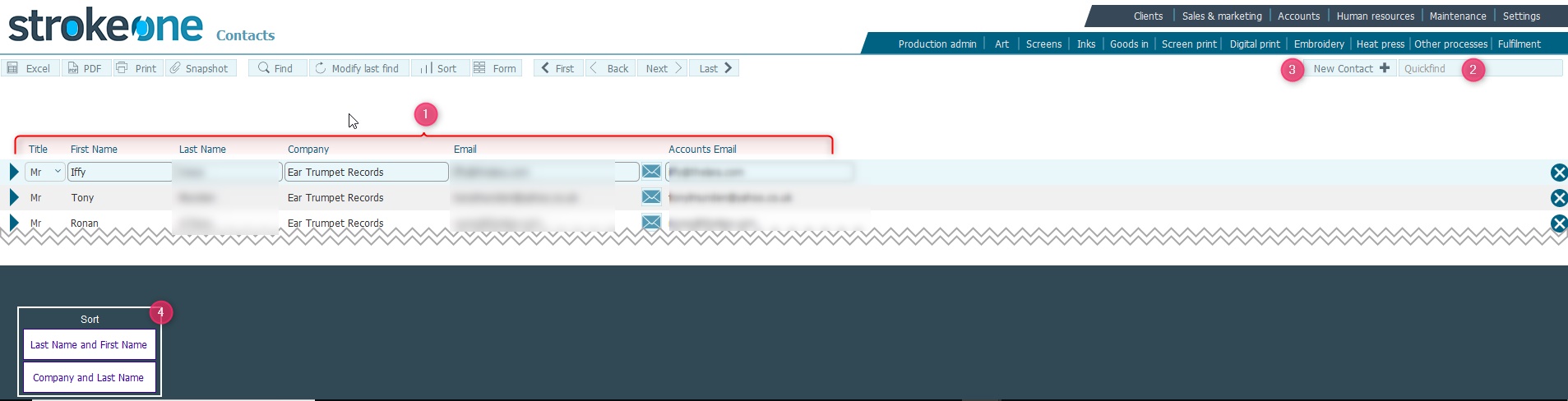
Ensure that you have logged onto strokeone, and that you can see and access the client button in strokeone home banner.
(Note: for this topic certain field values have been deliberately obscured in the screen-shots)
(Note: In the below sections/text, the numbers in (bold parenthesis) refer to the annotations in the above screen-shot)
The layout is composed of the following elements
(1) Contact Record Data Pane
Specifically the following fields are shown. These should be self explanatory but can be summarised as follows:-
Field |
Instructions |
|
Will drill down to the contact's detail record. |
Title |
A drop-down list field to denote the contact's title. |
First Name |
A free form text field detailing the contact's Fore name(s) |
Last Name |
As above but for Surname |
Company |
The Company to whom the Contact is associated |
The primary email address for the contact |
|
Email icon |
Clicking on this icon will cause a draft email to be created to address recorded in Email field. |
Accounts Email |
The email address for the accounts contact at the Company |
Note that by clicking in any of
the above fields you can edit
the stored value.
(2) Search Box
This can be used to enter criteria to return matching contacts.
See How
to Search Records for further guidance on how search fields operate.
(3) New Contact button
Use this to create a new contact record.
(4) Built in Sort Buttons
These buttons initiate stored sorts for the record set.
Related Topics
