Locate the items you are interested in ordering by entering some criteria in one or more of the header fields and processing the find.
See Viewing the Stock Items List for guidance on how to do this if required..
The stock Line items that match the search criteria entered in step 2) are displayed in the screen.
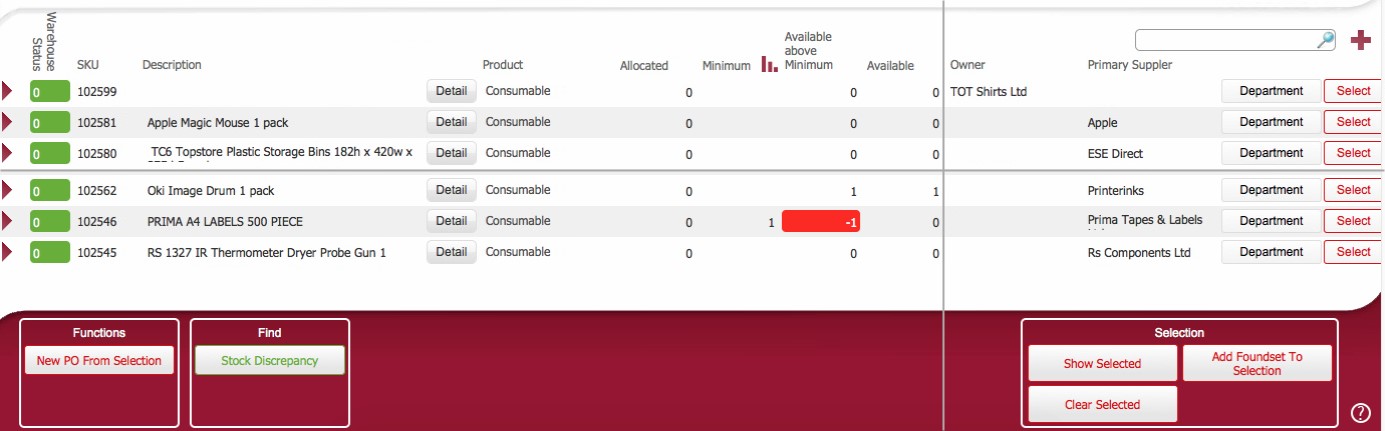
Note the Select button at the right of each data row.
Select an item that you wish to order, by clicking its select button
(Note the button label toggles from Select to Deselect)
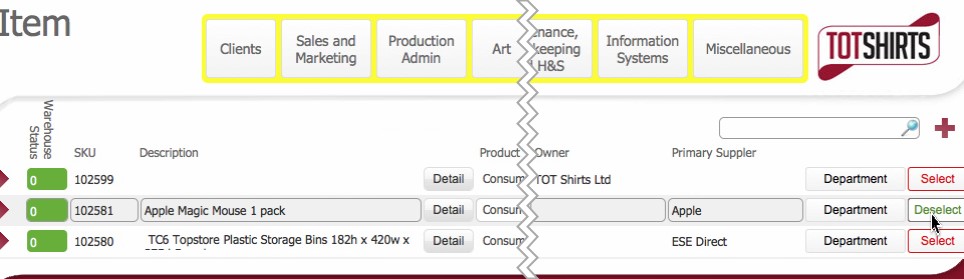
Repeat step 4) if you are ordering multiple items.
(Note though that when you place a purchase order it is placed with a single supplier - so you may wish to restrict the items you select to those which can be obtained from the same supplier).
Tip: if you accidentally select an item, click the button to toggle it back to unselected.
Once you have selected the items that you wish to order, you should review the items selected.
To assist you with this, you can use the Show Selected button on the bottom right to filter the screen to only show items that have been selected.
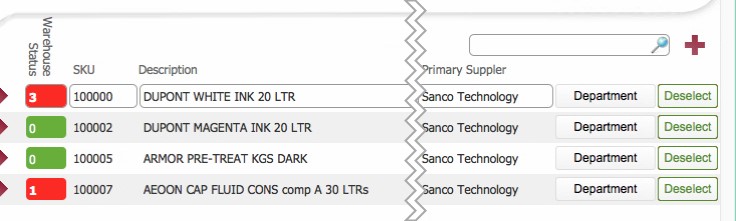
Once content, with your selection, click the New PO From Selection button in the bottom left of the screen.

You are presented a warning prompt outlining how many items you are going to order.
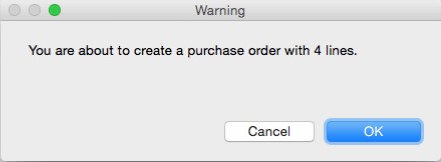
Click OK to continue.
A Purchase Order for the items selected in steps 4) to 5) is created in an in progress state.
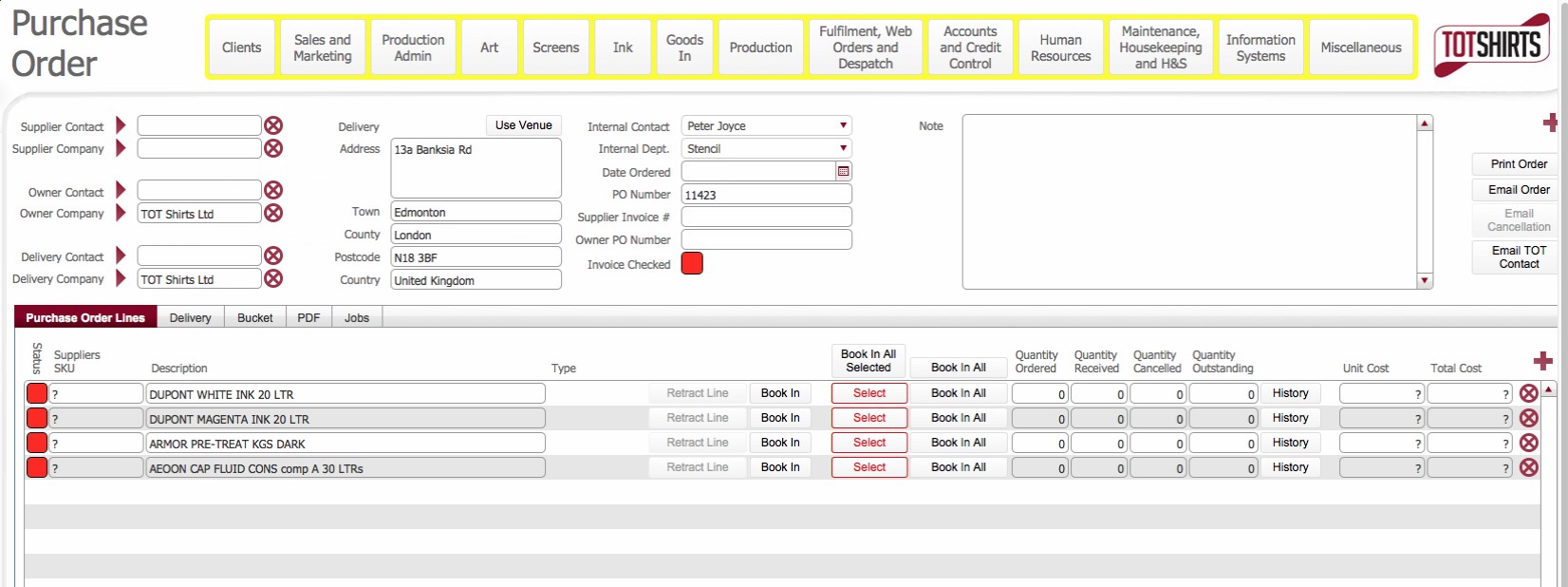
The purchase order needs to be fully populated before it can be sent.
See Populating and Sending a Purchase Order for the next steps.