Populating and Sending a Purchase Order
Background
Purchase orders are typically
raised
from specific areas within strokeone,
and therefore pre-populated with much of the information necessary
to place an order. However,.certain fields need to be populated before
the order can be considered finalised and communicated to the supplier.
About this task
This topic will instruct you how to populate the requisite fields on
an order, and then send it to the supplier.
Prerequisites
Ensure that you have opened a raised
but not yet finalised or sent a purchase order.
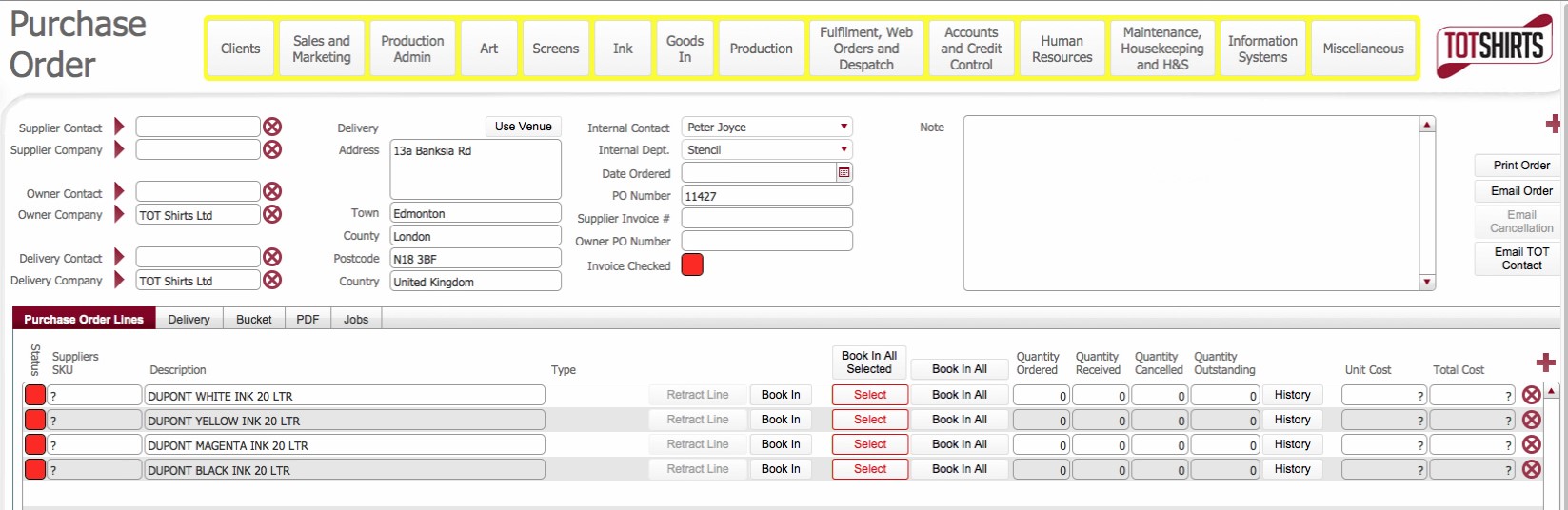
The Purchase order will look somewhat like this:-
Procedure
- Click in the Supplier Contact
field. This will activate the contact
picker dialog.
Use this functionality to locate
and select the supplier contact.
Note:
When created,
a Contact must be associated to a single
Company within .strokeone.
Therefore, when you select a supplier
contact, the Supplier
Company field will automatically
default with the corresponding company which the supplier contact
is associated to.
- The Supplier Company
field records the organisation with whom the order is being placed.
It should automatically populate based on the selected Supplier
Contact
Note
a) It is possible to populate the Supplier
Company field before
populating the Supplier
Contact field. If you
click with Supplier Company field you will be taken into a
filterable look ahead search dialog. to find and select the required
supplying company.
b) However, as a Company can have one or more contacts, the corresponding
Supplier Contact field does not automatically populate. Therefore
is you populate Supplier Company first, you must return to the Supplier
Contact field to select the corresponding supplier contact.
Given this, it is recommended wherever
possible to populate the supplier contact first.
- The Owner Contact and Owner Company reflect the owner
of the stock items that are being ordered. Typically the owner of
items being ordered will be Strokeone Software Limited,
and this will automatically have populated in Owner
Company.
However, there can be scenarios where a customer has ordered stock
directly from the supplier for delivery to Strokeone Software Limited,
either to be used in a job order or for another purpose. In these
scenarios, a purchase order needs to be raised internally to reflect
this (but not emailed or sent),
and provide a mechanism by which to reference the customer ordered
goods when they come in.
Should this be the case, then Owner Contact and Owner Company should
be populated with the details of the customer whom placed the purchase
order.
Mechanistically, populating these two fields is functionally identical
to populating Supplier Contact and Supplier Company, and again it
is recommended to select the Owner Contact field as this will cause
the Owner Company field to default.
- The Delivery Contact
and Delivery Company fields
denote the entity to whom the items contained on the purchase order
should be delivered, and as such they drive the defaulting of the
delivery address fields.
Typically, Delivery Company
will have been pre-populated with Strokeone Software Limited.
Delivery Contact will most
likely need to be populated, and reflects the person whom is expecting
the delivery. This may be the person whom is raised the order
To populate Delivery Contact,
click in the field to activate the Contact
picker dialog.
The Contact Picker dialog is
pre-filtered to show only those contacts that exist for the selected
Delivery Company.
Select the Delivery Contact
you need.
- The Delivery Address data
fields are taken directly from the address
fields that are populated
on the company which has been selected in the Delivery
Company field.
These can be overwritten if necessary.
If the order is to be delivered to a specific venue, click the Use Venue button will activate the
Venue Picker dialog to facilitate
this
- Internal Contact should
already be populated with the user whom created the purchase order.
If you need to alter this, click the drop-down arrow to display a
list of staff members.
- Internal Department is
pre-populated with the Default Department
value of the Staff Member
who has been selected as the Internal
Contact in step 6)
Again, you can alter this if necessary by selecting
another value from the drop-down list.
- In the Date Ordered field,
click to activate a calendar field and select the date the order is
placed.
TBC: This should be automated - set
as to creation date or emailed date **
- The PO Number field is automatically populated with the next internal
sequence number. This represents a unique internal reference
within Strokeone Software Limited
for this order.
- The Supplier Invoice #
can be used to record the corresponding invoice that the supplier
sends in respect of this purchase order. This information may not
yet be known at the time of the order being placed, but will be used
later by the accounts department.
- The Owner PO number field
should be populated when Owner
Contact and Owner
Company is not
Strokeone Software Limited,
and represents the reference that the customer whom placed the order
directly with the supplier has.
If the Owner Company is Strokeone Software Limited,
this field should not be populated.
- The Notes box allows you
to record any additional information regarding the order.
The Purchase Order Lines Tab

This tab shows the stock
line items that are being ordered via this Purchase order.
The following information is shown for each stock line item being ordered:-
Field |
Comments |
Status |
icon the receipt status of the stock line item on the order.
This will be red when the order has not yet been sent. |
Suppliers SKU |
The SKU reference (as known by the supplier) for the stock
line item. This is taken from the stock
line item record. |
Description |
The description of the stock line item |
Type |
This is blank for all stock line items except
Blank Screens, where it
can have one of two values:-
Newmeaning
that the blank screen is a new addition to the stock of blank
screens, and will therefore increment the quantity of blank screens.:
Restretch:meaning
the order is for an existing screen that was split and sent out
for restretching (repair) As such blank screens that have a type
of restretch do not increment the number of blank screens in the
warehouse, but they do decrement the number of screens that are
in the split pool when the purchse order is raised..
See Understanding
the Life cycle of a Screen for more details. |
Quantity Ordered |
This is the quantity of the stock line item being ordered.
Enter in here the numeric number you wish to order. |
Quantity Received |
This records the numeric quantity of the item that has been
received when one or more deliveries occurs on the purchase order. |
Quantity Cancelled |
This records the numeric quantity of the item that has been
cancelled
from the order. |
Quantity Outstanding |
This records the numeric quantity of the item that has been
ordered and is yet to be received.
Calculated as:-
Quantity
Ordered - Quantity Received - Quantity Cancelled. |
Unit Cost |
This is defaulted using the supplier
pricing data from the stock line item and represents the monetary
cost of one unit of the stock line item.
If necessary, and procedures allow, you can overwrite this. |
Total Cost |
Calculated field [Quantity
Outstanding * Unit Cost] |
- When you are populating a purchase order that has been raised from
elsewhere in strokeone,
you should only have to populate the Quantity Ordered value.
If you are satisfied that the order is finalised, proceed to step 21)
to send it.
However, you may wish to add
additional stock line items
to the order, in which case proceed to step 14)
- Click the new
record icon to the upper right of the Purchase
Order Lines Tab.
- The item
picker form appears
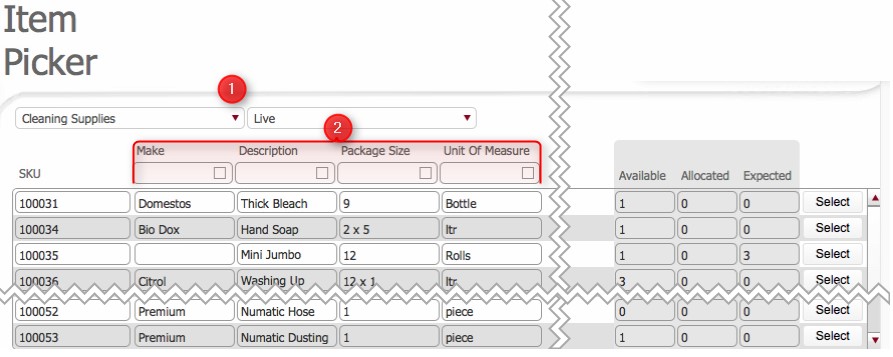
- In the Product type drop-down
(1), select the type of product
for the stock line item you want to add.
- The screen will list all the stock line items with a product type
that matches what was selected in step 16)
- You can further filter down the list of stock line items by entering
some search criteria in the product's attribute headers (2)
for example:-
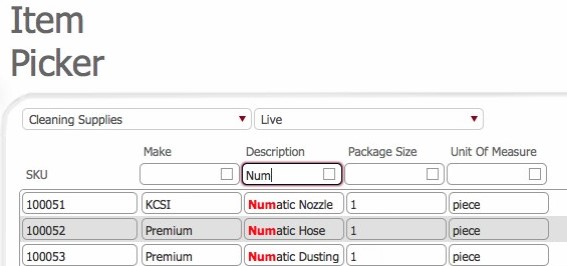
Note: The attribute
headers that are displayed vary according to the product
type selected in step 16)
- Once you have located the stock line item you wish to add to the
order, click the corresponding Select
button at the right of the row,
- Repeat steps 14) to 19) if you wish to add multiple stock line
items to the purchase order.
Sending
the Purchase Order
- Click the Email Order button
in the upper right of the screen.
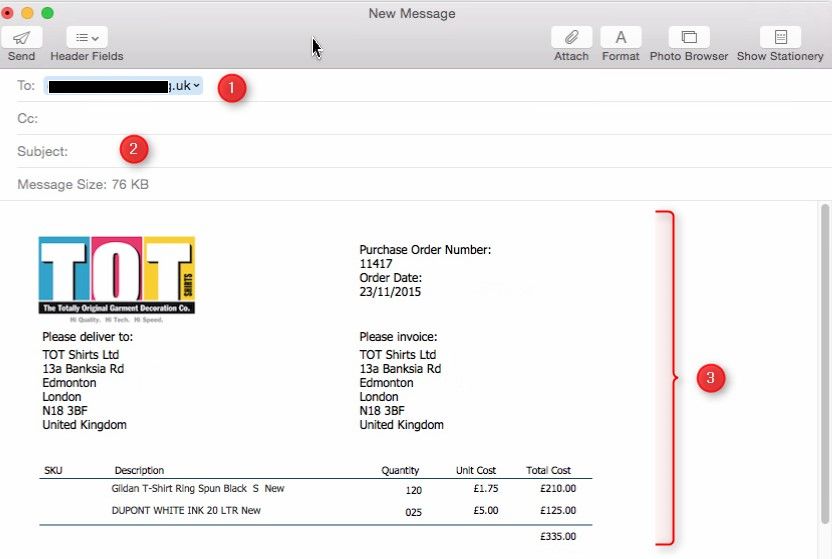
- This causes the following to occur:
- the default email application on your computer is opened
- strokeone
automatically creates an email with the following attributes:-
(1) To:
<email address for supplier_contact
on purchase order>
(2) Subject:
(3) Email Body Text: <the
purchase order key information, including delivery address, PO
Number, date ordered, invoice address>
Note: the Subject and body
text verbiage can be customised
if required
- The status
of the Purchase Order
updates to sent.
The purchase order cannot be modified now in terms of adding items
to it.
Items can however be cancelled
from it

- For audit purposes, a PDF record of the order sent is stored
against the purchase
order on the PDF tab
- Ensure that you send the
email from your email application
Related
Topics
Purchase
Order Statuses
Viewing Open
Purchase Orders