Purchase orders are the mechanism by which stock line items that come from external sources are requested,.received, processed and accounted for within TOT Shirts Limited
Purchase orders can be raised from several locations within strokeone:-
However, irrespective of where a purchase order originates from, it can be viewed (and processed) from the Purchase Order screen.
This topic will instruct you how to navigate to, view, and understand the meaning of the various statuses of an open purchase orders.
Ensure that you have logged onto strokeone, and that you can see and access the Goods In button in strokeone home banner.
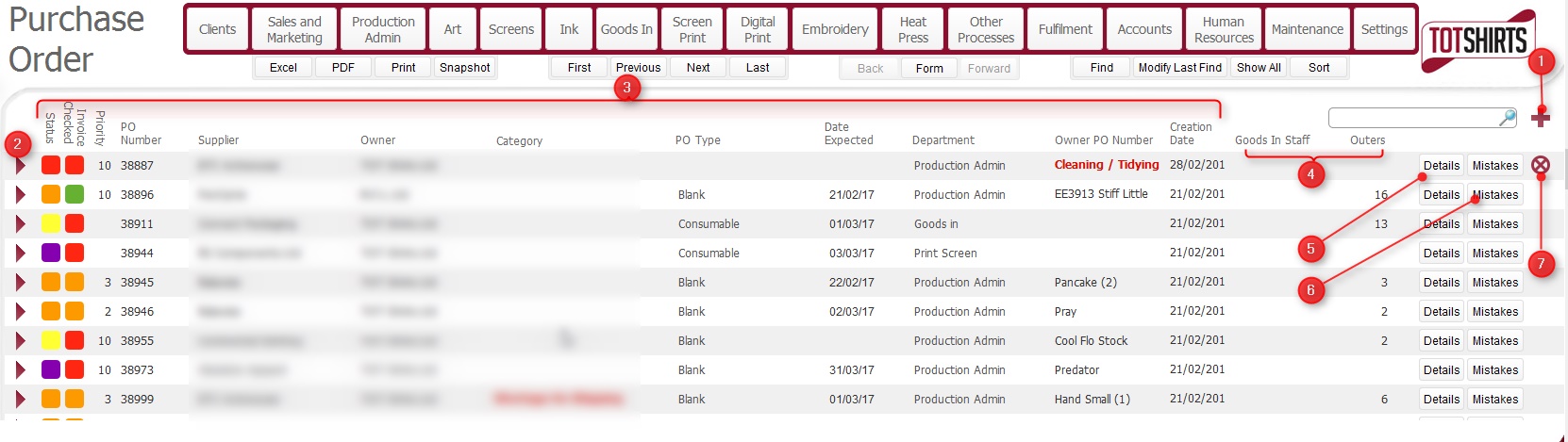
(Note: In the below sections/text, the numbers in (bold parenthesis) refer to the annotations in the above screen-shot)
(Note: for this topic certain field values have been deliberately obscured in the screen-shots)
This layout is composed of the following elements:-
(1) New record icon - Will
create a new purchase order
(2) Open record icon - will open
up the detailed record
for the Purchase Order, to allow further processing of
the order.
(3) Purchase Order basic data fields. Specifically, for each purchase order
listed, the following information is shown:-
Field |
Comments |
Status |
icon denoting the current status of the purchase order. See Purchase Order Statuses for more help. |
Invoice Checked |
Icon denoting whether the invoice from the supplier in respect of the purchase order has been received and checked |
Priority |
A free form field to allow you to record a relative priority for processing deliveries. |
PO Number |
The internal reference number for the order. |
Supplier |
The company with whom the order has been placed. |
Owner |
The company whom the goods ordered will belong to. |
Category |
The category assigned to the purchase order. Category values are used for classification / grouping purposes. This value is exposed to the external Totally Orginal Tracker along with other details of the purchase order and is often used by clients to identify their records. |
PO Type |
The type of products that the PO refers to - Blank Garments , Printed Garments etc, |
Date Expected |
The expected date of delivery for items ordered on the PO |
Department |
The internal department that created the purchase order. |
Owner PO Number |
If the order has been raised by a customer, this lists the order number from the customer. This is important as it may well be the reference number quoted when the goods are delivered. |
Creation Date |
The date the purchase order was created. |
(4) Goods In Allocation Fields. These fields (together with Priority) are used to allocate staff members to the task of processing deliveries received against purchase orders.
(5) Details
button Clicking this will display a pop-up window with several tabs
providing additional detail regarding the Purchase Order:-
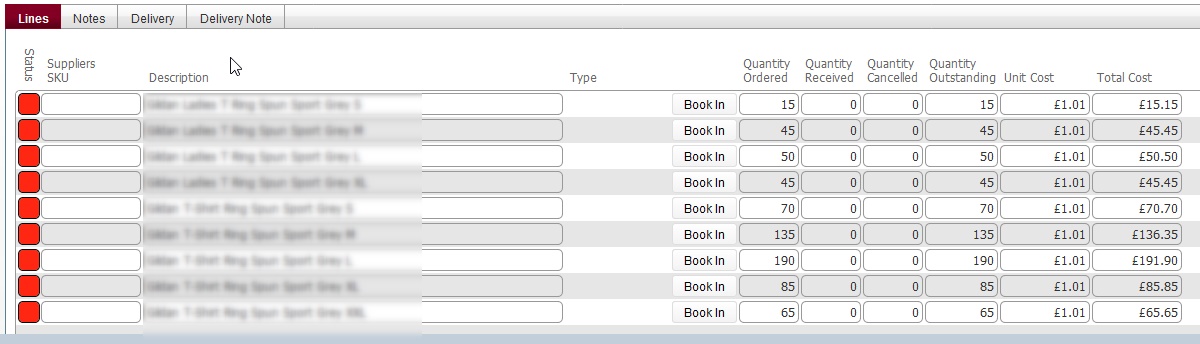
Lines tab: This lists the products ordered, together with quantities ordered / received / cancelled and outstanding, as well as product order cost. This tab also has a Book In button to allow you to book In Items received
Notes tab: Outlines any informational notes recorded
Delivery tab: outlines any deliveries that have been made against the purchase order.
Delivery Notes tab. If any additional information was recorded against a delivery, it will be shown here.
(6) Mistakes button: Will automatically navigate to the Job Line Mistakes layout, and automatically create a new mistake record.
(7) Delete record icon. Note that you
can only delete purchase orders that are in a status
of created, but not sent.
(Red)
Related Topics
Viewing a Purchase Order's Details
Populating and Sending a Purchase Order
Updating a Purchase Order to Record Delivery Received
Update a Purchase Order to Mark that the Delivery has been checked