Cancelling Items from Purchase Orders
Background
Once a Purchase order has been finalised and sent, it cannot be cancelled outright in strokeone. However, you may wish to
- reduce the ordered quantity of an item, or even
- cancel in entirety an ordered stock line ordered
from a purchase order.
You may wish to do this for a variety of business reasons:-
- the item is no longer required
- the supplier's delivery date may exceed the required date for the item
- the client no longer requires the item
Functionality for both a) and b) exists within strokeone.
About this task
This topic will instruct you how to process the cancellations on a purchase order.
Restrictions
Although it should be self evident, it is worth bearing in mind that you cannot cancel items or reduce quantities of items ordered on a purchase order that is completed.
Prerequisites
Ensure that you have located and opened the purchase order that you wish to process cancellations on.
Procedure
- Navigate to the Purchase Order Lines Tab.

- Locate the ordered stock line item that you wish to cancel outright or reduce the quantity ordered for.
There are two scenarios
- You wish to reduce the quantity ordered, i.e. cancel some of the quantity ordered.
- You wish to cancel the order quantity outright.
- For the purposes of explanation in this topic, we will cancel outright the first item (Dupont White Ink) , and reduce to 25 the ordered quantity of the last item (Aeoon Cap Fluid).
Cancelling a Stock Line item order in entirety
- Besides the stock line item you want to cancel in entirety [Dupont White Ink entry] , click the Retract Line button,
and in the Quantity Cancelled field, enter the <Quantity_Ordered>
e.g..
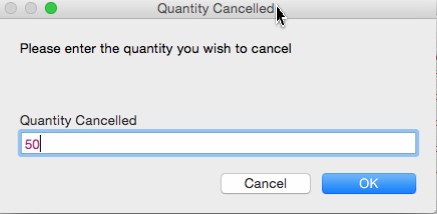
and click OK
- Note the following that occurs:-
- Quantity Cancelled is set with the quantity entered in step 4)
- Quantity Outstanding is recalculated [Quantity Ordered - Quantity Received - Quantity Cancelled], i.e. zero in this example.
- Total Cost for the line is updated to zero.[Quantity Outstanding * Unit Cost]
- The status for the stock line item row is updated to completed as Quantity Outstanding is zero
- The Retract Line and Book in buttons are disabled

Reducing the Ordered Quantity of a Stock Line
- Besides the stock line item for which you want to reduce the ordered quantity. [Aeoon Cap Fluid entry] , click the Retract Line button,
and in the Quantity Cancelled field, enter the quantity that you wish to decrement the Ordered Quantity by.
e.g..
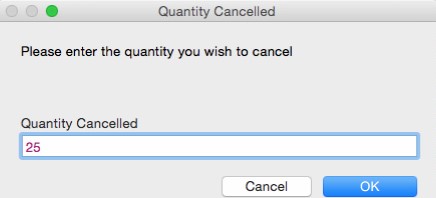
and click OK
- Note the following that occurs:-
- Quantity Cancelled is set with the quantity entered in step 6)
- Quantity Outstanding is recalculated [Quantity Ordered - Quantity Received - Quantity Cancelled], i.e.25 in this example.
- Total Cost for the line is recalculated.[Quantity Outstanding * Unit Cost]
- The status for the stock line item row is updated to amber indicating that there is an Quantity Outstanding > zero
- The Retract Line and Book in buttons remain enabled (Quantity Outstanding is > zero)

- Repeat steps 2) to 6) accordingly should you wish to process multiple cancellations on the purchase order.
- Irrespective of whether you process one or multiple cancellations, the cancellation(s) must be communicated back to the supplier.
Sending Cancellation Details back to the Supplier
- Click the Email Retraction button on the upper right of the Purchase Order.
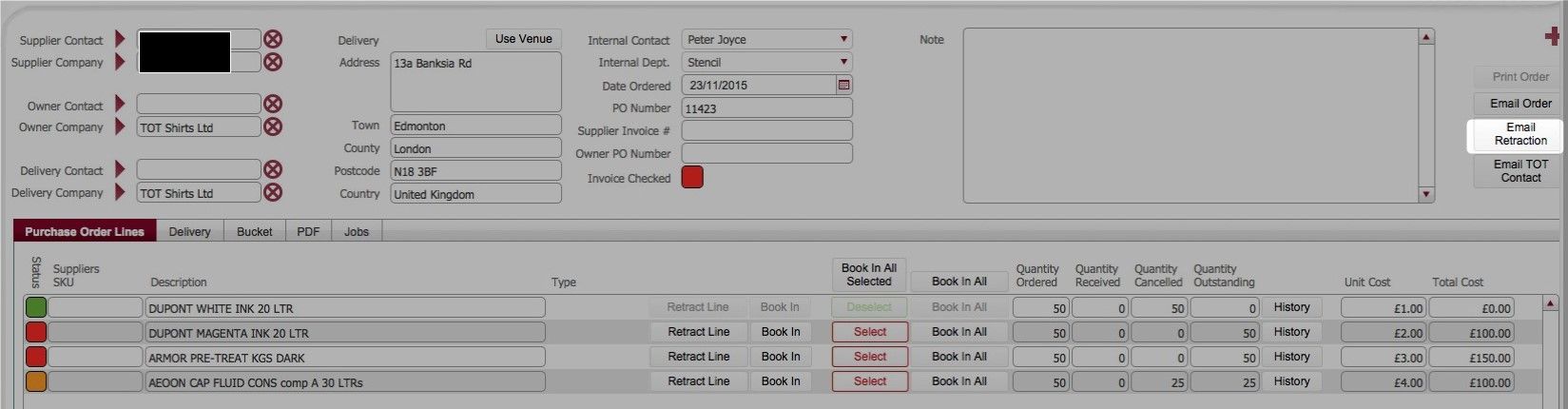
- This causes the following to occur:
- the default email application on your computer is opened
- strokeone automatically creates an email with the following attributes:-
(1) To: <email address for supplier_contact on purchase order>
(2) Subject:
(3) Email Body Text: <the purchase order key information, including delivery address, PO Number, date ordered, invoice address, and details of item(s) cancelled>
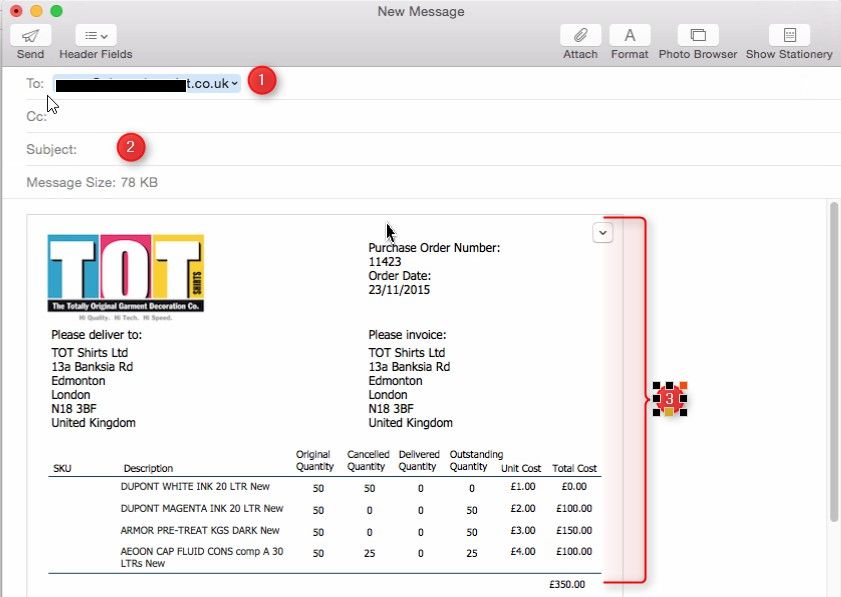
Note: the Subject and body text verbiage can be customised if required
- The status of the Purchase Order is updated to Amber to denote that one or more items on the order has an Outstanding Balance.
- For audit purposes, the PDF(s) generated in step 10 b) are attached to the Purchase Order record in the PDF tab.
- Ensure that you send the email from your email application.
Related Topics
Purchase Order Statuses
Viewing Open Purchase Orders