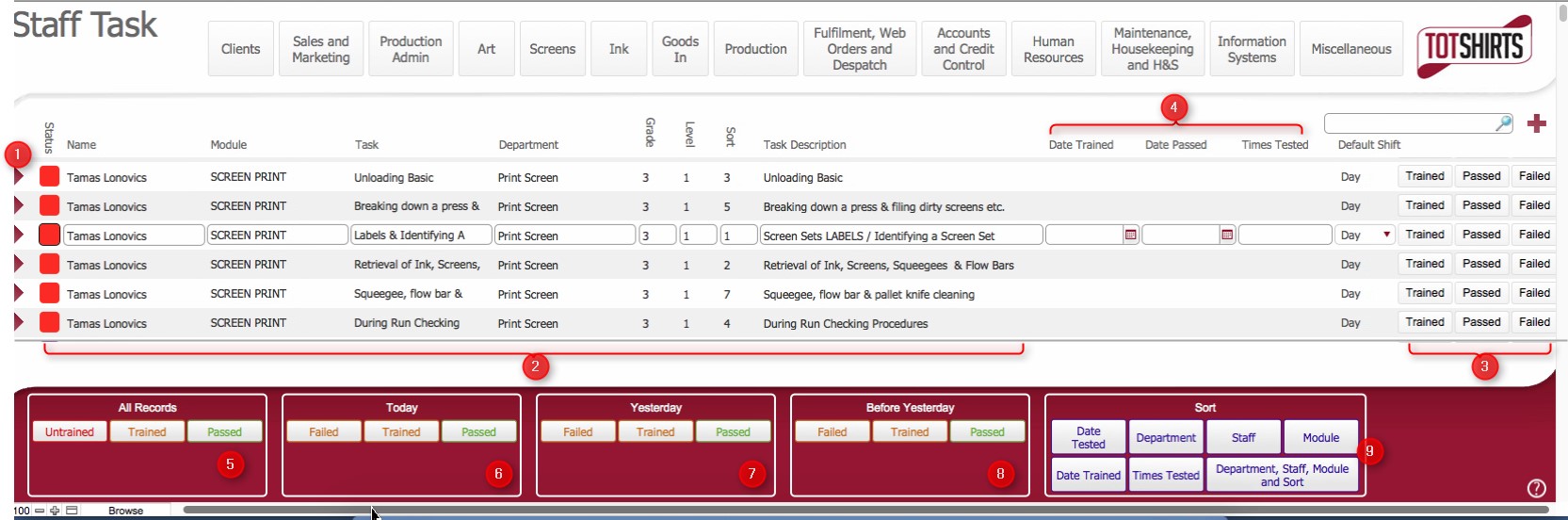
The layout details for each staff member that has been assigned a training module, an individual data row per each training task that exists in that Training Module.
The Staff Task layout provides a view of Staff Members and the status of all the training tasks (via Training Modules) that have been allocated to them.
Additionally, from this screen, you can see whether the staff member has been undergone the training for the specific Training tasks and what the outcome of the training was.
Ensure that you have logged onto strokeone, and that you can see and access the Human Resources button in strokeone home banner.
The layout is composed of the following elements :-
(1) Open record icon
(2) Training Tasks per Staff Member data.
As previously mentioned, this layout shows a separate data row for each training task which are contained within a raining Module which have been assigned to a staff member
That is, if a staff member has been assigned a Training Module which is composed of 10 training tasks, then there will be 10 data rows shown here..
|
Field |
Comments |
|
Status |
Indicates the status of the training task for the staff member. (Unstarted / In Progress / Complete) |
|
Name |
Forename & Surname of Staff Member |
|
Module |
The Training Module that the Training Task is assigned to, which has in turn been assigned to the Staff Member |
|
Task |
The title of the training task. |
|
Description |
Description of the Training Module. |
|
Department |
The Department that the Training Module applies to. |
|
Grade / Level |
The Grade and Level fields for the Training Module |
|
Sort |
The sort order number added for the Training Task when it was assigned to the Training Module |
|
Task Description |
The description field of the Training Task. |
(3) Buttons to update the status of a Training Task assigned to the Staff Member
(4) Fields to indicate the status of the Staff Training Task record
Date Trained: The Date on which the staff member undertook training for the specific training task
Date Passed: The Date on which the staff member successfully passed the training for the specific training task
Times Tested: A count of the number of times the staff has undergone training for the specific training task.
(5) All records Scripted Sort Button
|
Button Name |
Action when Clicked |
|
Unstarted |
Will filter the set of displayed records to show only those where the following is true |
|
Trained |
As above but Date Trained field is not null |
|
Passed |
As above but Date Passed field is not null |
(6) Today Scripted Sort Button -??
|
Button Name |
Action when Clicked |
|
Failed |
TBC |
|
Trained |
TBC |
|
Passed |
TBC |
(7) Yesterday Scripted Sort Button -??
|
Button Name |
Action when Clicked |
|
Failed |
TBC |
|
Trained |
TBC |
|
Passed |
TBC |
(8) Before Yesterday Scripted Sort Button -??
|
Button Name |
Action when Clicked |
|
Failed |
TBC |
|
Trained |
TBC |
|
Passed |
TBC |
(9)Sort Buttons - TBC
Related Topics
How to update the status of a Training Task assigned to a Staff Member