The Deliveries Out Page allows you to enquire on the status of any deliveries you may have (see note 1 below), as well as drill down to see the composition and destination address for your deliveries.
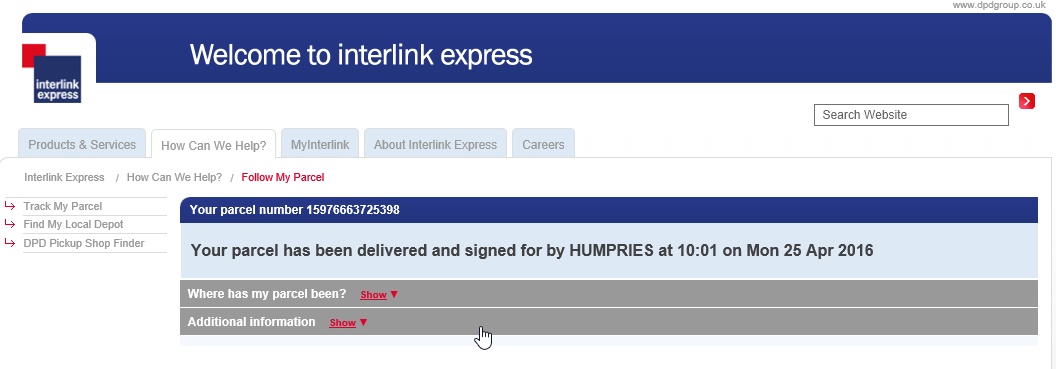
For those of your deliveries that were despatched by Interlink Express, we also provide a link to the courier's web portal to allow you to track your delivery in real time
(Note: In the below sections/text, the numbers in (bold parenthesis) refer to the annotations in the above screen-shot)
For maximum performance, the page opens in find mode. That is, no delivery records are shown by default.
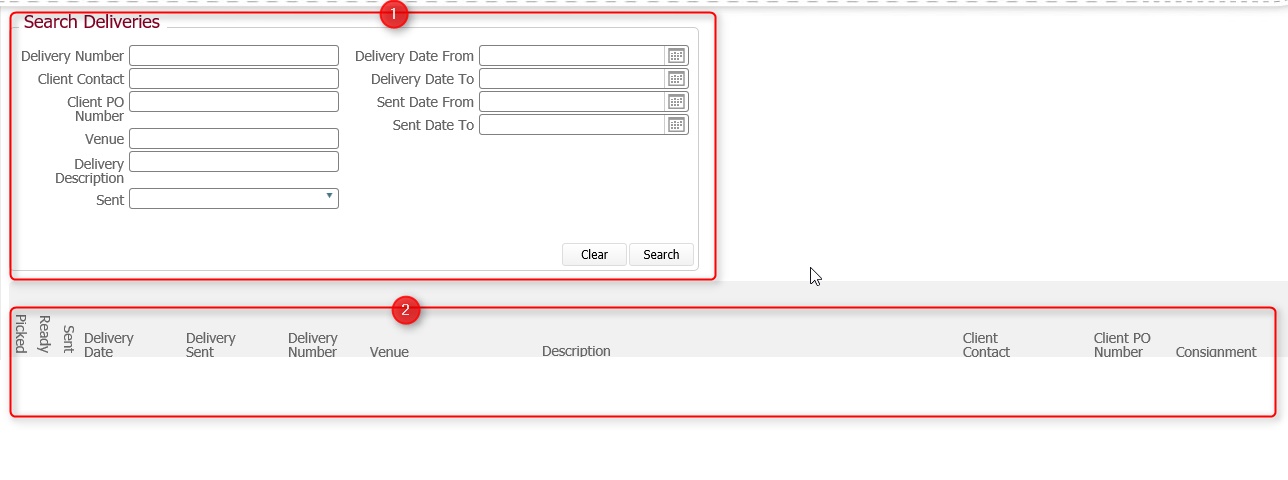
The deliveries out page is made up of two sections.
The search pane (1) allows you to define the criteria by which to search for your deliveries, whilst the results pane (2) displays the details of those deliveries that match your submitted search, and allow you to drill down to see further details.
In the search pane, you define one or more criteria by which you want to search for your deliveries.
The following fields are available to use for search criteria:-
|
Field Name |
Comments |
|
Delivery Number |
The internal reference number for the delivery within TOT. |
|
Client Contact |
This is the name of the person from your organisation whom placed the original job order. |
|
Client PO Number |
This is your reference number for the order. |
|
Venue |
The Name of the Company, or the name of the Building, to which the delivery is to be made. |
|
Delivery Description |
This typically will refer to the job name (which is itself made up of job description and job category), especially if there is a single delivery for a single job order. However, in situations where the delivery is made up of several job orders, then these field will typically refer to the multiple underlying job names. |
|
Sent |
Select from the drop-down, one of the following sent statuses
|
|
Delivery Date From |
Delivery Date refers to the date by which the delivery is required to be at the Venue. |
|
Delivery Date To |
|
|
Sent Date From |
Sent Date refers to the date by which the order left TOT's warehouse. |
|
Sent Date To |
|
|
For the two sets of date fields, you can enter a date range here by populating both From and To date values. |
|
Tip: If you enter any values by mistake, you can click the Clear button which will reset the search criteria back to their default (blank) state.
Example Search Criteria
In the below screen-shot, two criteria have been defined:-
Client Contact (Lauren)
and
a Date Sent range (22ndApril 2016--> 25th April 2016)
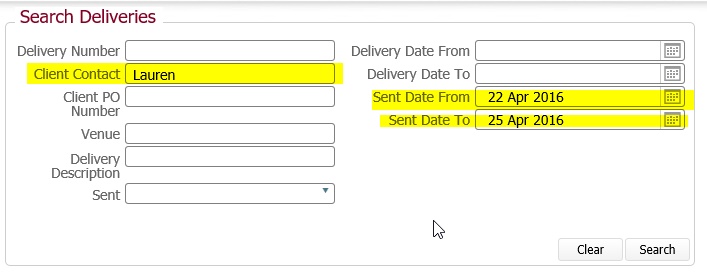
Once you have defined your search criteria, click Search to process the find.
Once processed, the matching records are displayed in the results pane directly below the search pane.
Note: Blank values for a field are interpreted as meaning All values. That is, they do not restrict the records being returned. Please bear this in mind when defining your searches, especially if they record set is likely to be large.
When a search is processed, the job orders that match the defined search criteria are listed in the results pane.
For example, when the above search was submitted, four matching deliveries were returned.
To be absolutely clear, the deliveries that were returned matched all the criteria defined:-
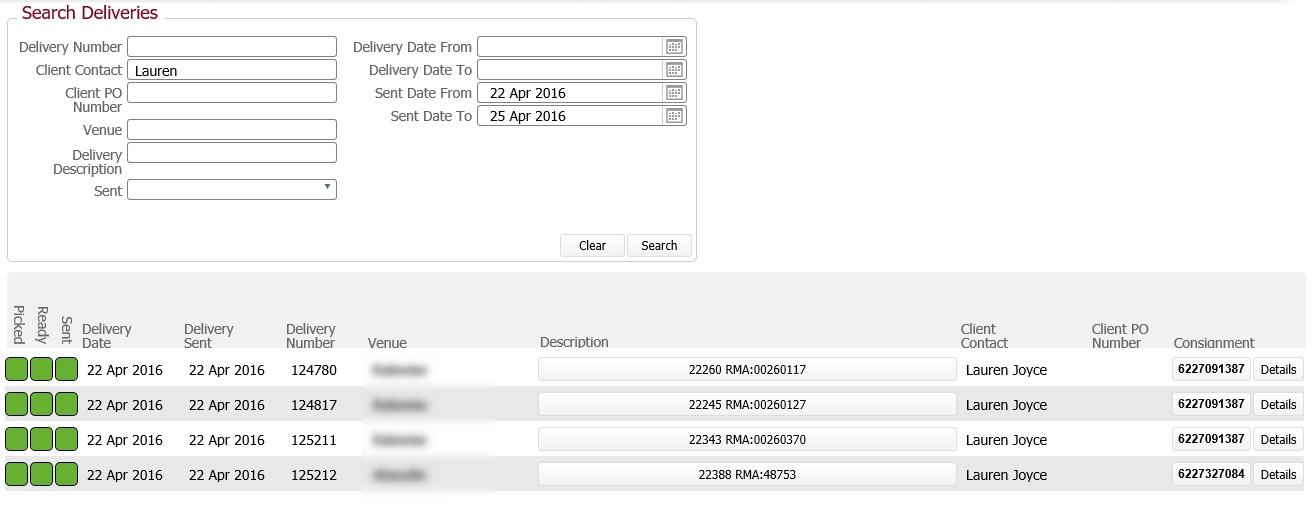
(Please note: Venue has been deliberately obscured in the above screen-shot)
For each delivery shown in the results pane, the following information is shown.
|
Field Name |
Comments |
|
Picked Status |
This icon denotes the status of products picked for the delivery. It has one of three statuses indicated by colour:-
Green: All products on the delivery have been picked. |
|
Ready Status |
This icon operates identical to Picked but denotes the assembly (i.e. boxing up/packaging) status of the delivery contents. Again, it is colour coded for each status:
Green: Assembly of the delivery has been completed. |
|
Sent Status |
This icon denotes the status of whether the delivery has been sent. It has two statuses:-
Red: Delivery Not Sent Green: Delivery Sent. |
|
Delivery Date |
The date by which the delivery needs to be delivered to the defined address. |
|
Sent Date |
The date the date that the delivery left TOT's warehouse. |
|
Delivery Number |
The internal reference number for the delivery within TOT. |
|
Venue |
The Name of the Company, or the name of the Building, to which the delivery is destined. |
|
Description |
An actionable button, where the button label text is populated with Delivery Description (see details for Delivery Description in the search pane above)
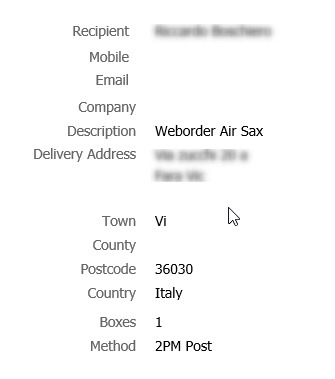
Clicking on this button will open a pop up window showing additional delivery details:-
|
|
Client Contact |
This is the name of the person from your organisation whom placed the order. |
|
Client PO Number |
This is your reference number for the order. |
|
Consignment |
This shows the courier consignment number for the delivery. Should the courier be Interlink Express, clicking this will open a pop-up window which retrieves real time tracking information from the courier's web portal for the delivery
For more information on the courier information encapsulated in this pop-up, please see http://www.interlinkexpress.com/
|
|
Details |
Clicking this button will display a pop-up window which will provide you with details of the delivery.
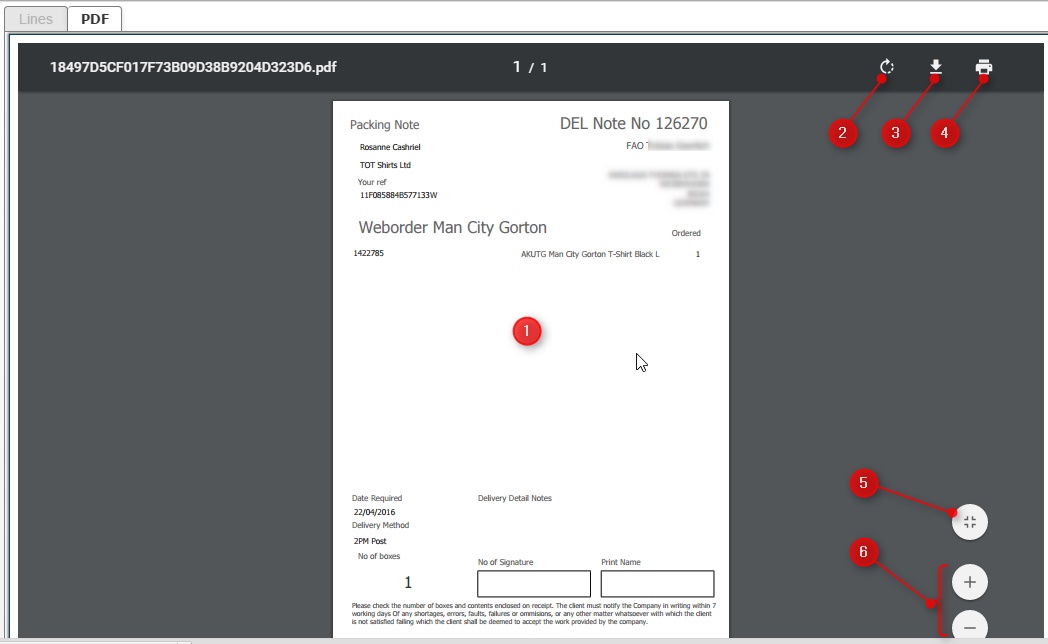
The PDF tab contains a rendering of the delivery in Portable Document Format.
At the bottom of the PDF window (you may need to scroll down to see these) are three action buttons:-
The Lines tab within the pop up shows the contents of the delivery in a tabular format.
|
Enhancements Needed:
Email Button not functional: does same as save as PDF
Move action buttons to top of PDF render
Related Topics