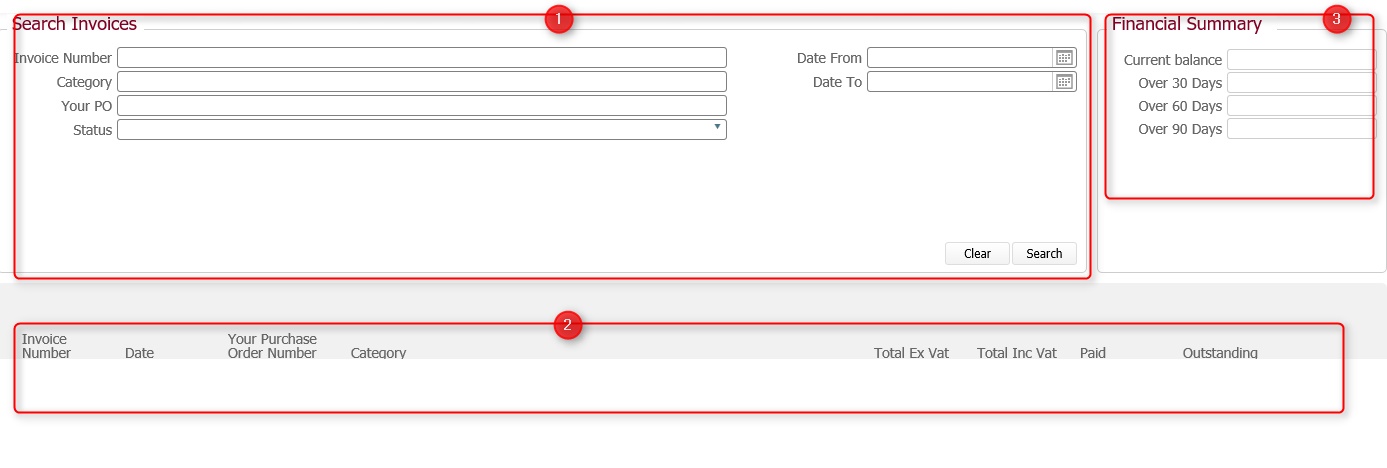
The Invoices Page allows you to search for any invoices that have been raised against you (see note 1), for services we have provided you, together with their current remittance status.
Additionally, on this page you can see a summary of your current balance with us, with any owed amounts broken down into aged duration tiers.
(Note: In the below sections/text, the numbers in (bold parenthesis) refer to the annotations in the above screen-shot)
For maximum performance, the page opens in find mode. That is, no records are shown.
The Invoices page is made up of three sections.
The search pane (1) allows you to define the criteria by which to search for invoices, whilst the results pane (2) displays the details of those invoices that match the submitted search.
Finally, the Financial Summary pane (3) provides a summary of your current trading balance with us.
In the search pane, you define one or more criteria by which you want to search for your invoices
The following fields are available to use for search criteria:-
|
Field Name |
Comments |
|
Invoice Number |
Our internal reference number for the invoice. |
|
Category |
The Category off the Job that the invoice has been raised in respect of. |
|
Your PO |
Your internal Purchase Order reference to which the invoice refers. |
|
Status |
The current status of remittance for the invoice. Select from one of the following permissible values:-
|
|
Date From |
Date refers to the date that the invoice was raised by us.. |
|
Date To |
Tip: If you enter any values by mistake, you can click the Clear button which will reset the search criteria back to their default (blank) state.
Once you have defined your search criteria, click Search to process the find.
Once processed, matching invoice records are displayed in the results pane directly below the search pane.
Notes:
When a search is processed, invoices that match the defined search criteria are listed in the results pane.
For example, when below search was submitted, a series of matching invoices were returned.
To be absolutely clear, a returned invoice needed to match all of the search criteria defined.
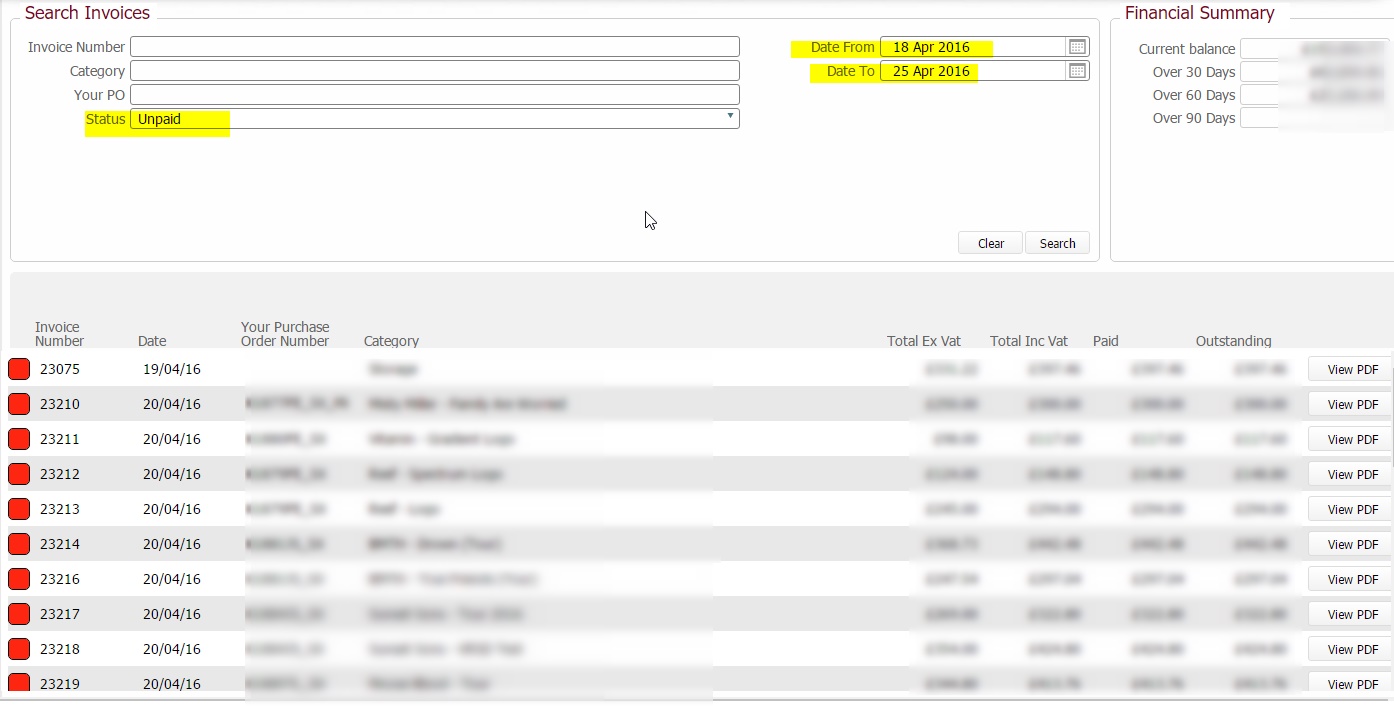
(Please note certain field values have been deliberately obscured)
For each invoice record listed in the results pane, the following information is shown.
|
Field Name |
Comments |
|
Invoice Paid Status |
This icon denotes the status of your payment on the invoice.
Green: Full payment for the invoice has been received.
|
|
Date |
The date we raised and communicated the invoice to you. |
|
Client PO Number |
This is your reference number for the order you raised with us, to which this invoice refers. |
|
Category |
The job name that the invoice was raised in respect of. |
|
Total ExVat |
The invoice total prior to VAT. |
|
Total In Vat |
As Total ExVat but inclusive of VAT. |
|
Paid |
The total amount you have paid us to date for this invoice. |
|
Outstanding |
The total amount you still owe us for this invoice. |
|
View PDF button |
This allows you to drill down to view a copy of the invoice in PDF format |
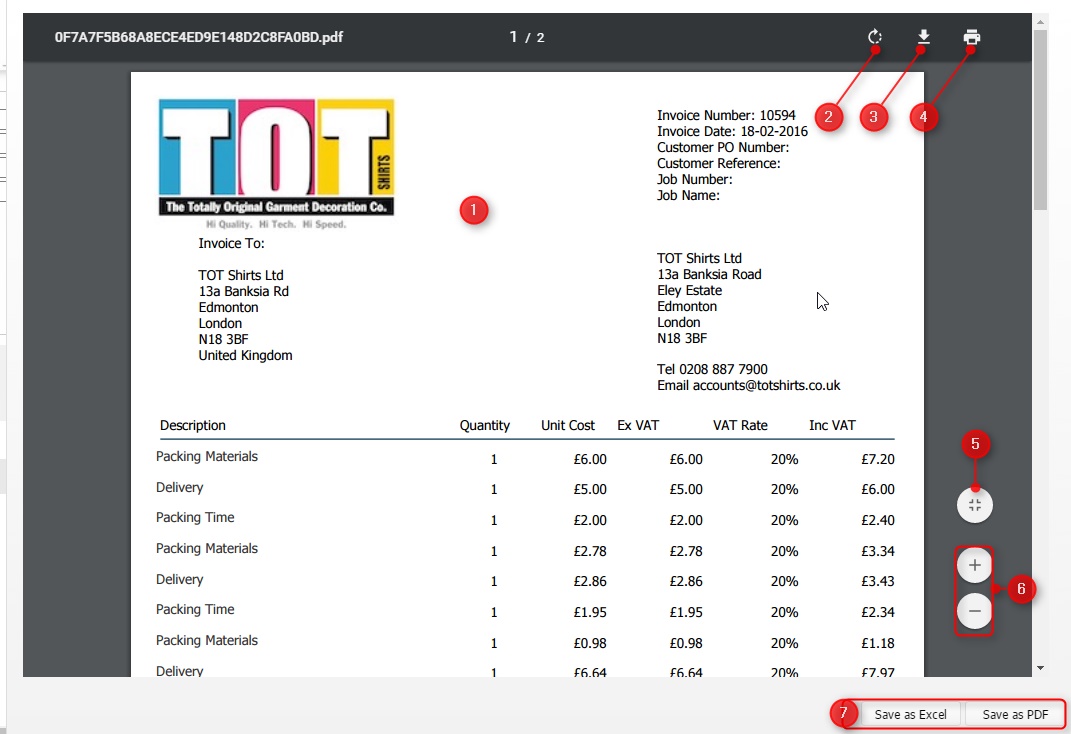
You can view a copy of the original invoice that we raised for you by clicking on the View PDF button.
This will open a pop-up window in which your browser render's the Invoice Detail in Portable Document Format.
click to see example:-
Note that there are two action buttons (7) at the bottom of this pop up window.
Save as CSV: Allows you to save a copy of the invoice locally as a comma separated value files
Save as PDF: Allows you to save a copy of the invoice locally as a Portable Document Format File.
Once search results are returned, your current financial summary with us is also computed and displayed.
Specifically, the following information is shown.
|
Field Name |
Comments |
|
Current Balance |
An @sum of the total amount outstanding on all invoices. In other words, the total you owe us for products and services that we have provided to you. |
|
Over 30 days |
The amount of the current balance that is between 30 and 60 days old. That is, an @sum of all amounts outstanding on invoices that were raised to you between 30 and 60 days ago.
|
|
Over 60 days |
As Over 30 days, but for unpaid amounts for invoices raised to you between 60 and 90 days ago. |
|
Over 90 days |
As Over 30 days, but for unpaid amounts for invoices raised to you over 90 days ago. |
Enhancements Needed
Search Pane
The search in this page is somewhat erratic in that
it seems to require both date fields to be entered for a range - unlike other pages
Can we provide a status to the user whilst the search results are being retrieved, both to indicate that it is underway, and second to show it has completed
Results pane
We should indicate in the results field how many records have been returned, page x of y etc, with first / next/ previous / last indicators.
The Save as Excel does save the invoice contents as an excel file (not as CSV) This should be unified to be csv file with other pages
Irrespective, saving an invoice as CSV or Excel file is problematic as the report does not contain only tabular data
Add Invoice Type to the data fields
Bug: Outstanding Amount is not calculated correctly in grid. It should be Total Inc VAT minus Paid
Related Topics