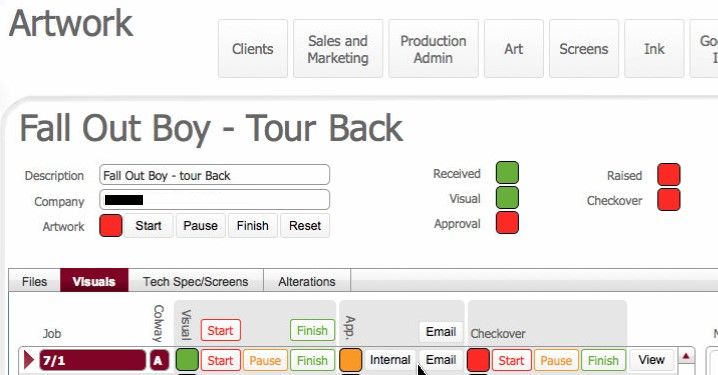
In the normal course of events, when a customer is notified that colour visuals are awaiting their approval, the customer logs onto a TOT Shirts Limited web portal and approves the items
Once approved, the art room will continue with tasks required to create the final artwork necessary for usage in the production processes for the customer's job order. Crucially, until colour visuals are approved, no further work is performed with respect to the artwork.
See Understanding ArtWork for an overview of the typical workflow.
Customer approval from the website is electronic and automatically updates the Artwork record's colour visual's approval status as approved in strokeone.
However, there can be scenarios where the customer is either unable or unwilling to use the website to approve their visuals.
Recognising this, flexibility has been built into strokeone to allow for an alternate method of recording approval, so that the Artwork creation tasks can continue. .
To manually update colour visuals as approved, follow the steps below :-
Ensure that you have opened the Art to Be Done Summary layout.