Marking an Embroidery Process as Started
Background
When an embroidery print run is about to commence on the factory floor, several things happen:-
- The blank garments that have been picked for the job, are collected from their location in the ready for process area and brought to the embroidery machine that will do the embroidering.
- The machine is set up ready for the embroidery run.
- Once fully set up, the embroidery machine is started, and the embroidery run commences.
About this task
This topic will instruct you how to update strokeone to mark that the above activities has occurred. Namely: update the picked stock location and mark the embroidery process as in progress.
Prerequisites
Ensure that you have opened the Embroidery Layout for the machine which is undertaking the embroidering.
Procedure
- With the embroidery layout, locate the record for the process line that you are interested in.
- Update the location of blank garments to denote that they have been collected from the ready for process area and are now placed with the specific embroidery machine, by following these steps:-.
- For the record identified in step 1) locate and click the Picked Stock Location button.

- In the resultant pop up window, click the Move button.
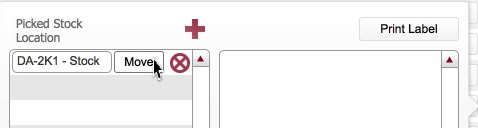
- This invokes the location picker dialog, where you need to record the machine name of where you are placing the blank stock for printing.
Click the drop-down on the end header filter field and select Processing
In the location records that are then displayed. click the Select button besides the machine name where you have placed the picked items
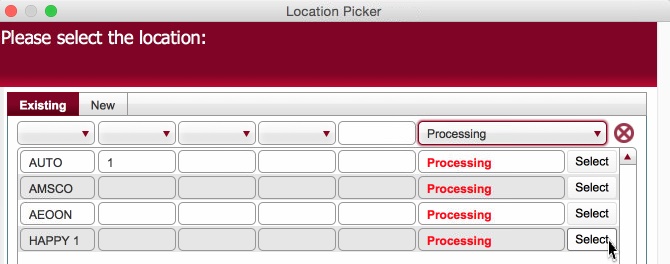
Click here to read more information on location picker, including how to create a new location.
.
- The Picked Stock Location in the pop-up updates to the machine value you selected in step 2c)

- Click off the pop up window, to return to the main layout.
Note, that the Printed Stock Location has updated to the Machine name
 .
.
-
Next, record that the embroidery process has started.
- Click the Start button for the record identified in step 1)

- The following updates occur:-

- The Production status icon updates to Amber (in Progress)
- The Start button is disabled.
- Conversely, the Pause and Finish buttons are now enabled.
Related Topics
Embroidery Layout
Marking an Embroidery Process as Paused
Marking an Embroidery Process as Finished