Marking a Screen Print Job as Finished
Background
When a print run finishes on the factory floor, several things happen:-
- The (now) decorated garments are removed from the machine
-
- Note that they may need to be subject to further processing before the whole job order is finished. (for example, the print process may have been for a front, and print is also required on the back, or they might need to be individually bagged or labelled)
- The printed output is counted and any spoilage for the print process noted
- The screen-set used for the print run is removed.
-
- The screen set might be needed on further print runs that are ready to start
- If not, the screen set is returned to the screen-room for washing
- If the print screen process is the final completed process for the job order - then the final quantity produced (and spoiled) for the whole job order is recorded.
About this task
This topic will instruct you how to update strokeone to mark that the above activities have occurred.
Prerequisites
Ensure that you have opened the Screen-Print layout for the machine which is undertaking the print.
Procedure
- Locate the record for the print screen process that you wish to record as completed.
Tip: The Production status icon will be in an In Progress (Amber).
- Click the Finish button for the record identified in step 1)

- A check is performed by strokeone to determine whether there are any other scheduled (but not completed) print screen processes that use the same set of screens.
- If there no dependent jobs, proceed to step 8).
- If there are dependent jobs, the following dialog is displayed :-

- If you are in a position to use the screen-set again, then click Use Again, otherwise proceed to step 9)
- When you click Use Again, the following updates occur:-
- The process line Production status updates to Green (Completed)
- The Finish button disables.
- The Pause button disables.
- The Screenset location field is blanked out.
- If there are no dependent jobs, you will be prompted to update the screen-set record to wash

- Click the Wash button.
- When you click Wash the following occurs:-
- The process line Production status updates to Green (Completed)
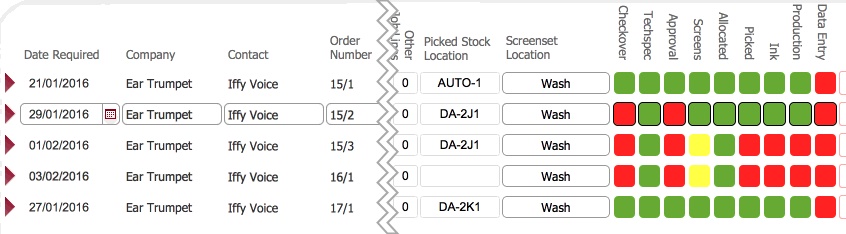
- The Screen-set Location updates to Wash
- If there are any scheduled but not yet completed print screen processes then for those records, the Screenset Location also updates to Wash, as does the Screens status.
click for example.
- The Finish button disables.
- The Pause button disables.
-
You need to record the numbers of items successfully printed in the Data Entry form.
Related Topics
Screen Print Layout
Data Entry at the end of a Production process