Screen Print Layout
Background
(Note:
for this topic certain field values have been deliberately obscured in
the screen-shots)
The Screen Print layout outlines
those jobs which require screen print processes, and shows the status
of the antecedent/connected processes.
Additionally from within this layout users can, record that the print
process is started,
paused, or completed,
as well as record the quantities successfully processed, scrapped, and
any mistakes
At the end of all production processes on a job order, this layout allows
you to access data
entry to record the final amount produced.
Note: There are numerous screen
print layouts. They are functionally identical, with the only difference
being they may show a sub-set of the data based on a particular criteria
- for example, show only print processes for a specific machine name or
for a specific date required
About this task
This topic will instruct you how to navigate to, understand the contents
of, and the actions allowable from, the Print
Screen layout.
Prerequisites
Ensure that:-
Procedure
- From the home
banner, click Print Screen.
- Rather than see all the
screen print process line records (which could be a very large quantity),
you will be presented with a further choice as to which sub-set of
this total found-set of print screen process line data to display.
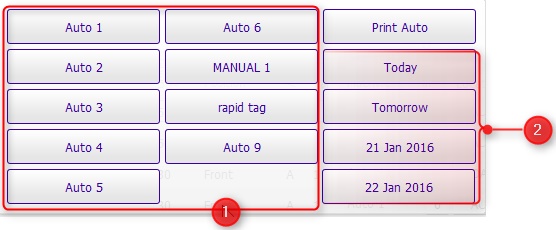
- Essentially, the found-set can be filtered down by two dimensions
- the machine name that the screen print process is scheduled on or
the date on which the process is scheduled.
- If you wish to see data for a specific
screen print machine,
click the applicable machine
name button (1)
- Conversely, to see screen print process lines for a specific
date required, click the corresponding date
button (2).
By default, the date choice button are:-
- Today
- Tomorrow
- Today+2
- Today+3
- The Screen Print
list layout opens, filtered according to the criteria
selected in step 3).
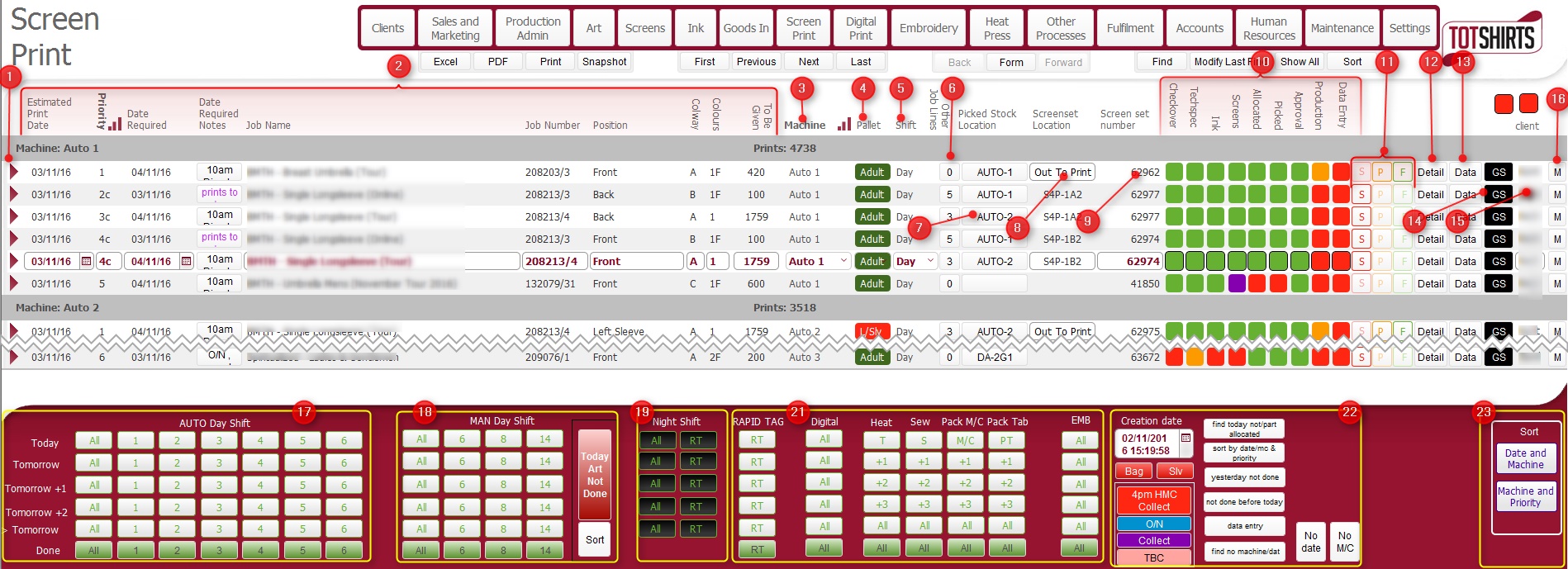
(Note: In the below sections/text,
the numbers in (bold parenthesis)
refer to the annotations in the above screen-shot)
By default, the records displayed are sorted and grouped by ascending
value of the Date Required field.
Note: Records are displayed according to how
the resource allocation records were created for the process line.
That is, if several
resource allocation records were created for single process line,
then several process line records will be shown in this layout.
Layout Composition & Actions Permissible
The layout is composed of the following elements
(1) Click on
the open
record icon to drill down to the Job
order Detail form.
(2) Data Fields for the Process Lines that require Screen Printing.
Field |
Comments |
Estimated Print Date |
The date by which this print process needs to be completed
This date is taken from the scheduling
date that was initially recorded for this process line when
the job order was written up.
Note: You can click
on this calendar icon besides this field to amend the date as
required |
Priority |
An updatable field to allow you to enter a numerical priority
value to assist with sorts and scheduling of print runs. |
Date Required |
The date by which the job order must be completed by. This
is taken from the job
order header fields. |
Date Required Notes |
Information here embellishes and refines Date
Required.. |
Job Name |
Job name is a concatenation of the category
and description
fields taken from the job order. These two fields provide information
as to which group the job order is for, and what the actual content
of the job order is. |
Job number |
The internal reference number for the job
order which has the screen print process on it. |
Position |
The physical position of where on the garment, the screen
print will be occur. This is taken from the job order process
line details. |
Colour Way |
The ColourWay
for the Print Screen Process line |
Colours |
The quantity of colours in this Print Screen process line |
Quantity |
This is the quantity of items scheduled for the print screen process
on this machine. This number is taken from the quantity field
of the process lines resource
allocation record..
This number can be overwritten if necessary.
For example, consider a situation where the quantity to be printed
was 10,000, and was scheduled across two days, with 7,000 on day
1 and 3,000 on day two.
It might not be logistically possible to print 7,000 on day
one, so the quantity for day 1 could be overwritten to be 5,000;
consequently, the quantity for day 2 would need to be adjusted.
Dev:
Ability to add in a process line entry in this layout needed
- e.g. consider the above scenario, where job would need 3 days
- need ability to add a new line to record day 3 amounts. Note
this could be done by adding in another schedule record on the
production admin layout.* |
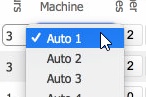
(3) Machine button -This
details the machine that the print process is scheduled to occur on.
You can move the print process to another machine, by clicking on this
field, and selecting another machine from the drop-down.
(4) Pallet button This
specifies the size
of a board that the garment will be placed on when undergoing printing.
(5) Production Shift Button.
This details the machine the production shift that the print is scheduled
to occur on.
You can move the print process to another shift, by clicking on this field,
and selecting another production shift value from the drop-down
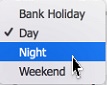
Note: The field is conditionally formatted,
and Night shifts are indicated by being formatted in back fill / white
text.
(6)
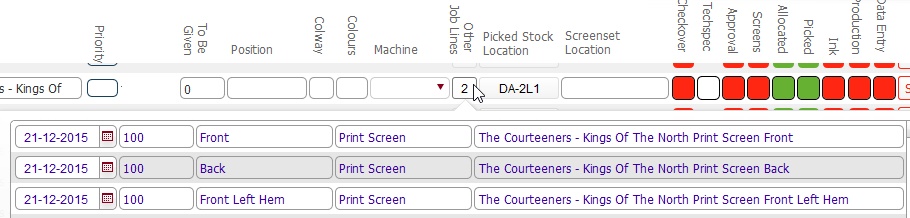
Other Job Lines button: This button
label denotes how many process lines in
addition to the current one are associated to the job order number.
For example if it reads 2, it means there are three
process lines in total associated to this job. This provides a quick visual
reference to aid scheduling and gauge effort and resources required to
complete the job.
Clicking on this button will display a
pop up showing all the process lines on the job order.
Click
for example
(7) Picked Stock
Location: This denotes the current physical location of the blank
garments which have been picked
ready for the print process. This location is updated when picked garments
are moved to the machine and the print process started.
(8) Screen Set
Location: This shows the physical
location of the set of screens-required for the print screen process.
This gets updated as the screen-set progresses through the various stages
of its lifecycle (creation, checking, washing, filing etc.). See Understanding
the Lifecycle of a Screen for an overview of this. Should you need
more detail, it is recommended you read all the help topics in the Screens Module.
(9) Screen-set
Number: This shows the internal number
of the screen-set that is used for the print screen process.
(10)
Status Icons:this section contains
a series of icons that denote the current status
of various processes connected to the print screen process.
These can be summarised as follows:-
Icon
Label |
Comments |
Checkover |
Indicates the checkover
state of the Artwork record for the image that will be printed. |
TechSpec |
This shows the state of the raised
flag on the associated technical specification for this print
screen process. |
Ink |
Outlines the status of ink
mixing / readiness for the print screen process. |
Screens |
The status
of the screen-set that is used for the print screen process.
(Note: this can get updated
when another job starts if the screens
concerned are in usage on another job) |
Allocated |
The status of blank garments allocated
to the whole job order. |
Picked |
Denotes the status of blank garments picked
for the whole job order. |
Approval |
The approval
status for the process line. |
Production |
The status of the print screen process itself. This is updated
when the print process is started,
paused
or finished. |
Data Entry |
This allows you to record quantities
produced This status light denotes the status of recording
that data entry. |
(11) Process Activity Buttons:
These three buttons record the process activity
Button
Label |
Comments |
Start |
Marks the Print Screen process as started |
Pause |
Marks the Print Screen process as paused |
Finish |
Marks the Print Screen process as completed.
Note: upon completion of the last process line on a job, you need
to record the final quantities
produced. |
(12) Detail button:
this will display a detail
pop up window with a series of related data,
(13) Data button:
This is used when the final process for a job order is completed to record
the quantities of product produced for the job order.
(14) Garment Sheet
button. Clicking this will print a hard copy of the garment
sheet, which details the garments that are associated to this process
(15) Client : this details the client
who placed the job order.
(16) Mistakes button:
This is used to record
mistakes on the process line.
(17) Filter buttons for the Auto Machines
for Day Shift
These buttons allow you to filter the foundset
by specific Date Required Dates, plus specific Auto machine names.
Specifically:-
Row Label |
Comments |
Today |
Click on All
button to filter records where (Date Required = Today() And
Machine = Auto* And Shift <> Night ) Click on a specific numerical button to filter records
where (Date Required = Today() And Machine = Auto&<label_value>
And Shift <> Night )
e.g for the 2 button, it would be (Date Required = Today()
And Machine = Auto2
And Shift <> Night ) |
Tonight |
Click on All
button to filter records where (Date Required = Today() And
Machine = Auto* And Shift = Night ) Click on a specific numerical button to filter records
where (Date Required = Today() And Machine = Auto&<label_value>
And Shift =Night )
|
Tomorrow |
Click on All
button to filter records where (Date Required = Today()+1
And Machine = Auto Night And Shift <> Night ) Click on a specific numerical button to filter records
where (Date Required = Today()+1 And Machine = Auto&<label_value>
And Shift <>Night )
|
> Tomorrow |
Click on All
button to filter records where (Date Required >=Today()+2
And Machine = Auto Night And Shift <> Night ) Click on a specific numerical button to filter records
where (Date Required >=Today()+2 And Machine = Auto&<label_value>
And Shift <>Night )
|
Done |
- Click on All button
to filter records where (Machine = Auto* And Producton
status = Completed(Green)
- Click on a specific numerical button to filter records
where (Machine = Auto&<label_value> And nd Producton
status = Completed(Green)
|
(18) Filter
buttons for the Manual Machines for Day Shift
These buttons function identically to the
Auto filters described above with the exception that they apply to Manual
named machines.
For example, clicking on the Tomorrow/
Man 6 button
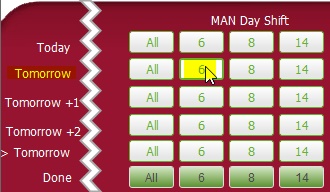
will filter the foundset to display print
screen process records that match all the following criteria
(Date Required = Today()+1 And Machine =Manual 6 And Shift <>Night
)
(19) Filter Buttons for the Night Shift
The first column of buttons function
identically to the Auto filters described above with two exceptions.
Filtering is based on :-
The second column of buttons function identically,
with filtering based on
(20) Filter
Buttons for Day Shift for other Process lines
Here is a series of filter buttons that will restrict the data-set to specific
process date / machine name / day shift.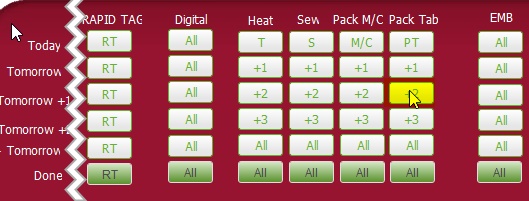
For example, clicking on Tomorrow +1 / Packing Tab will restrict the found-set
of records to those where Date Required = Today()+2 And Machine = Packing
Table And Shift <> Night )
(21) Sort Buttons
These two buttons will sort
the displayed set of records as per the below table
Button
Label |
Comments |
| Machine and Priority |
Sorts and groups records by machine name and descending priority |
| Date and Machine |
Sorts and groups records by Date Required and ascending alphabetised
machine name |
Related
Topics
Marking a Screen
Print Job as Started
Marking a Screen Print
Job as Paused
Marking a Screen
Print Job as Finished
Viewing
Detail from Print Screen Process Layout
Data
Entry at the end of the final production process
Recording
Mistakes on a Process Line