Ensure that you have selected the technical specification record
by clicking on the View button
and selecting Tech Spec tab
ScreenShot update
to reflect the name of this tab - Process Details
This topic outlines the steps necessary to accurately allocate peripherals to a job order's process line via the process line's technical specification.
Certain process lines require peripherals
in order that they can be undertaken. For example, if you are writing
up a job that requires swing labels to be attached to printed garments,
then not only does the process line of Other Process attach swing labels
have to be recorded, but also the swing labels used needs to be accounted
for in terms of stock inventory and allocated to the job order.
The allocation of peripheral items is conceptually identical to the allocation of blank garments, with two key exceptions:-
See Understanding Product Types for more details on what constitutes a peripheral.
Ensure that
For the purposes of this help topic, it is assumed that both the above have been met.
Ensure that you have selected the technical specification record
by clicking on the View button
and selecting Tech Spec tab
ScreenShot update
to reflect the name of this tab - Process Details
First select the peripheral stock item
needed.
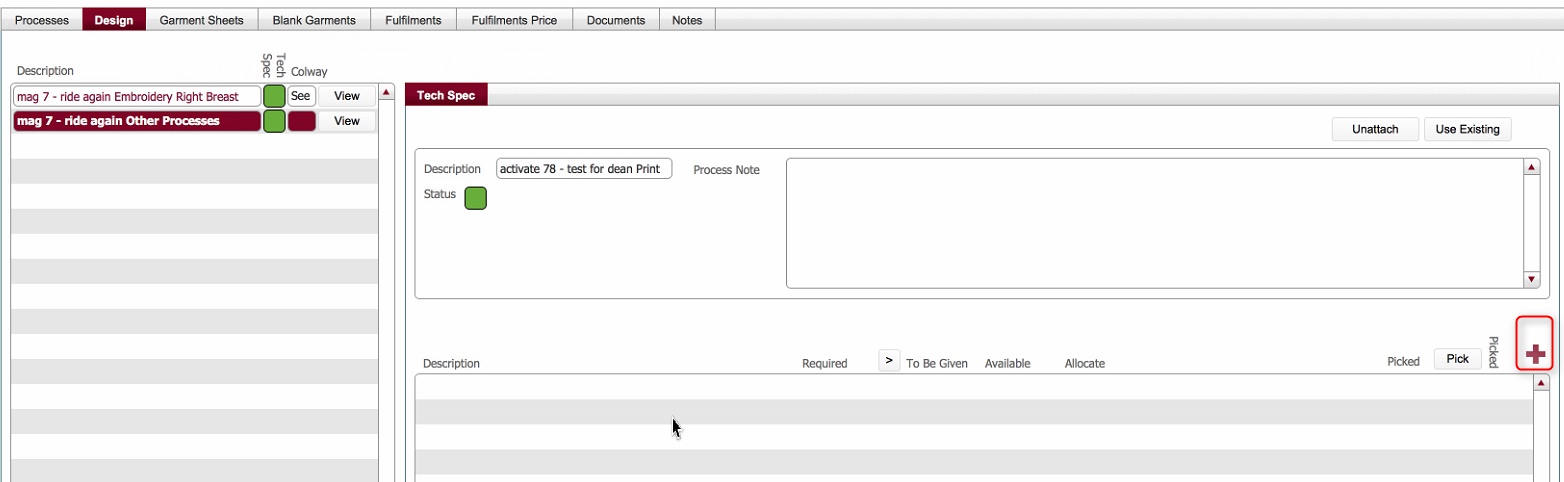
Click the new
record icon (encircled in the above screen shot).
This will open the Item
Picker pop-up which is pre-filtered to show only Peripheral stock line types for
an Owner.
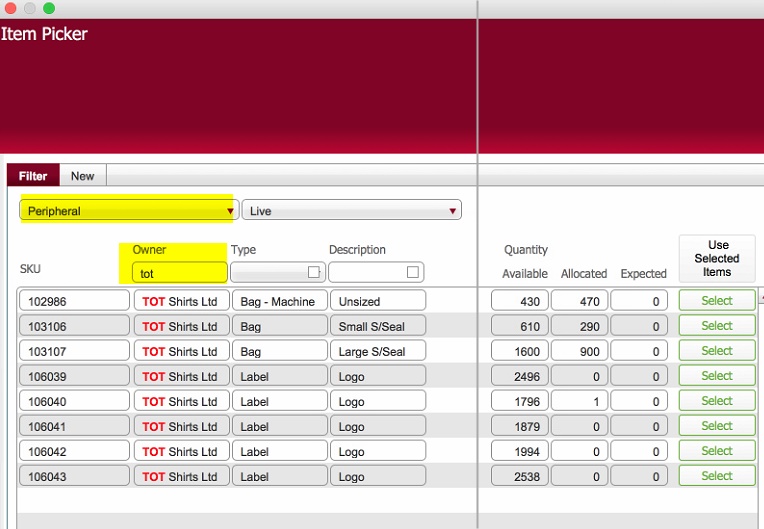
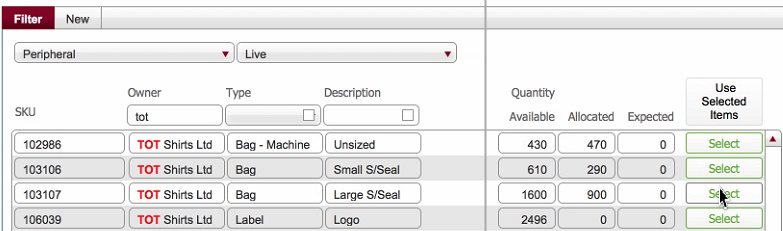
Using find/ additional filters, identify the peripheral(s) that
you need and then click the corresponding Select
button.
Tip: if your required peripheral
is not listed, you can create
it "on the fly".
Dev
Needed: what about ability to order a peripheral on the fly ?
Click the Use Selected
item button to insert the selected peripherals.

Next, record the amount required and allocate the peripherals
In the Required
field, enter the quantity of the peripheral needed for the process
line.
In the To
be Given field, enter the quantity of the peripheral that you
will provide to the process line. (This might be > required Qty
to account for any wastage)
Tip: you can use  to automatically populate
To be Given with the quantity
recorded in Required
to automatically populate
To be Given with the quantity
recorded in Required

There are two mechanisms by which
you can allocate peripherals
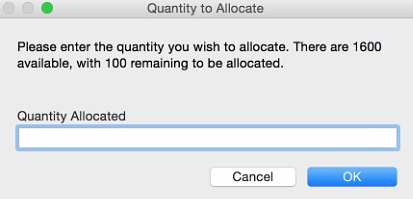
The Allocate button -
Allows you to specify the
quantity to allocate. You can specify the quantity up to the lower
of either the Available or To Be Given quantity
The Allocate All button will
automatically fully allocate if there is sufficient Available or partially
allocate if insufficient available.
Specifically, it will automatically allocate the lower of To
Be Given or Available.
Allocation is done per specific SKU. That is, it is performed one peripheral
row at a time.
To specify the Amount you wish to allocate, proceed to step 9); to
automatically allocate proceed to step 10)
Related Topics
How to Add Process Lines to a Job
Associating a Technical Spec to a Process Line