Accessing the Vendor Site
Overview
This document contains instructions for logging onto the our Vendor Site.
In essence, when you are issued a user id and temporary password by us, and first logon to the Vendor site, for security purposes, you will be prompted for to change the password you were initially issued with to one of your choosing.
These details are outlined in the section "Logging in to the Vendor site for the First Time" below
Once you have changed the temporary password to one of your choosing, subsequent logons are done using your user id and chosen password.
This is outlined below in the section "Logging onto the Vendor Site" below
Important information regarding logon passwords applicable during development period
Please note that functional development is still underway on our Vendor Site, and periodically (approximately fortnightly) functionality from the development version of the vendor site will be ported to the live environment.
For maximum user security, we do not store any "in the clear" user password information in any of our databases.
However, as a consequence of this enhanced security, when our development cycles complete and functionality is ported from the development to live environment, hashed password credentials are removed, and user passwords are forcibly reset.
Should you attempt to logon with your existing chosen password, it will not be recognised.
When development functionality is ported, we will reset your passwords to a company wide standard password that has been mailed to you, and you can use this to gain access and reset your password back to one of your choosing.
Detailed instructions for what to do are contained in the section "Logging in to the Vendor Site post development updates" below.
It is anticipated that this is a temporary measure that will be required only during the development period until all development functionality is deployed.
Logging in to the Vendor site for the First Time
Before You start
Please ensure that you are in possession of the following information:-
- A valid user id
- A temporary password for your user id
before you try to log onto our vendor site.
These two pieces of information should have been provided by your TOT Shirts Limited contact.
Please note: Both user id and password are case sensitive !
Process for logging onto the Vendor site for the First Time
- Open your browser of choice.
- Navigate to http://www.totshirts.co.uk/
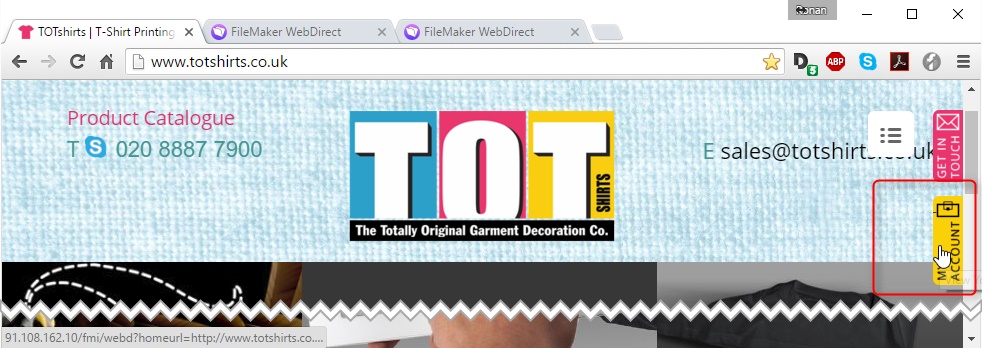
- Click on the My Account link on the right hand side of the TOT website
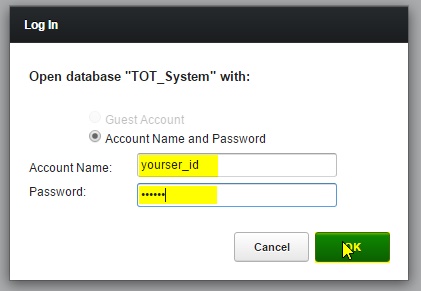
- You will be navigated to the Vendor Site's log in dialog form.
- Ensure that the radio button for Account Name and Password is set as enabled
- In the Account Name field type your user id
- In the Password field type your temporary password
(Tip: both of these values are case sensitive - so please type carefully)
- Then click OK
- As this is the first time you have logged onto the Vendor Site you must change your temporary password to one known only by yourself. .
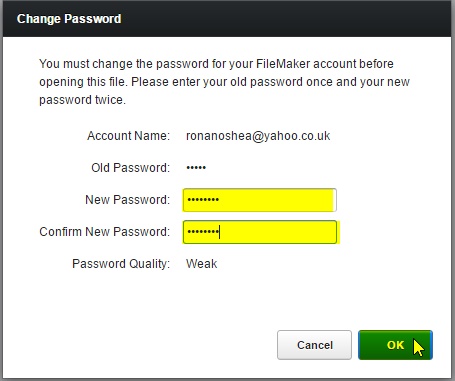
- The Vendor Site will prompt you to change your temporary password before you can proceed further.
- In the New Password field, type your new password.
- Repeat this in the Confirm New Password field.
(these must match)
- Click OK
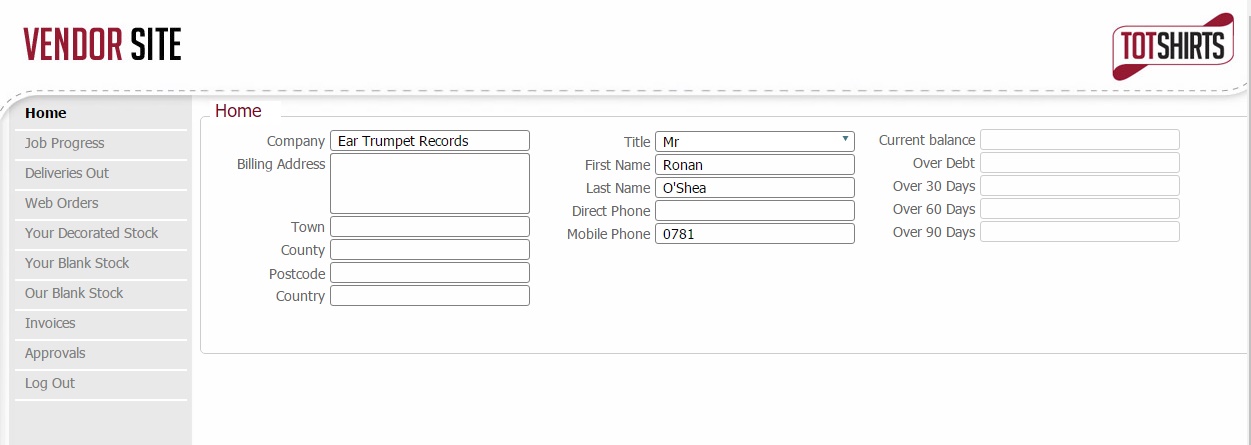
- You will be logged onto the Vendor Site and navigated to the Home page.
Logging onto the Vendor Site
Once you have successfully changed your temporary password, logging into the Vendor Site is very straightforward.
Simply:-
- Navigate to http://www.totshirts.co.uk/ from within your browser
- Click on the My Account link on the right
- Enter your user id and password in the log in dialog box and click OK
Please remember that both user id and password are case sensitive !
If you suddenly find that your password no longer works, please review the section
Logging in to the Vendor Site post Development Updates.
As outlined in the Overview section, periodically functionality will be ported from the development to production vendor site, and when this occurs, the password that you have previously set will no longer be recognised.
When you attempt to logon using your existing password you will see something similar to the screen below:-
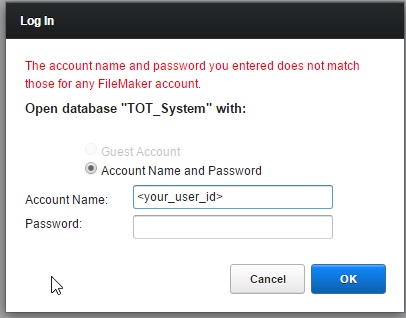
To logon follow these steps:-
- Ensure that the radio button for Account Name and Password is set as enabled
- In the Account Name field (1) type your user id
- In the Password field (2) type your company wide password (this will have be emailed to your company)
(Tip: both of these values are case sensitive - so please type carefully)
- And click on OK (3)
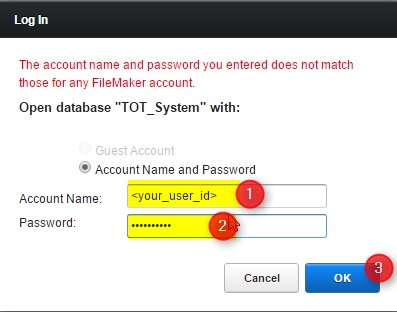
- For security purposes, as your user id password has been automatically reset by us, you will need to change it to one known only by you, and so you will be taken to the change password form
- The Vendor Site will prompt you to change your temporary password before you can proceed further.
-
- In the New Password field, type your chosen password. (this can be what your previous password was)
- Repeat this in the Confirm New Password field.
(these must match)
- Click OK
- You will be logged onto the Vendor Site and navigated to the Home page.
Please Note: If after following the above steps you still encounter difficulties accessing our site, please contact us, and we'll endeavour to remedy the situation as soon as we can.
Related Topics
Introduction
Vendor Site Basics