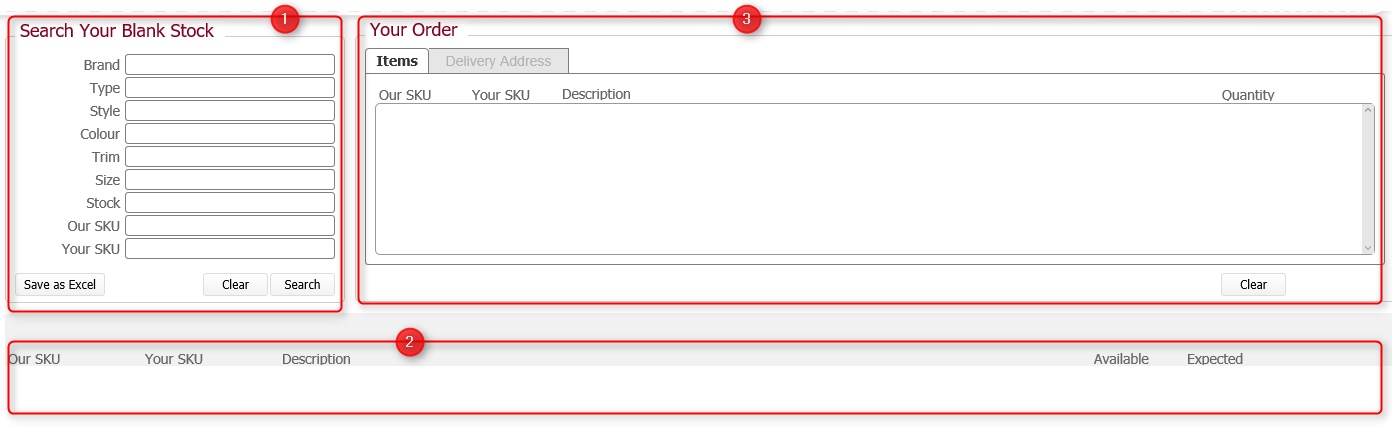
The Your Blank Stock Page allows you to perform two major functions:-
(Note: In the below sections/text, the numbers in (bold parenthesis) refer to the annotations in the above screen-shot)
For maximum performance, the page opens in find mode. That is, no records are shown.
The page is made up of three sections.
The search pane (1) allows you to define the criteria by which to enquire upon your blank stock inventory, whilst the results pane (2) displays the details of those blank stock line items that match the search. You can then add one or many items of this inventory into the Your Order (3) pane where you complete details of to whom, when and where you would like these items delivered.
In the search pane, you define one or more criteria by which you want to search within your inventory of blank garments that we hold on your behalf.
The following fields are available to use for search criteria:-
|
Field Name |
Comments |
|
Brand |
The Manufacturer of the blank garment |
|
Type |
The type of blank garment - T-Shirt, Bag etc. |
|
Style |
The style of the garment type. |
|
Colour |
The colour of the blank garment. |
|
Trim |
The colour of trim (if applicable) on the blank garment. |
|
Size |
The size of the blank garment. |
|
Quantity
|
The quantity of the blank item that are in stock as available.
Tip: Unless specified with a value in this field, any matching results will contain items where the available balance is zero. |
|
Our SKU |
Our internal reference stock keeping unit reference number for the product. |
|
Your SKU |
Your internal reference stock keeping unit reference number for the product. |
Tip: If you enter any values by mistake, you can click the Clear button which will reset the search criteria back to their default (blank) state.
Once you have defined your search criteria, click Search to process the find.
Once processed, the matching records are displayed in the results pane directly below the search pane.
Note: Blank values for a field are interpreted as meaning All values. That is, they do not restrict the records being returned. Please bear this in mind when defining your searches, especially if they record set is likely to be large.
(You may wish to define the Quantity field to limit the result set)
When a search is processed, blank garments that match the defined search criteria are listed in the results pane.
For example, when the below search was submitted, three matching blank garments were returned.
To be absolutely clear, a returned product needed to match all of the four search criteria defined.
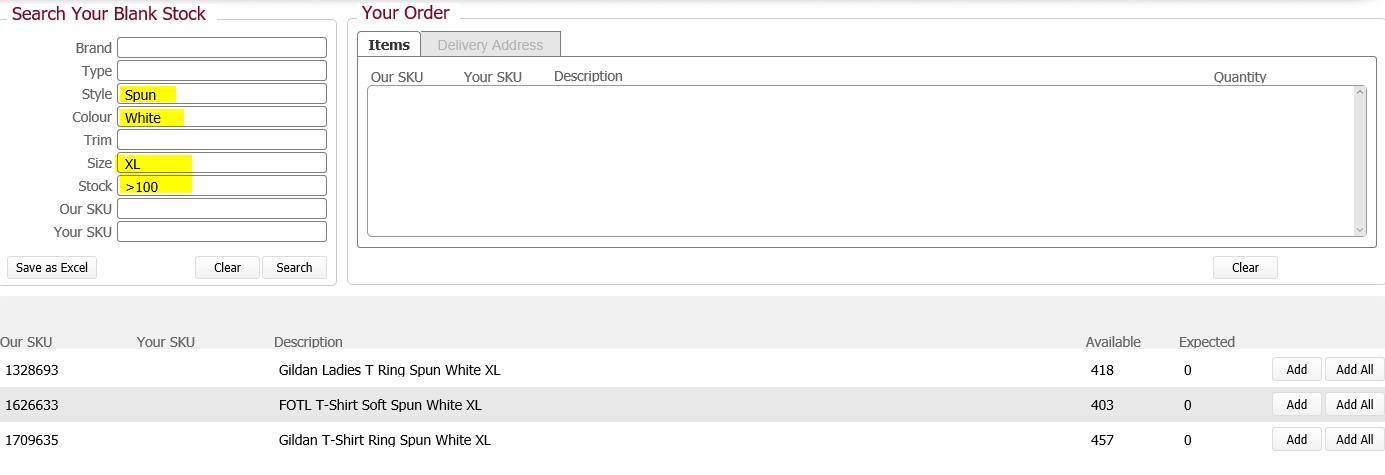
For each blank garment shown in the results pane, the following information is shown.
|
Field Name |
Comments |
|
Our SKU |
Our internal reference stock keeping unit reference number for the product. |
|
Your SKU |
Your internal reference stock keeping unit reference number for the product. |
|
Description |
This is made up of a concatenation of the following product fields <Brand>&<Type>&<Trim>&<Colour>&<Size> |
|
Quantity
|
The quantity of the blank garment physically available at our warehouse. |
|
Expected |
The quantity of the product expected at our warehouse. Expected means:-
|
|
Add |
This action button is used to define a quantity of the available plus expected amount of the product to add to a delivery. (See raising delivery section below) |
|
Add All |
This action button is used to add all of the available and expected quantity of the product to a delivery (see raising delivery section below) |
Action Buttons
Click the Save as CSV button to export a file of the product results locally to your computer.
You can raise a delivery for one or more of your blank garments shown in the results pane, by following the below process.
There are essentially three stages to raising a delivery:-
Stage One: Adding the Blank Garments to a Delivery

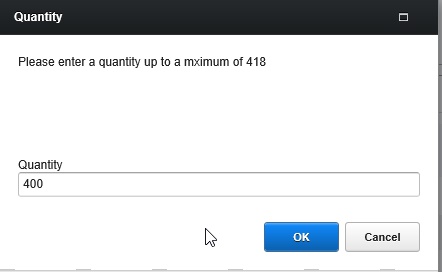
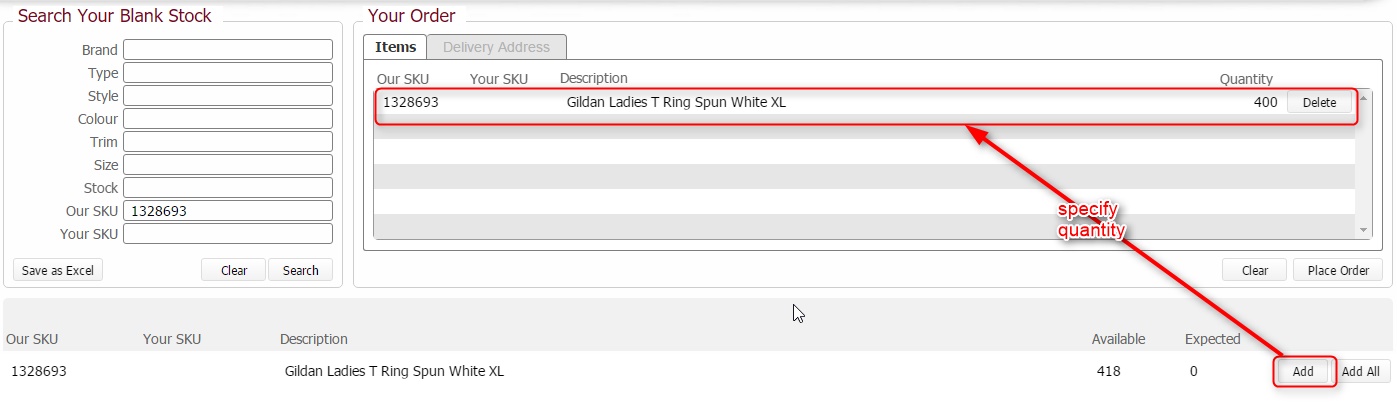

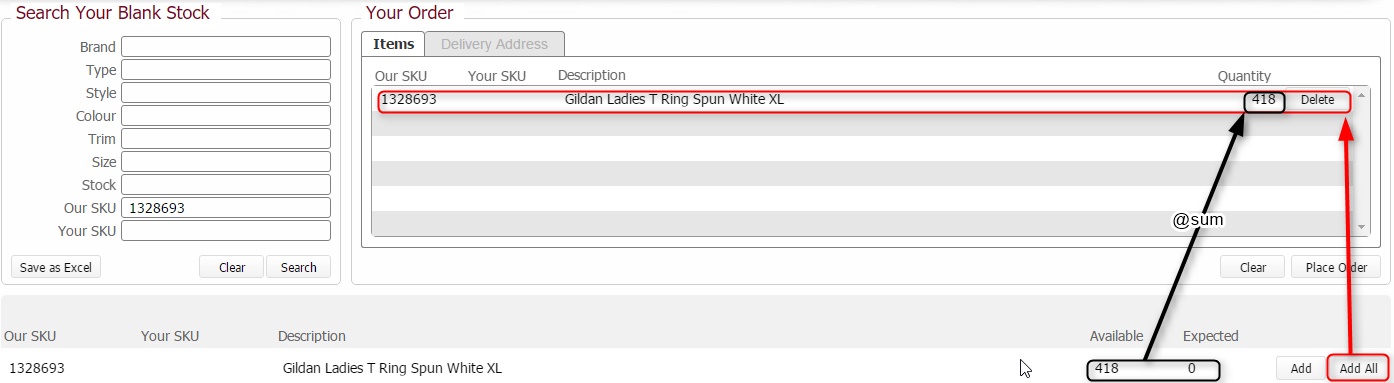

Stage Two: Populating the Delivery Address Details
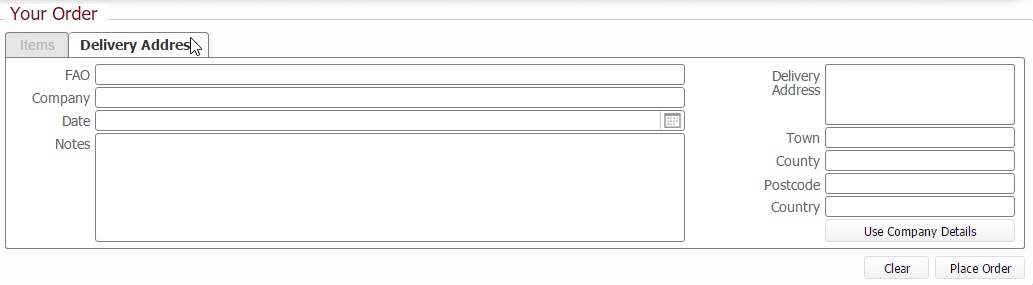
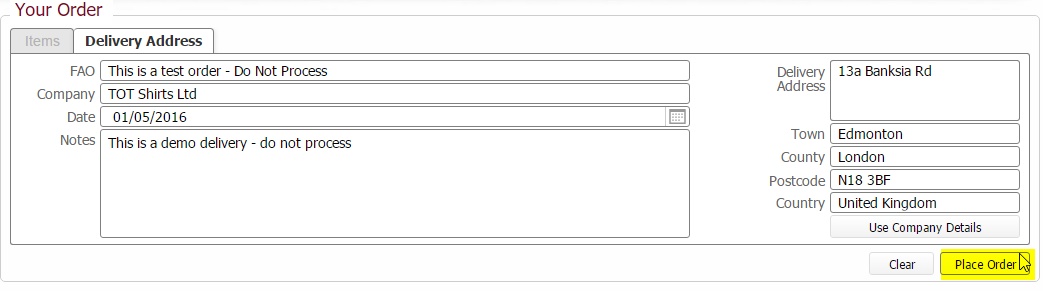
Stage Three: Submitting the Delivery
Once you are content with the delivery details, both from a content and address perspective, you can submit the order, by clicking on the Place Order button
After a few moments, you will see a confirmation dialog informing you that your order was successfully placed, and informing you of our delivery number.
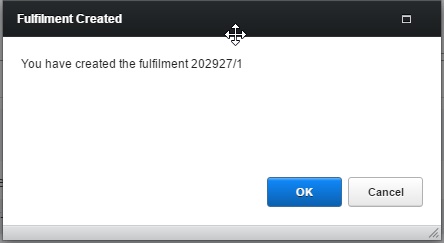
Bug: The dialog should contain Fulfilment delivery number (not job number)
You can track the subsequent progress of your delivery in the Deliveries Out Page using this number.
Note:
It is important to understand the following with regards to available stock, stock in production and maximum ordering amount.
Stock is only allocated to your order once it has been successfully placed.
When stock is allocated it debits the available balance by the same amount
When In Production stock is successfully manufactured it
Debits the In Production
Credits the available
by the quantity that is actually manufactured.
As we allow you to order a maximum of the sum of Available and In Production quantities, that is, we allow you to order items not yet manufactured, this can lead to some anomalies where you order the maximum possible amount and there maybe rejects encountered in the manufacturing process.
Consider the following example for single stock item
The physically Available, balance is 100
The In production Balance is 200
You place an order the maximum amount of 300.
The 300 of the item ordered is allocated to the delivery, and debits the available balance.
The position thus would read
Available -200; In Production 200
At this point, you could not place any further orders for this item.
Consider that during the manufacture of the (In Production) 200 items, that 5 were rejected,
The amount successfully produced would therefore be 195
This successfully produced quantity, zeros the expected amount, and credits the available balance.
The position would thus now be :-
Available -5; In Production
0, and an amount already allocated
to your order of 300.
In physical terms , there are insufficient items to satisfy the total amount
ordered, and no more are due to be manufactured.
In this situation we would de-allocate, and thus reduce the amount on your order by the rejected amount
The revised order would therefore be
295 items
The 5 items de-allocated, would effectively credit 5 back to the negative available and bring the position back into proof of zero.
Enhancements Needed / Bugs
Search pane
Rename Stock field,label to Quantity
Rename Button from Save as Excel to Save as CSV and ensure it can save as that file format
Results Pane
Bug when adding, the Quantity dialog form should list in the text max amount to be added as @sum (available + in production) - it only lists available
Bug: Ensure when adding that user can add max of @sum (available + in production)
Your Order Pane
Bug: Clear button on delivery address doesn't work: It deletes any items added - same as the Delete button
Enhancement: Add Description Field
Enhancment: Add Delivery Contact field and set this with signed in user details. Allow overtype
Enhancement Add Method drop-down field and functionality
Enhancement: Add Set Recipient Button and functionality
Enhancement: Add Set Venue Button and functionality
Bug: can select a historic delivery date: validate against this.
Bug: user can add a non integer amount of item - e.g. 1.5 of a sku
Bug: Order confirmation states job number - needs to be fulfilment number
Bug: This carries forward any items / delivery addresses set in other order pages
Bug: can submit and order (create fuflilment) with no delivery details at all
Related Topics