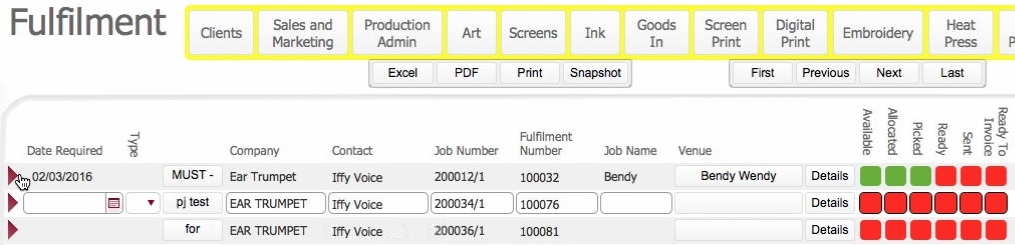
Tip: You can use the Box End labels that are attached to the packed boxes, as these will have Job Order / Fulfilment number reference numbers.
Note: the Description and Date fields will highlight to denote that the record is selected.
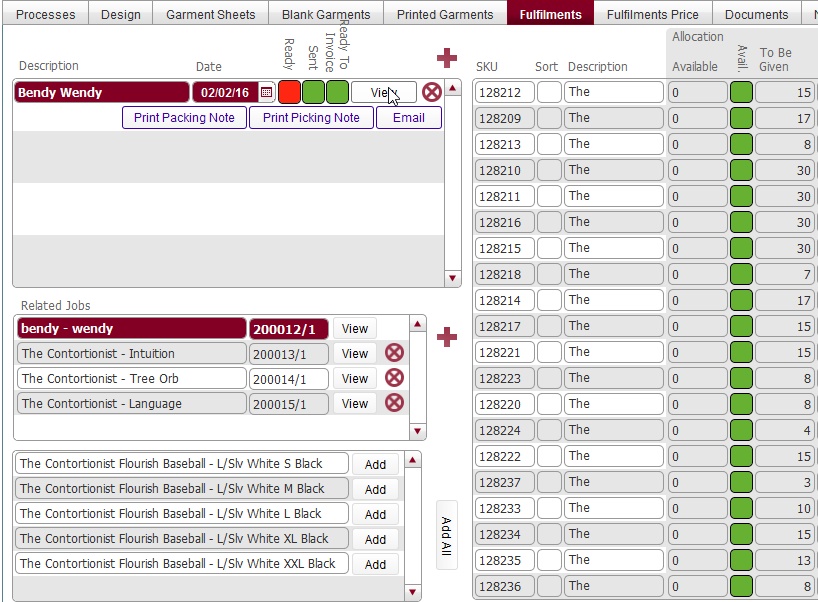
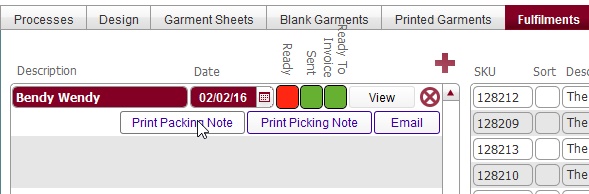
Once Box End Labels have been created and affixed to the corresponding boxes, the next stage of the process is to generate and print a Packing Note for the Fulfilment.
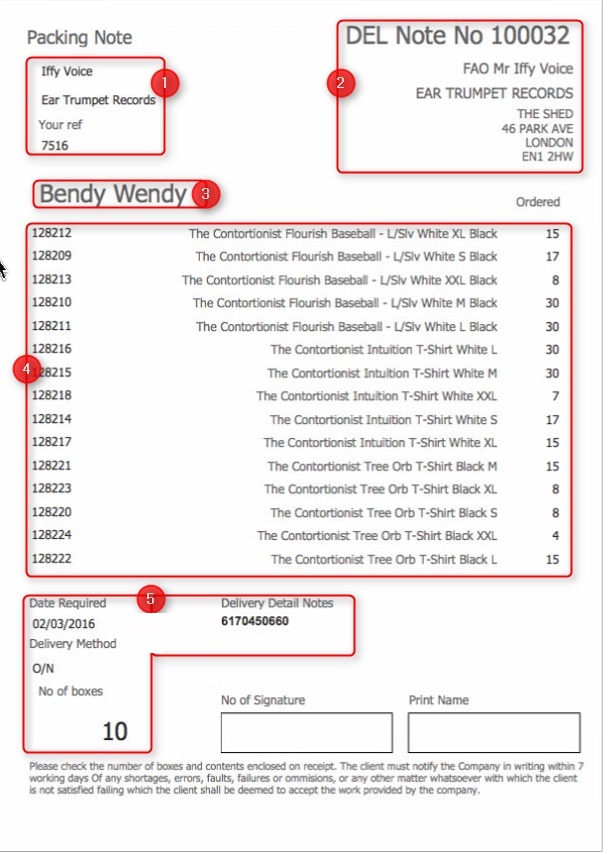
A Packing Note (also known as a Delivery Note in some institutions) contains a series of information concerning the fulfilment, such as:-
The fulfilment's delivery address, despatch method and recipient.
Number of boxes in the fulfilment
The contents of the fulfilment
Packing Notes are typically printed out numerous times, so that:-
A copy is placed in a transparent plastic envelope and accompanies the fulfilment to its destination.
A copy is signed by the courier whom collects the fulfilment, and retained by TOT Shirts Limited as proof of collection.
Note: The Packing Note does not provide a breakdown of box contents. That information is recorded on the Box End Labels.
This topic outlines how to print out a Packing Note for a fulfilment.
Ensure that you have:-
Opened the Fulfilment list layout
Next Steps:
As the fulfilment has been finally assembled at this stage, the next step in the process is locate the goods in a designated area and to mark the fulfilment assembly as finished.
Related Topics
Recording that a Fulfilment Assembly is Completed