Fulfilment Layout
Background
The fulfilment list layout shows fulfilments that have been entered
in strokeone,
together with their processing status. Additionally it provides the navigation
point to record and update operational processes on a fulfilment record.
About this task
This topic will instruct you how to navigate to, view, and understand
how to update elements of a fulfilment.
Prerequisites
Ensure that you have logged
onto strokeone,
and that you can see and access the Fulfilment
button in strokeone
home banner.
Procedure
- From the home
banner, click the Fulfilment
button.
- Rather than see all the
fulfilment records (which could be a very large quantity), you will
be presented with a further choice as to which sub-set
of the total found-set of fulfilment records to see.
Enhancement:
The filter buttons need to open the layouts with the fulfilment records
in a sent status filtered out.
Essentially, the found-set will be fulfilments not sent, and can be
filtered down by the date the fulfilment is scheduled to be despatched.
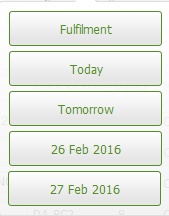
By default, the date choice filter buttons are:-
- Fulfilment: meaning all
fulfilments not yet sent, sorted and summarised by date required.
- Today: filter to show
records only where not sent and fulfilment date = Today()
- Tomorrow: filter to show
records only where not sent and fulfilment date = Today()+1
- Today+2: filter
to show records only where not sent and fulfilment date =
Today()+2
- Today+3: filter
to show records only where not sent and fulfilment date =
Today()+3
- Click the filter button you require.
- The Fulfilment
layout opens, with fulfilment
records filtered according to the criteria selected
in step 3)
It is worth commenting that records on this layout are sorted in by
the Date Required field ascending order.
(Note:
for this topic certain field values have been deliberately obscured in
the screen-shots)
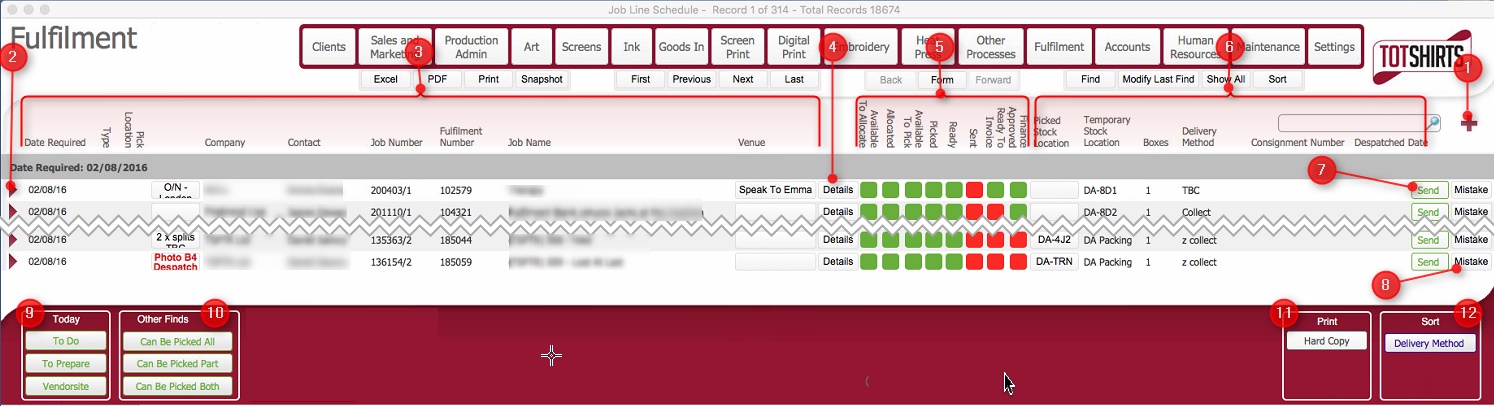
(Note: In the below sections/text,
the numbers in (bold parenthesis)
refer to the annotations in the above screen-shot)
Layout Composition & Actions Permissible
This layout is composed of the following elements:-
(1) New record icon - allows
you to create a stand-alone fulfilment. (i.e.
a fulfilment that is not related to a job order)
(2) Open record icon -
will navigate you to be fulfilment
record form on the job order.
(3) Fulfilment
data fields. Specifically, for each
fulfilment listed, the following data is shown:-
Field |
Comments |
Updatable from
layout ? |
Date Required |
The Date the fulfilment needs to be despatched
Note: This date is input
at the job level and may well require review
For example, if there are multiple fulfilments related to the job,
each fulfilment will appear as a separate record and this
will have its own independent required date.
The job required date should look up the earliest-not delivered
date.
|
TBA |
Sort |
A manual entry field allowing you to record a numeric value
that you can then use to sort the data-set.
You can sort
the displayed data-set by the values in this field by clicking
on the column header |
Yes |
Type |
A drop down selector that denotes the origin/type
of the fulfilment.
Current values are:-
V - meaning that the fulfilment
originates from the vendor
site
B - meaning that the
fulfilment is only for the supply of blank
garments
W - meaning that the
fulfilment originates from a web
order
These values aid the warehouse staff in identifying where the fulfilment
was originated
Enhancements:
Consider .
a) Having an indicator for "normal" fulfilments
b)
Having Scripted finds / filter buttons for these
|
Yes |
Pick Location |
Records the location of where the assembled and ready to
despatch fulfilment is placed. |
|
Company |
The company whom placed the job order. |
No |
Contact |
The contact at the company whom placed the job order |
No |
Job Number |
The job order which the fulfilment is associated to.
This is useful for finding specific fulfilments.
Enhancements:
Need
a way to reflect (and allow searches) when there are multiple
jobs associated to a fulfilment. Consider exposing all of these
into this field to allow user to search for one of the job orders
and return the corresponding fulfilment to which it is linked.
|
No |
Fulfilment Number |
The unique internal identifier for the fulfilment record |
No |
Job Name |
Taken from the Description
field of the underlying fulfilment
record.
Enhancements:
Consider
making this editable, whilst still back filling this from the
fulfilment itself. |
No |
Venue button |
Clicking this will bring a pop up window showing the address
details populated on the fulfilment, together with
Set Recipient, Use Company and
Set
Venue buttons which allow you to select or update a
delivery address. This information is taken from the Delivery
details on the underlying fulfilment record and is dynamic."
Note: You can over-type
this data if you need to |
Yes |
(4) Details button: Clicking this button
brings up a pop-up window with the following tabs:-
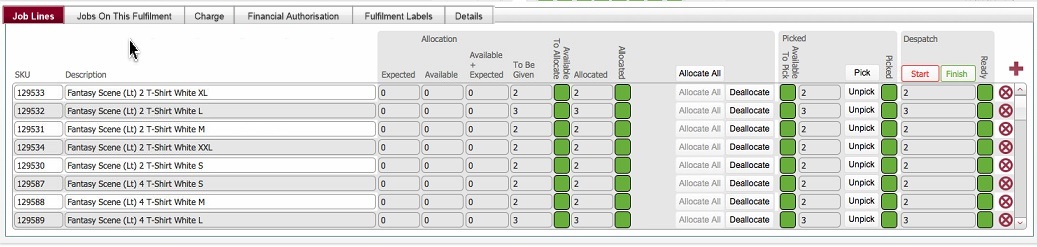
Job Lines tab
which allows you to view the sku's required on the fulfilment, administer
the processing of the fulfilment, i.e. allocating items, picking
items, recording the start
and finish
of the assembly of the fulfilment.
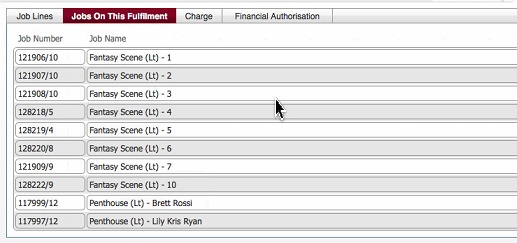
Jobs on this fulfilment tab
that shows lists the jobs whose produced output has been included
on the fulfilment.
Charges Tab where the
fulfilment charges which will be charged out to the customer can be
viewed.
Note, these charging fields can also be accessed and administered via
the main fulfilment form layout.
Financial Authorisation
tab which allows you to record
additional approval for those clients that need it, before goods
are released.
Fulfilment Labels tab
- which allows you to
view / generate / print box end labels for fulfilments.
Details tab
- this allows you to see the full delivery
pane for the fulfilment (recipient name, address, contact details
etc) together with any delivery notes
that were recorded..
Click
for an example
(5)
Fulfilment Status Icons. These
provide a graphical representation of the fulfilment's status and its
associated processes.
Icon |
Comments |
Available to Allocate |
This constitutes an aggregate of the available
to allocate status for all the items contained on the fulfilment.
The available to allocate status is calculated by comparing
the maximum quantity of an item that can be allocated relative
to the quantity of the item required on the fulfilment.
The maximum quantity of an item that can be allocated is calculated
as an @sum of the (quantity in
warehouse plus
the quantity expected)
Given this, the field can have one of three statuses:-
a) When Green it indicates
for all the items on the
fulfilment, the quantity available to allocate is equal
to or greater than the quantity required.
b) When Amber it means
that for one or more
of the items on the fulfilment, the quantity available to be allocated
is less than the quantity required.
c) When Red it means
that for all of the items
on the fulfilment, the quantity available to allocate is zero
|
Allocated |
Depending on the origin of the fulfilment, this should
have been populated:-
- For a [fulfilment] delivery order entered via the Vendor
Site, once the order has been successfully placed.
- For a fulfilment record that has been written up internally,
as part of the process of populating fulfilment details.
In either case, items that are included on fulfilments are allocated
in full (i.e. Qty
allocated = Qty Required) and thus the status light should
be Green
In summary:-
Green when all items fully
allocated (i.e. allocated
= required) Amber when one of more
items not fully allocated
(i.e. allocated
< required) Red: when all items Unallocated
(i.e. allocated=zero)
. |
Available to Pick |
This constitutes an aggregate of the available to pick status
of all the items that are contained in the fulfilment. Note:-
a) When Green it indicates
for all the items on the fulfilment, the quantity physically available
to be picked is >= quantity required, and thus items can be
picked.
b) When Amber it means
that for one or more
of the items on the fulfilment, the quantity available to be picked
is less quantity required.
In this case of b) it is worth drilling down into the fulfilment
details to see what the quantities available vs. the quantities
required, especially as the shortfall may be due to rejects encountered
in production that will not be replaced.
In such circumstances
you may conclude that you should de-allocate the item, reduce
the quantity required, re-allocate, and thus you should now have
an available amount >= quantity required.
See Dealing
with Insufficient Stock on a Fulfilment for more details.
|
Picked |
This denotes the picking
status of all of the items contained in the fulfilment.
a) When Green it indicates
for all the items on the fulfilment, the quantity picked
is equal to the quantity required, and thus the fulfilment can
be ready to be boxed up..
b) When Amber it means
that for one or more
of the items on the fulfilment, the quantity picked is less quantity
required.
Again, as per the Available status icon, it is worth drilling
down into the detail to see what the discrepancy is, and taking
action accordingly to enable you to on process the fulfilment.
See Dealing
with Insuffcient Stock on a Fulfilment for more details |
Ready |
This denotes the assembly status of the fulfilment. It updates
to in progress (amber)
when the assembly (boxing up, packing, despatch paperwork etc.)
begins
and completed (green)
once the assembly of the fulfilment is completed. |
Sent |
This indicates the despatch status of the fulfilment. It
gets updated when the fulfilment is despatched. |
Ready To Invoice |
This status icon denotes whether the fulfilment has been
sufficiently populated such that it can be invoiced to the client.
This icon is initially set as Red
(Not ready), and is manually
set to green when a user decides that the fulfilment is in
a state where it can be billed..
Typically a fulfilment is marked as ready to invoice once the
finalised fulfilment charges are known and agreed with the client.
This could be done at one of the following points in the process
chain: -
- Once the fulfilment has been fully assembled, because part
of the charges involve costs for the effort involved in assembling
/ boxing up the fulfilment.
It might be as soon as costs are finalised which could
be before the assembly/ boxing up of the fulfilment The fulfilment may have no fulfilment charges (usually
when a client collects the fulfilment from the warehouse)
Ultimately, the point at which the fulfilment will be marked
as ready to invoice will vary depending on situation, but best
practice is to do this once fulfilment costs have been finalised,
recorded and agreed with the client..
|
(6) More
Fulfilment data fields. Specifically:-
Field |
Comments |
Updatable from
layout ? |
Picked Stock Location button |
This button records where the physical contents of the fulfilment
are. This gets updated as items are picked and packed. |
Yes |
Temp stock location |
A temporary field: This is likely to be removed:
A drop-down to allow the recording of where the temporary staging
post for the stock prior to despatch
Enhancements:Consider
removal as PJ regards this a temporary fix |
Yes |
Boxes |
Denotes the quantity of packed boxes, or "outers"
that constitute the fulfilment. |
Yes |
Method |
The
Despatch
Method for
the fulfilment, e.g.
Customer Collection Courier
|
Yes |
Consignment Number |
Field to record the reference number that is applied to
any fulfilment that is despatched via external courier |
Yes |
Despatched Date |
Populated when the fulfilment is sent.
Provides an audit record of when the fulfilment was completed. |
No |
(7) Send button: Clicking this
causes the following actions:-
- It marks the fulfilment as Sent
and generates a PDF delivery note and insert this into a new message
within your default email application to be generated. You can
choose to send this to the client.
See Recording
that a Fulfilment is Sent
- It also loads the delivery note onto the vendor
website into the Deliveries
Out Page.
(8) Mistakes: Clicking this button will allow you to record
a mistake associated with the order
(9) Scripted filter buttons.
These buttons have the following affect
Press
|
To |
To Do |
Show only fulfilments where Date Required =Today() And Not
Sent |
To Prepare |
Show only fulfilments where Date Required =Today() And
Dev: is this now defunct ? |
Vendorsite |
Show only fulfilments where Date Required =Today() And Type
is V or O |
(10) Other
Finds scripted buttons
Press
|
To |
Can be Picked All |
Show only fulfilments where Available to Pick is Green And
Picked Not Complete |
Can be Picked Part |
Show only fulfilments where Available to Pick is Amber And
Picked Not Complete |
Can be Picked Both |
Show only fulfilments where Available to Pick is Green or Amber
Picked Not Complete |
(11) Hard Copy button: Will
navigate you to a differing layout formatted specially for printing the
foundset. (Defunct ?)
(12) Delivery Method button:
will sort the foundset in ascending
order according to Delivery Method
value.
Related Topics
Writing
Up a Fulfilment
Processing
a Fulfilment