Entering / Finalising Charges on a Fulfilment
Background
Fulfilment charges need to be recorded, so that they can be charged
to the client via the invoice process.
The final charges
involved with a fulfilment may not be known at the outset of the client
order, and/or they may change during the processing of the order due to
a variety of factors.
It is also worth noting that fulfilment costs may in certain circumstances
be zero, should the assembly effort be modest and the client collects
the order.
What is important to understand is that should there be billable costs
on a fulfilment, then as soon as the
final costs are known, the following must
happen :-
- The costs are communicated to,
and agreed by, the customer.
- The customer's approval
of the costs is recorded
on the fulfilment.
- The costs are entered on
the fulfilment.
It is imperative that all three of the above activities are undertaken,
so that when the client is invoiced for the fulfilment, there will be
no disputed charges.
See Understanding
the importance of Recording Costs for more information.
It is also worth reiterating, that although indicative
fulfilment costs may have been entered when the fulfilment was initially
created, circumstances may have subsequently altered (for example, increased
packing effort, and/or changes to the despatch method) which have a material
impact on the costs of the fulfilment. Definitive costs must be fully
captured and made clear to and agreed by the customer
In short, the fulfilment record might already have charges recorded
on it - in which case they must be verified, and if necessary altered
and communicated to the client for approval, and approval documented.
Alternatively, the fulfilment record might not have any charges yet
recorded - in which case they must be recorded, communicated to the client
for approval, and approval documented.
About this Task
This topic outlines how to update strokeone
to record fulfilment charges and record that the client has approved the
charges.`
Note: that fulfilment charges can be entered in two layouts:-
- Via the Fulfilment list
layout.
- Via the Fulfilment Prices
tab on the detail form.
Both methods are outlined below - it is worth remarking that they are
functionally identical.
Prerequisites
Ensure that you have opened the Fulfilment
list layout.
Procedure for entering via the Fulfilment list layout.
- Identify the fulfilment that you wish to enter finalised charges
on.
- Click the Details button
for the record identified.
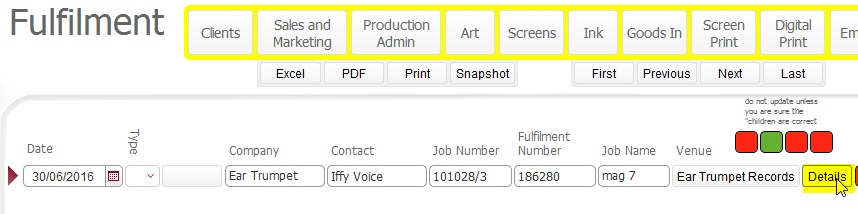
- In the Details pop up window,
ensure that you select the Charge
tab

- Be Mindful, that there are three likely chargeable components that
can constitute the costs for a fulfilment :-
- Delivery
Costs - typically
these will refer to the costs
of the courier tasked with delivering the fulfilment, and
these will vary according to the courier used, the speed of the
delivery (same day, overnight, standard etc.) as well as the destination.
- Packing
Costs - typically
these refer to the time effort (organising, packing and labelling)
involved in physically assembling the fulfilment for despatch.
As a general rule, as the complexity of a fulfilment rises (i.e.
number of splits) so does the attendant packing time costs.
- Packing
Material Costs - these typically
refer to the cost of the packing materials. If new and/or specialised
boxes / packing materials are required, then the costs of supplying
these are recorded and passed on as chargeable elements to the
customer.
To record a fulfilment cost click the new
record icon to the right, which inserts a new charge record against
the fulfilment.
- Bearing in mind the cost types, populate this row as follows:-
Field |
Comments |
Delivery |
This
should be pre-populated with the Company name as defined
on the fulfilment delivery record.
Enhancement: What is the purpose of showing this here ? - and
why is it called delivery ?
|
Type |
This is where
you record the category of cost for the fulfilment. Click
in the drop-down and select the appropriate value from
the list:-
|
Description |
This should
have defaulted with the following data:-
<Type>&<Company>&<Category>&<delivery_description>&<delivery_method>&<fulfilment_id>
This text string will be included on the invoice
that is passed to the customer, so it is worth reviewing this
to ensure that it is accurate, clear and meaningful.
If necessary
you can overwrite this string, but ensure that should you
do so, that your entry is helpful and clear. |
Produced |
Enter here the
quantity for the type of fulfilment cost
that you are recording.
For example, if
you selected a Type
of Delivery, you would
record here the quantity
of courier services that were used for the delivery
Similarly,if you
selected a Type of
Packing Time, you
would record here the number of billable hours packing time
for the fulfilment.
|
Unit Cost |
This is an optional
field. It records the internal
cost per unit that is being charged. |
Unit Price |
This is a mandatory
field, and records the billable cost per unit of the charge
that will be invoiced to the customer.
For example, for
a charge of delivery - record here the cost of one unit of
the courier service.
If the charge is
for packing time, record here the cost of one hour of packing
time. |
Total Cost |
This is system
calculated and not user editable.
(Produced *
Unit Price) |
- Repeat steps, 5) to 6) until all
charges for the fulfilment are recorded.
- Using an example of a fulfilment that had a courier charge of £45.00, two hours packing time of £20
per hour, and Twelve boxes at 75pence each it would look like the
following:-

- Once the finalised charges have been fully entered, the costs should
be emailed to the client as per steps 19 to 21) and the fulfilment
marked as ready
for invoice as outlined below.
Procedure for entering via the Detail Form
- Identify the fulfilment that you wish to enter finalised charges
on.
- Click the open
record icon for the Fulfilment record identified in step 10) to
open up the Job Order detail
form.
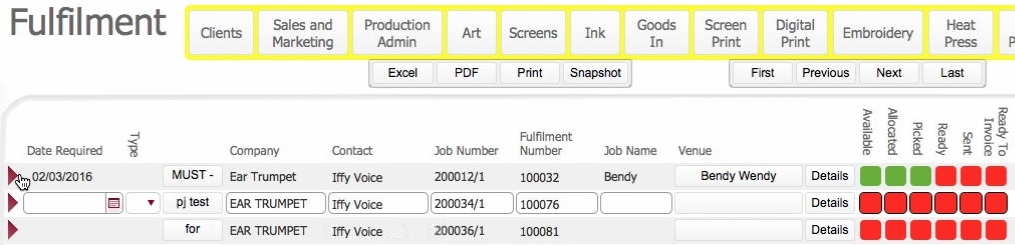
- From within the detail form, navigate to the Fulfilments
Prices tab. It will look something like the following.
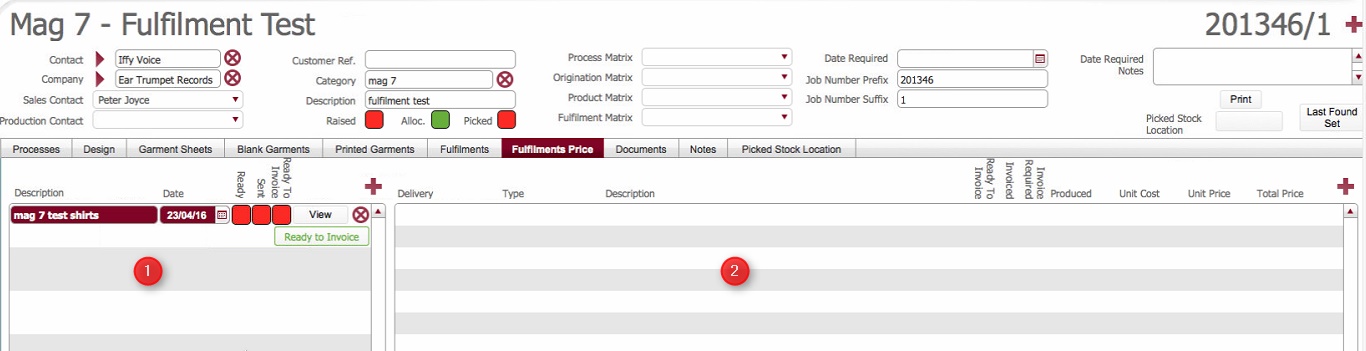
(Note: In the below sections/text,
the numbers in (bold parenthesis)
refer to the annotations in the above screen-shot)
Layout Composition
Take a moment to familiarise yourself with the layout contents.
The left pane (1) shows the Fulfilment records on the job order.
If there are numerous fulfilment record for this job order (i.e. a one
to many) they will be listed here.
The right hand pane (2) provides
a portal to record fulfilment charges.
Notes:
The fulfilment charges pane (2)
is not populated, until a fulfilment has been selected for view (by clicking
its view button) in the left pane (1).
The charges (2) are unique per fulfilment record. That is,
they are linked to whichever fulfilment in the left pane (1)
is being viewed.
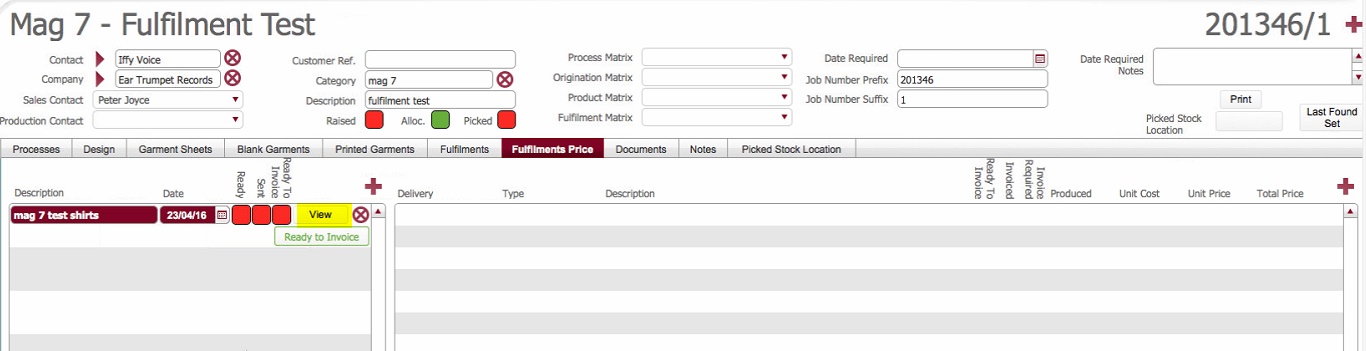
- Click the view button in
the fulfilment records pane (1)
to select the fulfilment record to record costs on.
Note: the Description
and Date fields will highlight
to denote that the record is selected
- To record a fulfilment cost click the new
record icon in the fulfilment
charges (2) pane:

- This inserts a new record into the charges pane:-

- Record the details of the charges - the process is identical
to that outlined in step 6) above
- Repeat steps, 14 to 16) until all charges for the fulfilment are
recorded.
- Using an example of a fulfilment that had a courier charge of £45.00, two hours packing time of £20
per hour, and Twelve boxes at 75pence each it would look like the
following:-

Communicating Fulfilment Costs to client
for approval
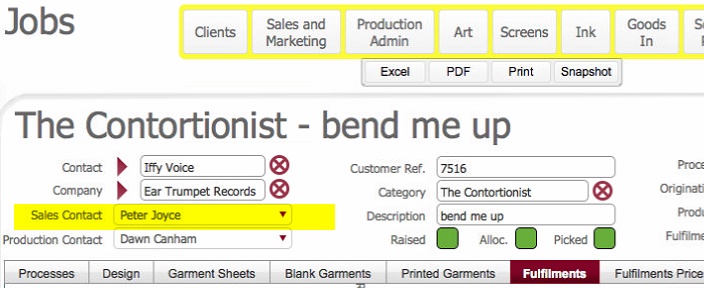
- The fulfilment costs should be communicated to the client to ensure
that they are aware and approve. Depending on the client, you may
wish to refer this task to the internal salesperson recorded on the
job order.
- As a mechanism to notify the client of these costs at this point
you could click on the email button
in the fulfilment records pane on the Fulfilments
tab.
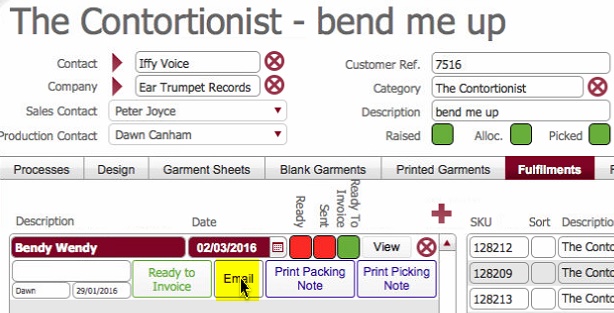
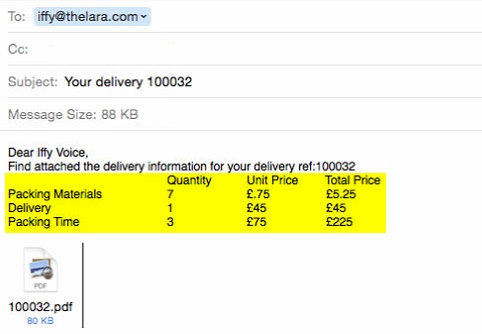
which will automatically generate an email with the recorded costs
(as well as a delivery note)
click for example.
Recording Client Approval
- Once client approval for the charges have been obtained, this should
t be recorded.
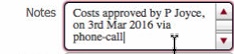
A suggested way to do this is to use the Delivery
Notes field on the Fulfilments
Pane..
A suggested syntax is to record:-
Costs approved by <client_approver_name>
on <date> via <approval_method>
e.g.:-
Marking
as Ready for Invoice
Once the delivery costs have been finalised and entered and client approved
- (see note below), the fulfilment is in a state where it can be invoiced.
In order to communicate this status to the Accounts department, the invoice
needs to be marked as ready to invoice.
Notes
There can be cases where there are no fulfilment costs in which case,
the fulfilment can be marked as ready to invoice per the below process
A fulfilment can be marked as ready
to invoice directly from within the Fulfilment
Prices tab, or from the Fulfilment
list layout. It is functionally identical.
To record this within the Fulfilment Prices
tab, follow these steps:-
Ensure that you click the view button for the fulfilment record
that you wish to mark as ready for invoice

Check to see that the costs are accurately recorded.
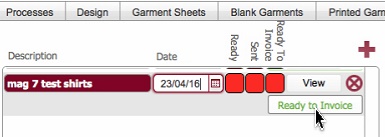
Click the Ready
to Invoice button for the fulfilment record selected above.
Note
the following occurs:-
The
Ready to Invoice status icon
updates to Green (Completed)
in the fulfilment records pane.
The Ready
to Invoice button disables
The Ready to Invoice status icon
for each of the fulfilment's charges
also updates to Green Completed
in the fulfilment charges pane

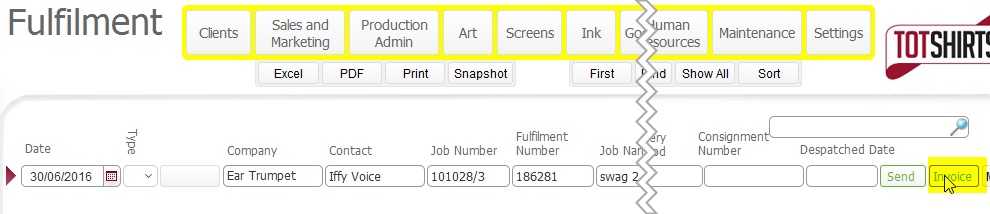
To mark as ready for Invoice from the Fulfilment List layout, follow
these steps:-
Note
the following occurs:-
The
Invoice status icon updates
to Green (Completed) in the
fulfilment list layout.
The Invoice
button disables

The Ready to Invoice status icon
for each of the fulfilment's individual
charges also updates to Green
Completed
Related Topics
Marking a Fulfilment
as Ready to Invoice from Fulfilment List Layout.