Populating Fulfilment Details

Background

Once a fulfilment record has been created on a job order, it needs to be populated with the details of the actual fulfilment, e.g. - what products are included in the fulfilment, where is the fulfilment being despatched to, and when it is required.


See Understanding Fulfilments for more details.

About this Task

This topic outlines how to populate a fulfilment record that has been created on a job order. This is the second stage in writing up a fulfilment.

Prerequisites

Ensure that you have opened the detail form for the job order with the fulfilment record which needs populating.

Procedure

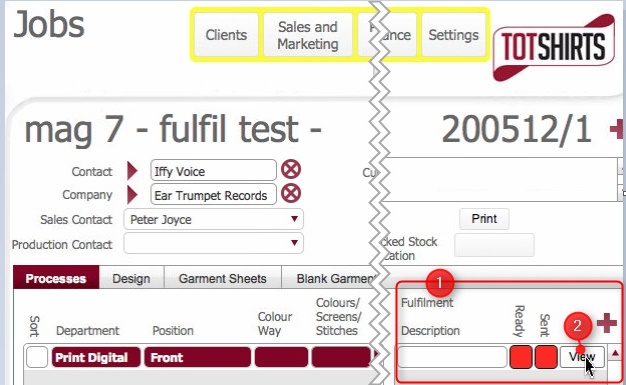
  1. In the Fulfilment pane (1), click on the view (2) button besides the fulfilment record which needs to be detail populated.

    .
  2. You are navigated to the Fulfilments tab

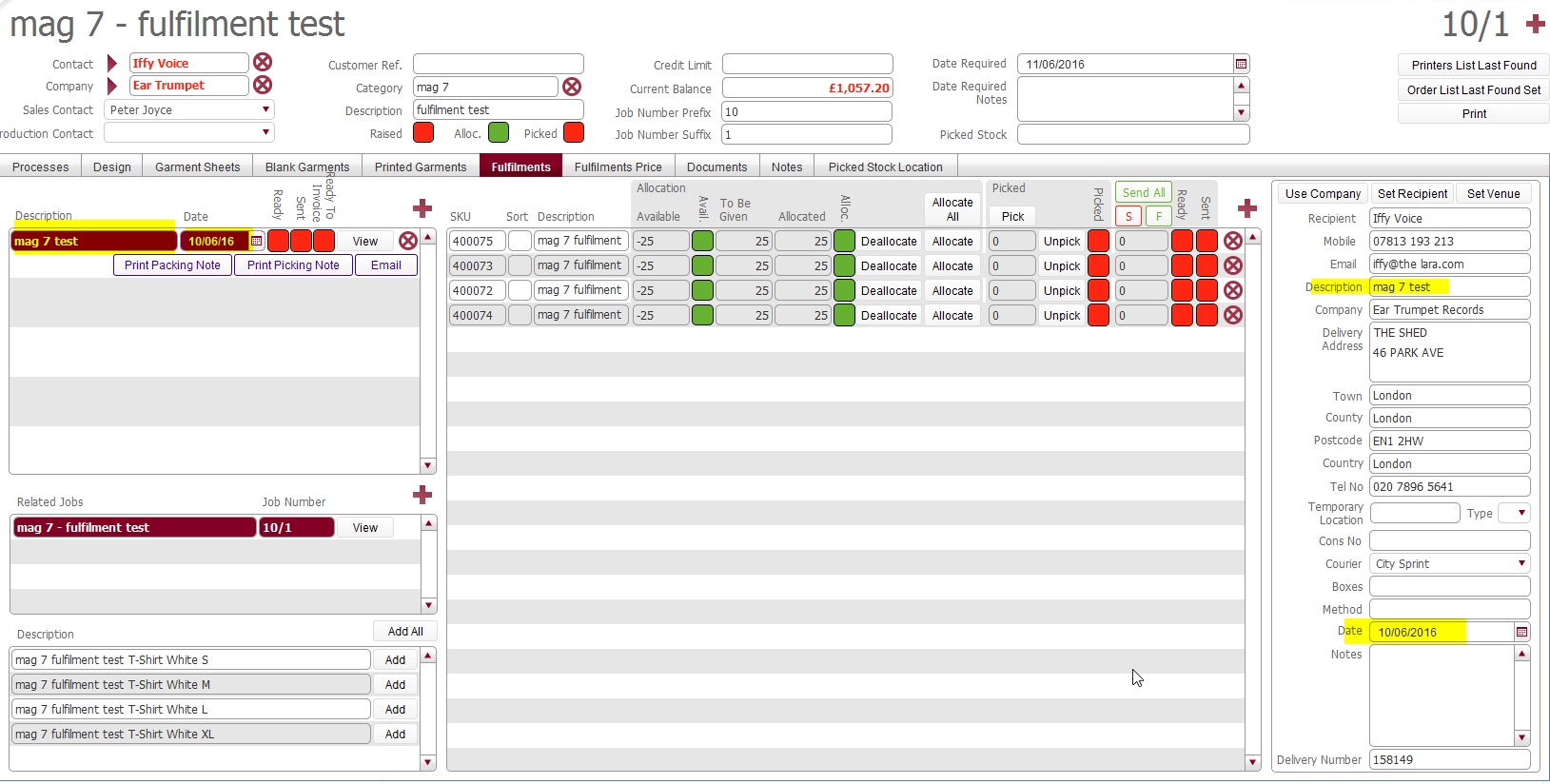
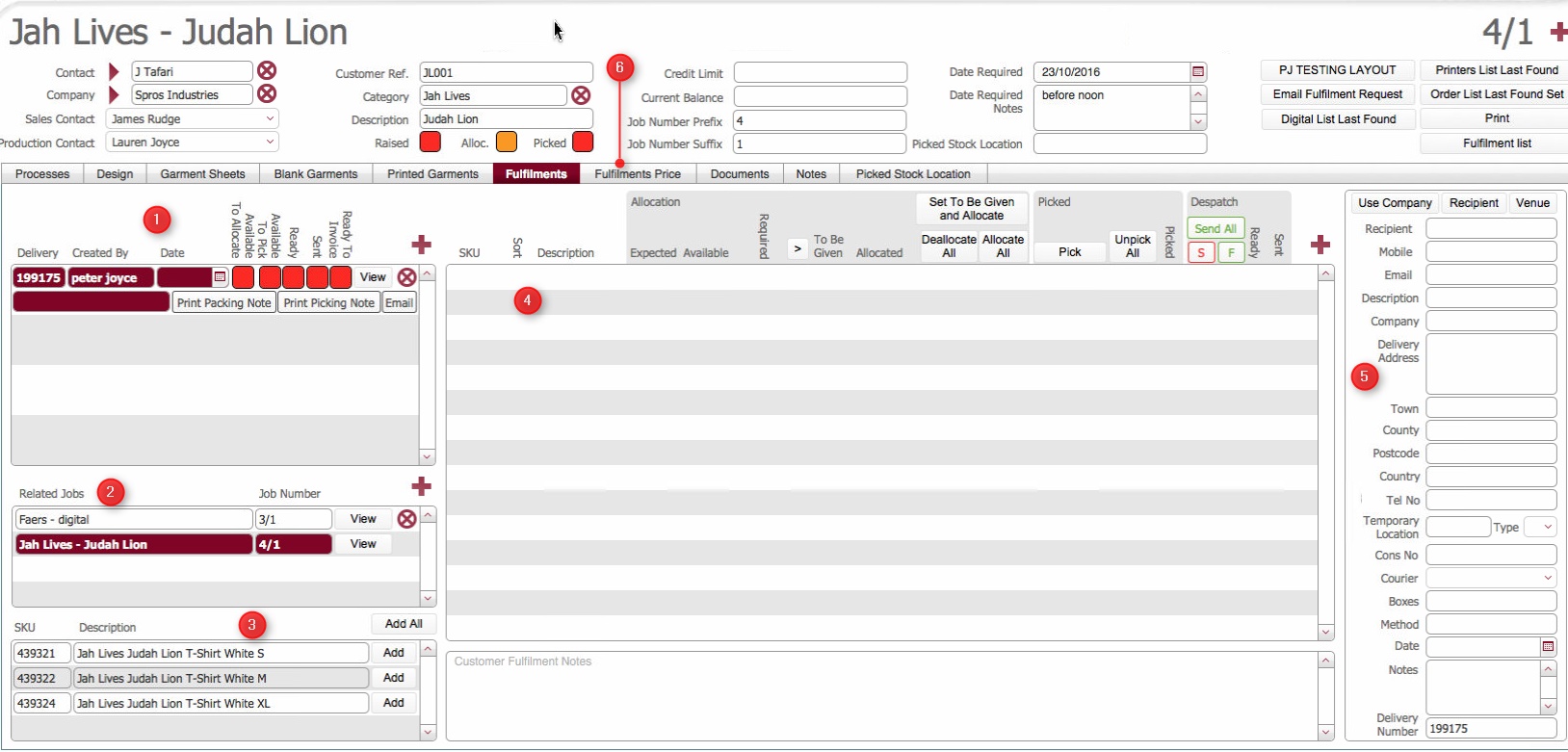
    (Note: In the below sections, the numbers in parenthesis refer to the annotations in the above screen-shot)

Layout Composition
Take a moment to familiarise yourself with the layout contents.

The top left pane (1) shows the Fulfilment records on the job order. If there are numerous fulfilment record for this job order (i.e. a one to many) they will be listed here
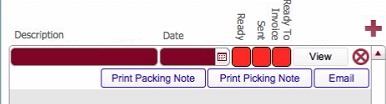

For each fulfilment record, the following components are displayed:-

Item

Type

Comments

Description

Field

This can be thought of as a job name for the fulfilment. It is automatically populated with the value from the description field in the delivery address pane (5). See step 25) below.

Dev Note: Is this to be autopopulated with a default name ?

Date

Field

This is the date that delivery is required for this fulfilment. Like Description above, it is automatically populated with the date value selected in the delivery address pane (5) See step 27) below

Ready

Icon

This denotes the state of the fulfilment's assembly, and is updated as the assembly starts and ultimately finishes.

Red denotes that the fulfilment assembly / boxing up has not started.
Amber denotes that the assembly/boxing up is in progress.
Green denotes that the assembly process has completed

Dev Note: This does not seem to get updated.

Sent

Icon

This denotes the state of the fulfilments despatch, and is updated when the fulfilment is sent.

Red denotes that the fulfilment has not been sent.
Green denotes that the fulfilment has not been sent.

Ready to Invoice

Icon

This denotes that the fulfilment is ready to invoice and is set once any fulfilment costs have been recorded (or there aren't any) on the fulfilment.

View

button

The View button is used to select the fulfilment record to enable it to be viewed / administered.
It is worth noting that when a record is selected, the data row highlights - as in the above screen-shot.
Additionally, the fulfilment's content (4) or delivery pane (5) will not be displayed until you select it.

Email

button

Clicking this will generate an email to the contact from the order containing a PDF of the delivery note together with the costs that are recorded on the fulfilment.

This can be used to on request generate and send a delivery note to a client once a fulfilment is fully populated.

Note: this function generates the email. It will still need to be sent by the user.

Print Packing Note

button

Click this to print out a hard copy of the packing note.
Packing notes are typically included with the fulfilment when it is despatched and contain high level information regarding the fulfilment such as:-

  • Job name and reference
  • Total number of boxes
  • Client order reference
  • Contents


Print Picking Note

button

Click this to print out a hard copy of the picking note.


A picking note is an internal aid which is used during the “boxing up” of larger or complex fulfilment orders.
In essence it is a spreadsheet /tabular formatted report that details all of the contents of the fulfilment, and allows a staff member to annotate :-

  • The total number of boxes used to pack a fulfilment's contents.

  • For each SKU on the fulfilment, the quantity packed in each box.

It is used as a reference when creating box end labels


The Related Jobs pane (2) show the jobs associated to this delivery, and the next pane (3) lists the products that were created (and thus available to select for inclusion on a fulfilment) for each of the selected related jobs.

The fulfilment contents pane (4) lists the actual contents of the fulfilment - i.e. which products are, and in what quantities, included on the fulfilment.

The delivery pane (5) details where the fulfilment will be despatched to, the despatch method, and the date by which it is required.

The Fulfilment Prices (6) tab  is used to record the fulfilment charges, and also to mark it as ready to invoice.


Notes:   
The delivery pane (5) is not populated, until a fulfilment has been selected for view (by clicking its view button) in the top left pane (1).
The delivery pane (5) and fulfilment contents pane (4) are unique per fulfilment record. That is, they are linked to whichever fulfilment in the top left pane (1) is being viewed.
.

Selecting a fulfilment record to populate

  1. Click the View button besides the required fulfilment record in the upper left pane (1)
    This will cause the row to highlight indicating it is indeed the selected record.

    E.g. in the above screen-shot, there are three fulfilment records, and the second record  has been selected.

    Next, select the content of what products will be included in the job order.

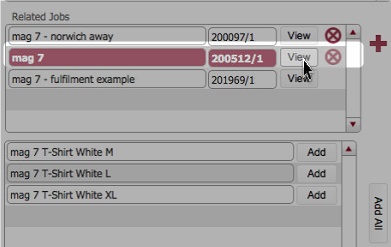
  2. In the Related Jobs section (2), you are able to choose the job(s) and therefore the items produced from the jobs, for inclusion in the fulfilment.
    By default, the job order number which the fulfilment was created on is already included.
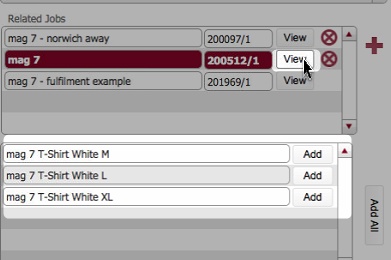
  3. Click the view button besides the job number to display in the pane below, the decorated items that will be created by the job


    Next, add one or more products from the selected job for inclusion in the fulfilment.

  4. You can select these products for inclusion in the fulfilment in three ways:-
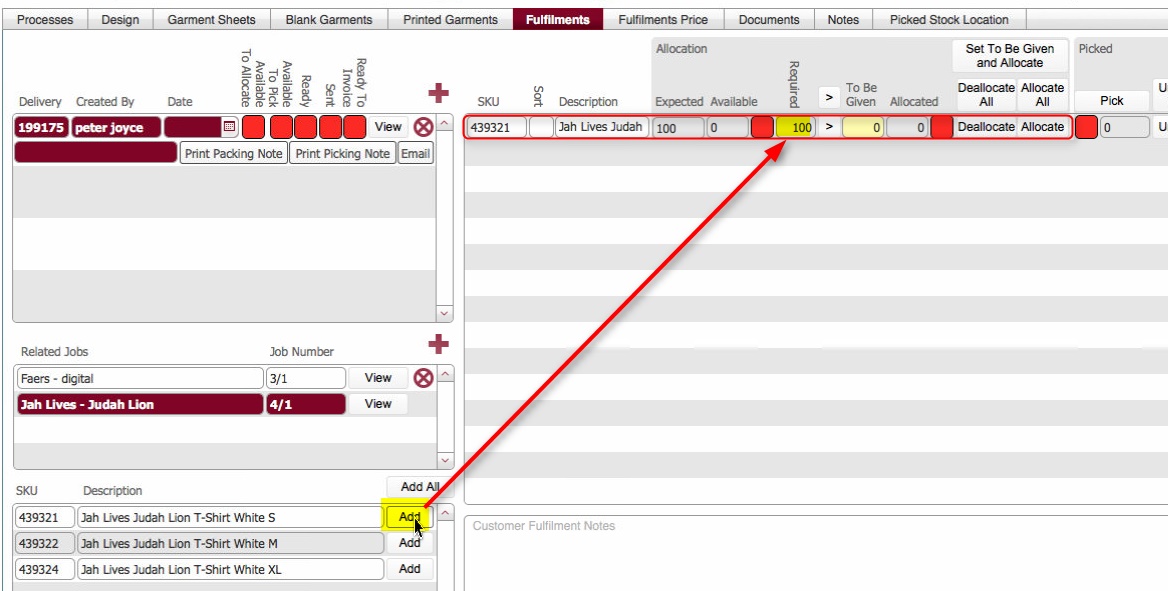
  5. Method 1: You can click the Add button beside a single product row
    1. This will cause the single product to be added to the fulfilment contents pane, but without a To be Given quantity.
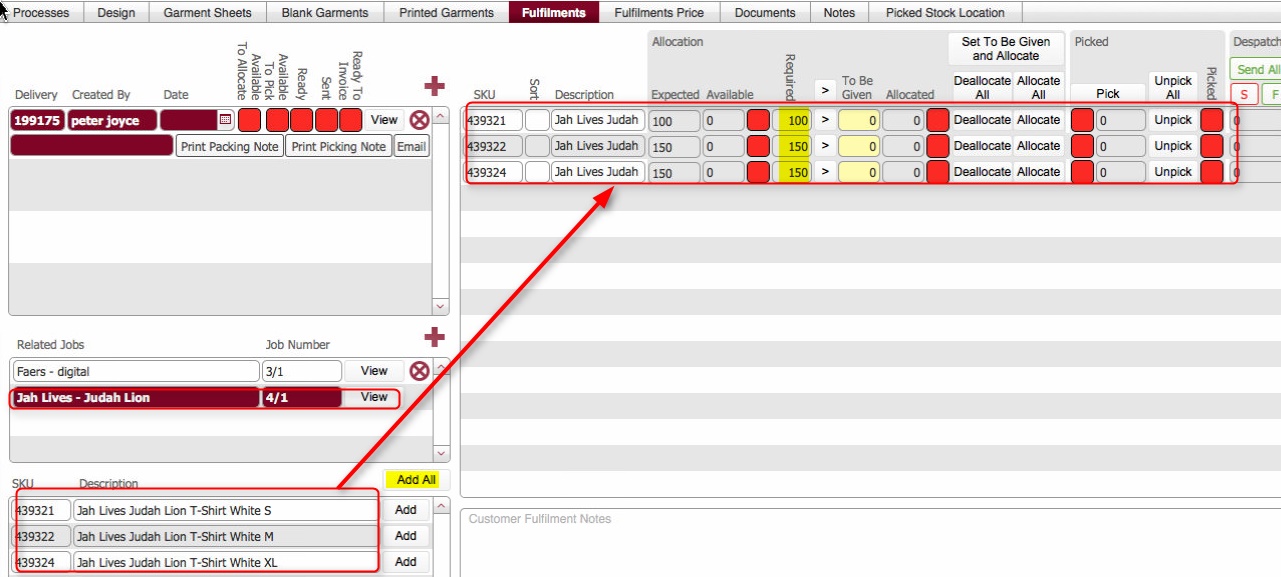
      click for example.
      Note: When you add a product, the Fulfilment Required Quantity is defaulted with the quantity of the item taken from the job order's garment sheet. This may be a higher amount than that actually required on the fulfilment, so you should check and adjust this figure as necessary.
  6. Method 2: You can use the Add All header button
    1. This will cause all the products for the selected job order to be added to the fulfilment contents pane with a quantity given equal to the To be Given quantity from the job orders Garment Sheet.
      click for example.
      Note: As per method 1,. when you add all products, the Fulfilment Required Quantities are defaulted with their corresponding To be Given quantity values, taken from the job order's garment sheet. This may be a higher amount than that actually required on the fulfilment, so you should check and adjust this figure as necessary.

  7. Method 3: DEV Enhancement You can use the Add All Without Quantities header button
    1. This will cause all the products for the selected job order to be added to the fulfilment contents pane but without a To be Given quantity.


      Dev enhancements: Consider these options for adding items into the contents pane
      Add All with Quantites
      Add All without Qantities
      Add Line with Quantites
      Add Line without Quantities

      .
  8. Once you have added the product(s) for inclusion in the fulfilment, you should check  that the quantities that have been defaulted into the Required field are the actual amounts requested by the client for the fulfilment..
    Bear in mind, that when you added the items, the system defaulted the Required Quantity as equal to the To Be Given quantity on the Garment Sheet. You therefore may need to adjust the Required figure down per the client's fulfilment order.

Now that the items have been added, the next steps in processing the fulfilment are to set the To Be Given Quantity per SKU, and then allocate the items.


Note: You must allocate the items once you have added them.
This is now a required step to align with the functionality in the vendor site where  the stock is
automatically allocated as soon as a delivery order is placed.

There are several methods how you can do this - Method 1 is the recommended process to follow in most instances.


Method 1: Automatically, setting the To be Given Amount, and Simultaneously automatically Allocating

Under this method, strokeone will set the To Be Given quantity and allocate the maximum of what can be allocated.


Tip: In terms of allocation, the system will apply the rule that the maximum of what can be allocated "maximum allocatable amount" on a Decorated SKU is the sum of the Available and Expected quantities.

Click here to see a table of example of the maximum allocatable amount.
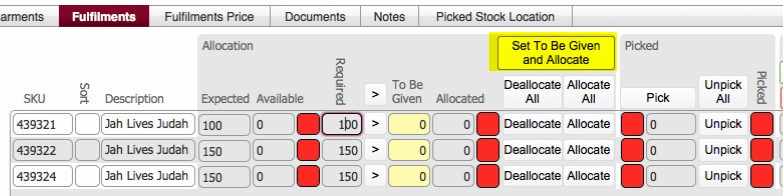
 

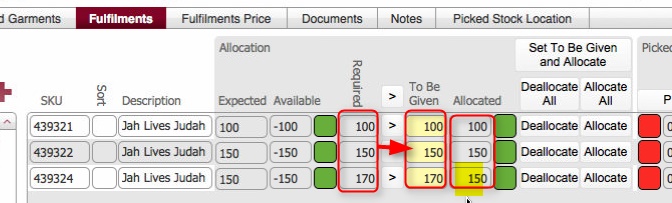
  1. To automatically set the To Be Given quantity and Allocate, click the Set To Be Given and Allocate button.

  2. The system automatically allocates as much as it can without resulting in an over-allocation.

  3. Specifically, the following occurs per SKU that is not currently allocated:-
    1. To Be Given amount is set with the quantity recorded in Required.
    2. Allocated is credited with "max_allocatable_quantity",
      where max_allocatable_quantity is the lower of [sum of Available, plus  Expected ] or Required Amount.
    3. Available is debited by max_allocatable_quantity.
    4. The Allocated Status light updates as follows:-
      1. If  Allocated Amount < To Be Given, the SKU is partially allocated and the status indicator is updated to Amber (In progress)
      2. If Allocated Amount  =To Be Given, the SKU is fully allocated and the status indicator is updated to Green (Completed)
      3. If Allocated Amount = Zero, the SKU is fully  allocated and the status indicator for allocation is updated to Green (In completed)


Method 2: Manually setting the To be Given Amount, and then Manually Allocating the items.

As you can infer, this method requires separate steps for setting of To be Given and allocated amounts


Step 1: Setting the To Be Given Amounts

  1. Click the  > icon beside the item to automatically set the To Be Given .field with  the same value as the Required field.
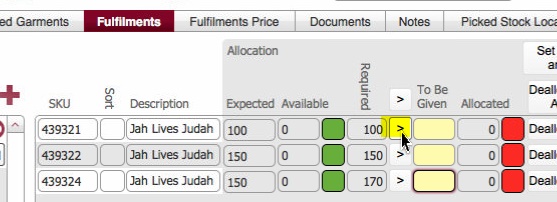

    e.g.

  2. Alternatively, you can click the  top level > icon:-
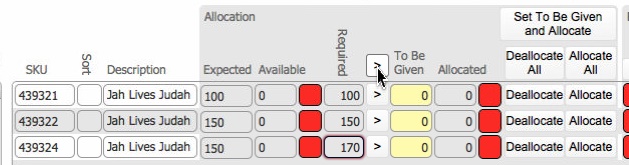

    which will automatically populate the To be Given values of all of the added items  with the amounts from their corresponding Required field
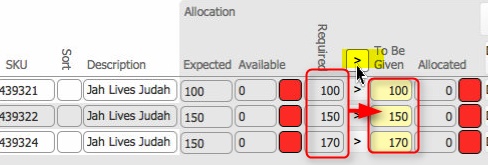
Step 2: Setting the Allocated Amounts


  1. You must manually allocate the stock items that you have added in the above steps.
    By allocating products to a fulfilment, they are effectively "reserved" for usage in the fulfilment, and not available for other fulfilments.
    In stock balance terms, once a stock item is allocated on a fulfilment, the available balance for the item is debited by the allocated quantity.


    There are two "manual" methods by which you can allocate the products to the fulfilment.

Method One: You can click the Allocate button beside a single product row, which will allocate the max_allocatable_quantity for the SKU, where:-

max_allocatable_quantity is the lower of [sum of Available, plus  Expected ] or To Be Given  Amount.

  1. To do so:-

    1. Click the Allocate button besides the single row

    2. This will automatically allocate an amount equal to the max_allocatable_quantity
      i.e. in the below screenshot, the sum, of Expected and Available is 100, and the To be Given Amount is 120. The maximum allocatable amount, being the lower of the two values, is 100, and therefore that is what is allocated.


    3. Note following updates that occur:-

      1. Allocated Quantity is credited with max_allocatable_quantity

      2. Available Quantity is  debited by max_allocatable_quantityy

      3. The Allocated status is recalculated


Note: Allocating items may result in a negative Available balance. This is normal as for fulfilments you can order, and thus must allocate, against stock items that are not yet manufactured. Specifically, you can order a maximum of what's physically available plus what is expected.
Once the expected items are manufactured and data entered, then the available balance will credit with the quantity actually manufactured, and come back into proof. (Assuming that the quantity successfully manufactured is equal to the number expected)
See here for more details on how strokeone accounts for Allocated, Available and Physical Availability for items on a fulfilment ,


Method Two: You can use the Allocate All header button, which will automatically allocate the max_allocatable_quantity for all items on the fulfilment.

  1. This is identical to method one, but applies the allocation process to all the items)
    To do this-

    1. Click the Allocate All header button..
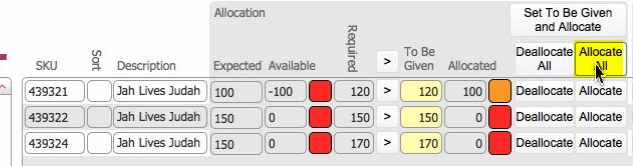
    2. This will automatically allocate for any item that has a zero allocated amount an amount equal to max_allocatable_quantity
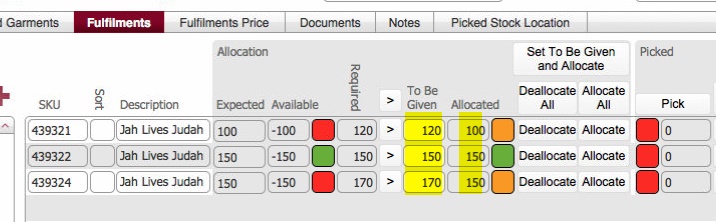
    3. Note following processes that occur:-

      1. strokeone identifies those items on the fulfilment that have a zero quantity allocated -"zero items"

      2. For each zero item

      3. Allocated Quantity is credited with an amount equal to max_allocatable_quantity

      4. Available Quantity is  debited by max_allocatable_quantity

      5. The Allocated status is recalculated.

Notes:


  1. Allocating items may result in a negative Available balance. This is normal as for fulfilments you can order, and thus must allocate, against stock items that are not yet manufactured. Specifically, you can order a maximum of what's physically available plus what is expected.
    Once the expected items are manufactured and data entered, then the available balance will credit with the quantity actually manufactured, and come back into proof. (Assuming that the quantity successfully manufactured is equal to the number expected)
    See here for more details on how strokeone accounts for
    Allocated, Available and Physical Availability for items on a fulfilment ,


  1. If you are only including products from a single job in the fulfilment proceed to step 29).to populate delivery address details.
    However, If you wish to include products from multiple jobs (i.e. create a many to one fulfilment, proceed to step 20)


    Adding other jobs on the fulfilment
  1. To add products from other jobs onto the fulfilment, click on the new record icon in the Related Jobs (2) pane.

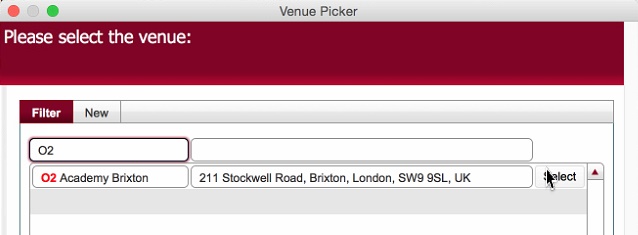
  1. This will bring up the job selection dialog,
    click for example
  2. Click the Select button besides a job in the job picker dialog to add it to the Related Jobs pane

    e.g., clicking Select besides Job number 200512/1

    (Tip: you can use the filter header fields by entering criteria in them to narrow down the list of jobs shown)


    adds it to the Related Jobs pane.

  3. Click the View button besides the job number added to cause its products to be displayed in the pane directly below (3).

  4. Using the same methods as outlined in steps 10) to 18) add products as required from this job into the fulfilment contents pane (4)
    You must also ensure that you adjust the quantities required, and allocate the goods
  5. If you wish to add more jobs and their associated products, repeat steps 20) to 24)
  6. If you have completed adding all the products required for the fulfilment, proceed to step 29)

Adding Non Job Related Products onto a fulfilment.

  1. If you wish to include on the fulfilment, products which are not related to any of the included jobs, you can follow do so.
    Click for explanation  of how to add non-job related products onto a fulfilment
  2. Once you have completed adding all products required on the fulfilment, navigate to the Delivery Pane (5) to populate its delivery address details.


Populating Delivery Address Details
See Understanding Delivery Address Details for overview of how we handle Recipients and Address Details.
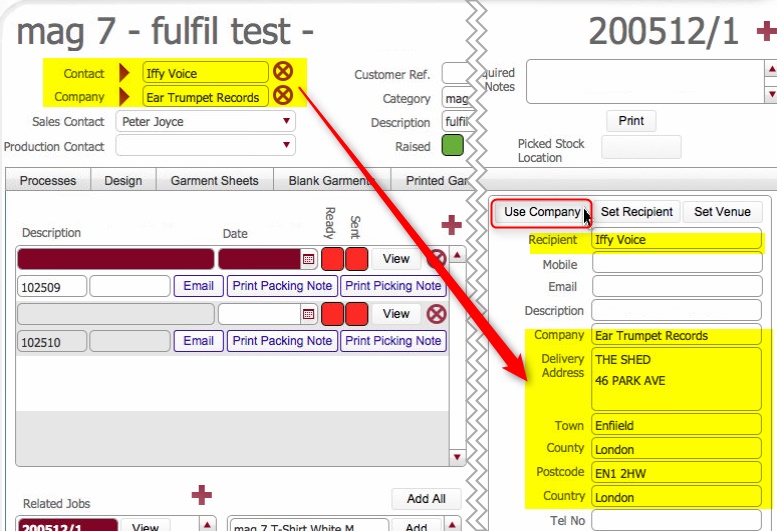
  1. There are several methods of populating the delivery address. Typically the fulfilment will be delivered to a venue or client's address that is regularly used, and thus held in static data. Alternatively, the delivery address might be a one off and unlikely to be used again.
  1. Manually populate the following fields :-
  1. Click the Use Company button if the fulfilment is being delivered to the address of the client recorded on the job order.

    This will cause Recipient to be populated with the contact name, and the delivery address to be populated with the address for the company.


    Note: You may still wish to populate [Mobile, Email, and Tel. No.] fields
    TBC:  These should populate automatically **

    If you wish to use a differing recipient with these address details, click the Set recipient button.
    (see steps 27e below for explanation)


  2. If the fulfilment is being delivered to a venue (a common third party address), click the Set Venue button to select a venue from static data.
    1. This causes the Venue Picker dialog to display, allowing you to select (or if necessary create) a Venue

    2. Once you have selected a venue you need to populate a Recipient.
    3. You can  manually enter a recipient name for the venue.
    4. Alternatively, if the recipient will be regularly used (or exists already) click Set Recipient button
    5. This causes the Venue Recipient Picker dialog to open, allowing you to select a recipient, or indeed create a new one.
      Tip: You can use the Set Recipient button to insert a recipient even if you manually populated the address field, or used the Use Company button.

      Note that Venue Recipients are stored against a company value, so you can only select a venue recipient with a matching company value to the company defined on the job order.
      See Understanding Fulfilment Delivery Address Details for more details.

  3. Ensure you populate the description field.
    Tip: It is recommended to populate this with something meaningful,

    Note how this back-fills to the description field in the fulfilment records pane (1) and the Job name in the Fulfilment Layout
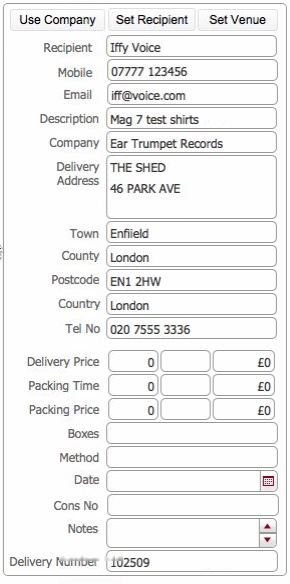
  4. Once the venue has been populated the Delivery Pane should look something similar to this:-
    click for example
    Note:
    a)Should you require it, you can over type any of the address fields

  5. Populate the remaining fields in the address pane as follows:-


Field

Comments

Cons Number

Enter here any reference number from an external courier service should that be the despatch Method

TBC: Future dev requirement: PJ wants this to include the link to the couriers electronic record, and expose this to the vendor site, so that a client can click on this an see the courier's status** *

Courier

If the fulfilment will be despatched by courier (in which case Method should be defined as Courier), then this field records which courier is used.
Select from the drop-down list the courier company.

Boxes

This is automatically calculated based on information recorded during the Box End Label process, and details the total number of boxes that make up the Delivery

Method

The Despatch Method for the fulfilment, e.g.

  • Customer Collection

  • Courier

  • Overnight Courier


This field is exposed onto the Vendor Website, so it is strongly recommended that you accurately populated this with the name of the courier company that are being used, so that the client can directly contact them if needed.

Date

Use the calendar icon to select the Date which the fulfilment should be despatched.
Note: populating this will cause the date field in the fulfilment records pane (1) to populate

TBC: Future dev requirement: PJ wants the earliest not yet delivered date to back fill the related job records.**

Delivery Number

This is automatically populated as per the  fulfilment records pane (1)

Delivery Notes

Enter here additional delivery and/or any other pertinent instructions.


  1. The fully populated fulfilment should look something like the below screen shot.
    Click for example.
  1. If there are any fulfilment charges, these should be recorded, and then the fulfilment marked as ready to invoice.


Note: if there are multiple fulfilment records on the job, i.e. you are populating a one to many or many to many form of fulfilment, then you will have multiple fulfilment records to populate. To do so, simply repeat steps 3) to 30) but this time click the view button besides the next fulfilment record in the top left pane.


Related Topics

Understanding Fulfilments

How to Write Up a Fulfilment

Creating Fulfilment Record(s) on a Job Order
Venue Picker Dialog

Venue Recipient Picker