Printing a finalised Invoice
Background
Once an invoice has been marked as ready, it has been finalised from a creation perspective, meaning:-
It is therefore fit to be sent to the customer to request payment.
Two send methods are currently supported:-
- The finalised invoice can be printed and then manually mailed.
- The finalised invoice can be emailed.
This topic refers to the method a) I
About this Task
This topic outlines the steps necessary to print a finalised invoice.
Prerequisites
This topic assumes that
-
You have finalised the invoice by marking the invoice as ready
-
You are in the detail view of the finalised invoice that you wish to print
Procedure
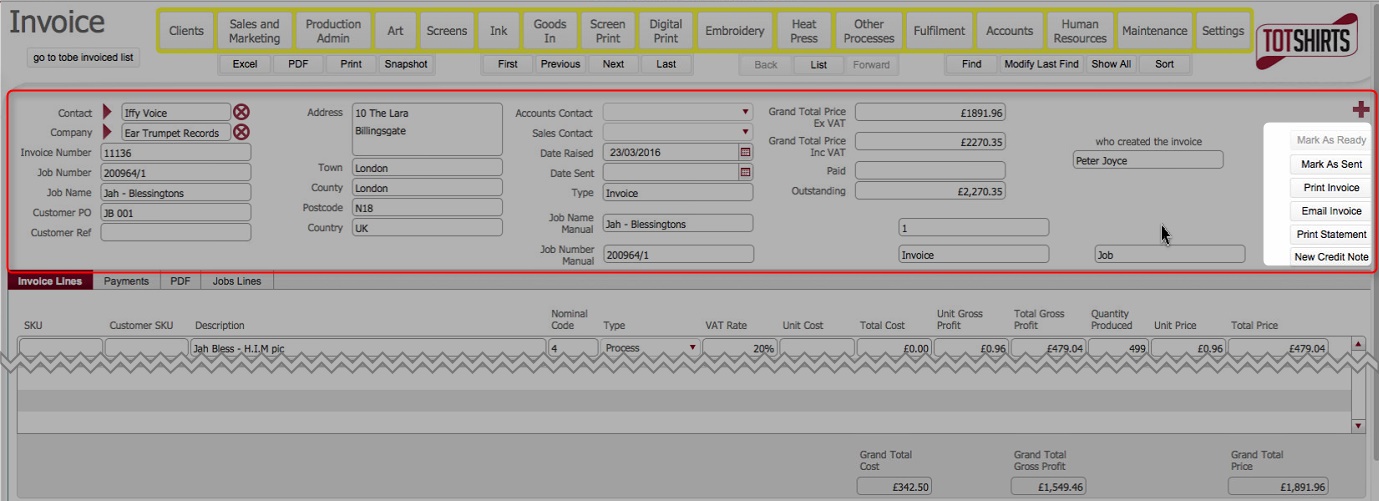
- Locate the headers section of the Invoice, and specifically, the action buttons on the right hand side. Click to see these highlighted.
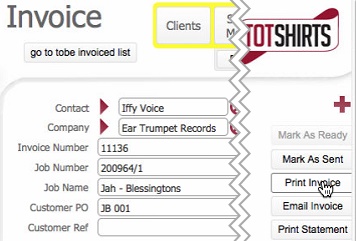
- Click the Print Invoice button in the Invoice Header
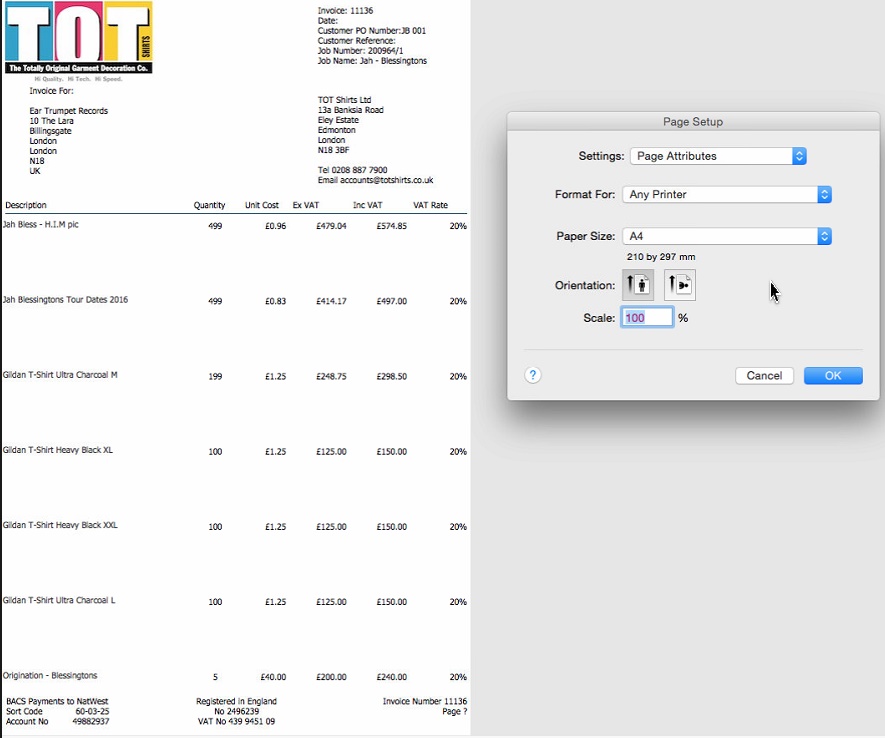
- The finalised invoice is rendered as a PDF and previewed for print.
click to see example
- Click OK in the print dialog to print a copy to your chosen printer.
- Right click on the rendered invoice and select Print
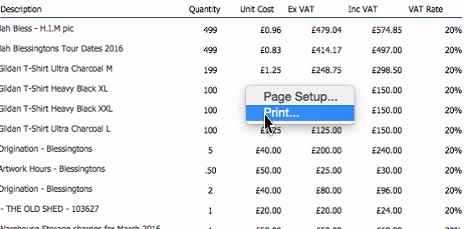
- A hard copy is output to your chosen printer.
- The hard copy can be physically mailed to the customer.
Next Steps
As you have sent the invoice to the customer, you need to record in strokeone that it has been sent.
Related Topics
Marking an Invoice as Sent