Post Wash: Filing a Screen-set
Placeholder for now until the mechanism/layout
by which you identify and administer the screen-sets that will be filed
POST WASH
Expectation is that this will be an ipad layout
Background
When a screen-set is washed after a print job has completed, it may
be decided that the set should be stored due to a reasonable likelihood
of the job being repeated in the future.
As an alternative, the screen-set could be reclaimed. However, should
the job order get repeated, then the screen-set would have to be made
again.
When a screen-set is physically filed, the location where it is placed
is recorded to enable it to be easily and readily located and retrieved
when needed.
About this task
This topic will instruct you how to update strokeone
to reflect that the screen-set has been filed post washing.
Note:
- This topic does not instruct you in how to physically
locate the screen-set into the storage area as those processes
are external to strokeone.
Prerequisites
Ensure that you have completed the following tasks in strokeone before proceeding
:-
- Opened the Stencils
Required Layout
Procedure
- Within the Stencils Required
layout, locate the screen-set
record for the screen set you are going to file.
Tip: You can use the screenset number on the screens'
printed labels to cross reference to the screen-set
number in the Stencils Required
Layout.
- Open
the screen-set record identified in step 1)
- Locate the Post Wash action
buttons in the upper portion of the layout.
(circled in the below screen-shot)
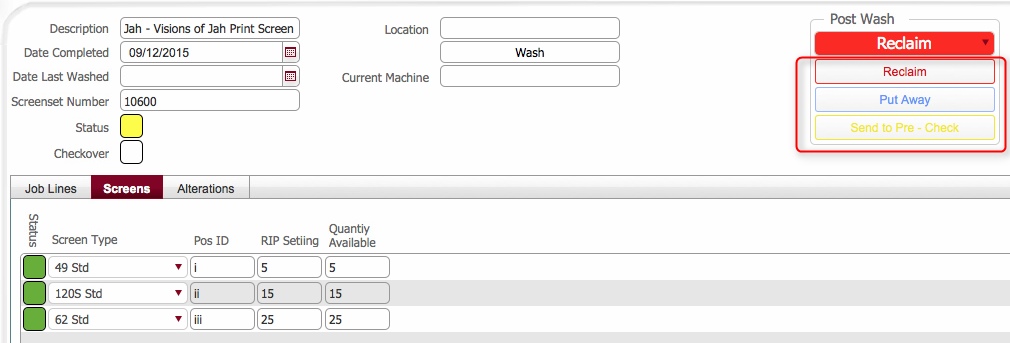
- From within the Post Wash
section, click on the Put Away
button.

- The location
picker dialog opens, pre-filtered to only show storage locations
with a Type of Screens
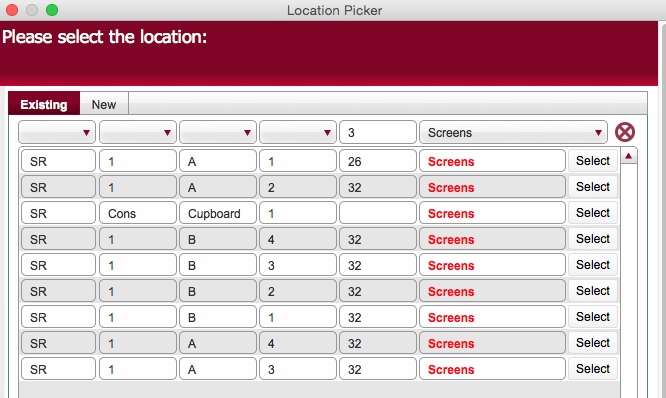
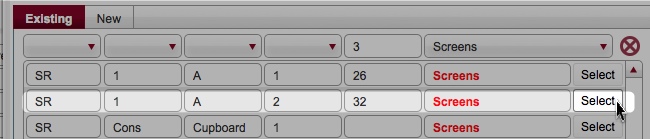
- Press the Select button
beside the location where the screen-set is to be physically
placed..
Tip: the Available Capacity
number should be >= number of screens in the screen-set..
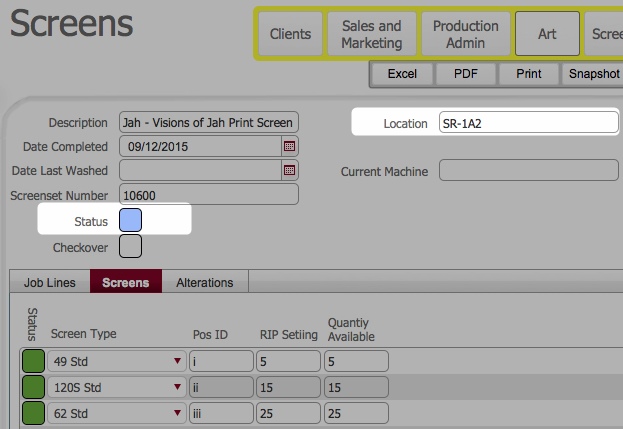
- This causes strokeone
to undertake the following processes :-
- The Status
for the screen-set is
also updated to Full Set (Sky
Blue)
(unless one or more screens have already been recorded as split
or reclaimed already, in which case the status will be updated
to Part Set (Pink))
- In the Location
section of the screen-set record, the field updates
with the storage location selected in step 6)
- The available capacity
quantity for the location record selected in step 6) is debited by the number of screens
in the screen-set.
Next Steps
Once the screen-set has been filed, there
are two potential future actions that can be applied to it.
Related Topics
Stencils Required
Layout
Viewing
the Detail on a Screen-Set Record
Flagging
a Stencil Set for Reclaim
Marking a Screen-Set
As reclaimed