A "split" is damage to the mesh on a frame which normally presents itself in the form of a tear or split, and renders the mesh unfit for purpose.
Although the damaged mesh is no longer of any use, the frame can be recycled by the removal and replacement of the damaged mesh.
This mesh replacement process is known as re-stretching, and is typically achieved by raising a purchase order. and specifying a type of restretch.
Splits can occur at any stage in the life cycle of a screen and dependent on where they occur, strokeone must be updated so that the incident is recorded, tracked, and appropriate corrective action is taken promptly.
As noted, splits can any stage of the a screen's life-cycle. See below for how to update strokeone for occurrences of splits at common points in the life-cycle.
Splits during screen initial preparation
At this stage in the screen life-cycle, the screen is blank - that is, no image has been applied / exposed onto the mesh. Blank screens are not "job related."
Whilst in this initial preparatory stage, the screen can either be coated with photo reactive emulsion, or not, and this is a variable used when recording the actual details of splits.
The process to record splits that occur at this stage can be illustrated schematically, and involves the following steps:- :-
Procedure

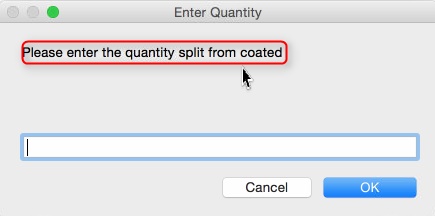
Note: the verbiage (circled in the above screen-shot) is contextual and will vary depending on whether you clicked the coated or available button in step 6)
Splits that occur during a print run
At this stage in the screen life-cycle, the screen(s) are job related (they have artwork images exposed onto them) and moreover are actively in use in a print process.
Splits that occur at this stage are the most critical as the print process cannot continue to completion until the split screens are removed, replacements manufactured and provided back to the print room. Given this imperative, it is worth noting that flashing status colours are used for the screen-set to denote their high priority.
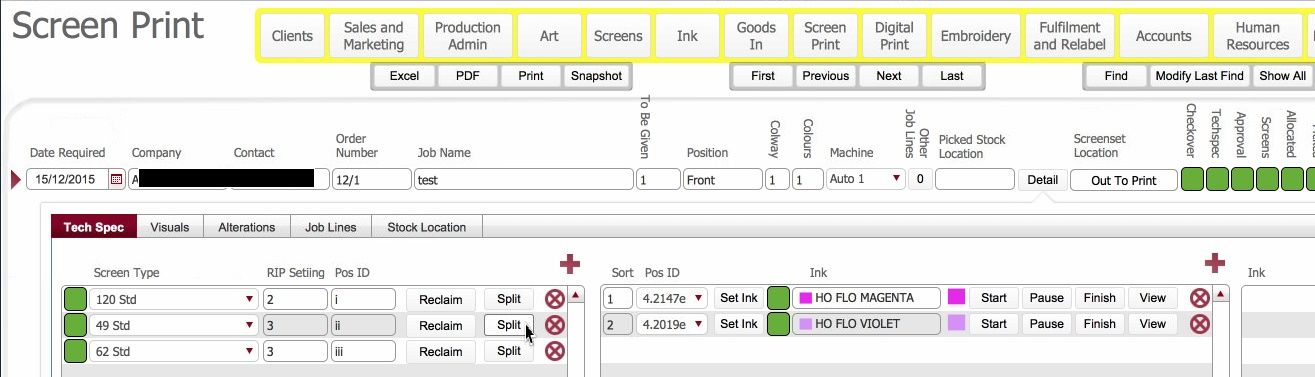
The process to record splits that occur at this stage can be illustrated schematically, and involve the following steps:- :-
Procedure


To re mediate the situation the following steps should be taken as a matter of urgency
** From within the tech spec detail pop up, click on label button to cause the label for the split screen to print out in the stencil maker's area ** - needs development **.
The stencil maker should, using the printed label as cross reference, physically draw-down the necessary blank coated screen (matching frame size and mesh count).
Using the pos Id on the label, call up the corresponding artwork Tiff and apply this to the blank screen, expose it and develop it.
Record that the replacement screen is in the process of being made:-
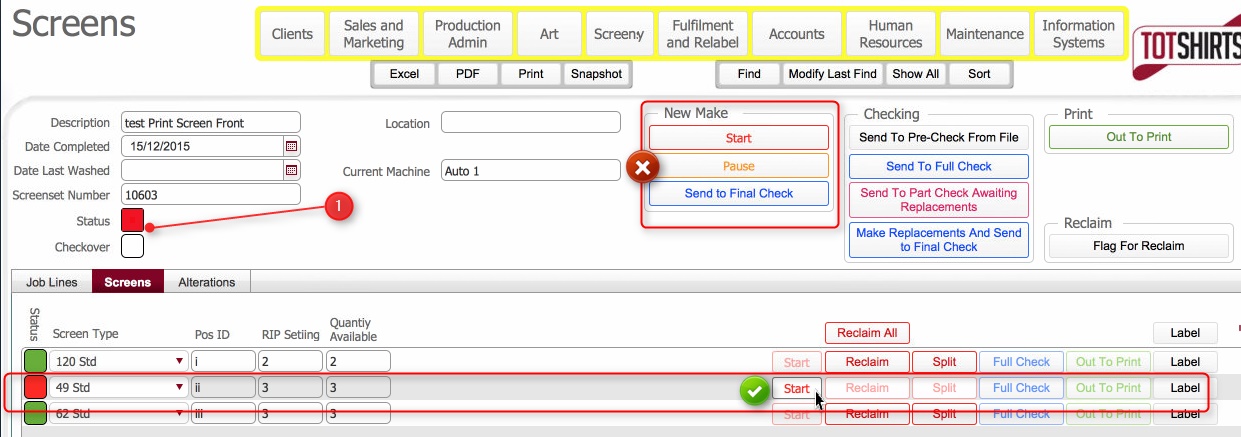
Open the Stencils Required Layout and open the corresponding screen-set detail record
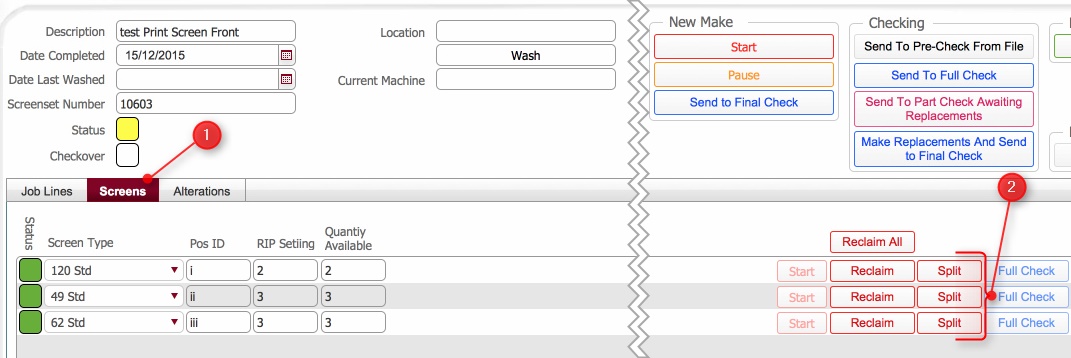
Note that the screen-set record status (1) is flashing red on and off
Ensure the screens tab is selected.
Locate the individual record for the replacement screen that is being made.
Click the corresponding Start button for the screen.
(Note this is not the start button in the new make section)

The following updates will occur:-
The screen status will update to In Progress (amber)
The screen-set status will update to a flashing In Progress (amber)
The location field is updated to Being Made
In the screens control list, the following accounting entries are made for the screen type started in step 12) e)

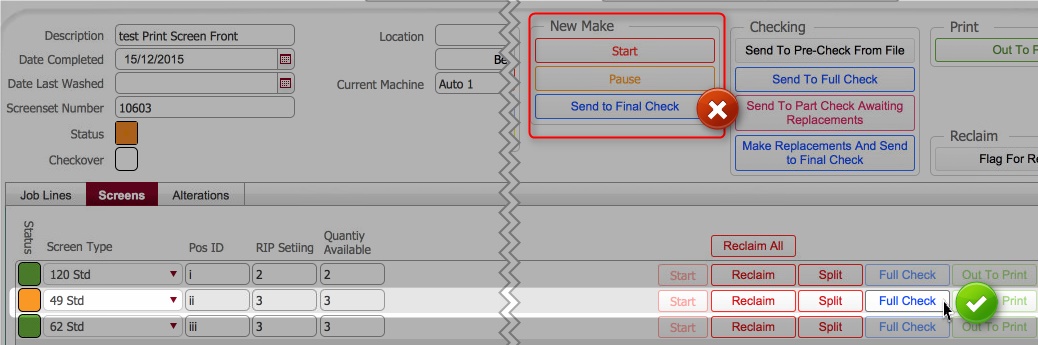
The screen status will update to Completed (green)
The screen-set status will update to a flashing Final Check (Navy Blue)
The location field is cleared
Upon successful final checking the replacement screen should be physically walked down to the print room.
This out to print status needs to be recorded, by clicking the Out to Print button besides the screen record.
(Note: do not use the Out to Print button in the Print header section)

Once the replacement screen is walked down to the print room, and physically installed back in the printing carousel, the print job can be resumed.
Navigate to the Screen Print layout within strokeone.
Locate the print job that the replacement screen is employed on.
Click the pause button to toggle pause off.
Splits that occur pre-print run
Foreword: At the time of writing, there is a system deficiency in accounting for splits that occur on one or more screens in a set once they have been made but before they have been used in a print run. Once they have been used in a print-run, split functionality works as intended.
Therefore, there are two temporary "work around" methods which can be used to deal with this scenario. (There is no recommendation as to which method is the preferred choice)
The expectation is that a definitive system solution will be implemented during phase 2 development of strokeone.
Method 1: Start The Print job, then record the split
Under the method, the split occurs when the screen-set has been made, but before it has been used in a print job. However, in order that the system accounting is correct, the job process is "started" in the system (but not physically started), and then the split recorded. Once the split screen is replaced, the job is physically started.
The steps are therefore:-


To remedy the situation, the split screen needs to have a replacement made. The steps tor doing this are outlined fully in Splits that occur during a print run
Once the replacement screen has been made and sent out to print, the screen-set can be assembled on the print press and the job physically started,and also "unpaused" in the system
Method 2: Do not Start The Print job, but take the split screen back to the screen-room for replacement, and record the split as a coated screen
Under this method a replacement screen is fabricated, but the split is not recorded against the existing screen. Instead it is recorded against a coated screen.
Procedure:-
Splits that occur in the post washing stages
At this stage in the screen life-cycle, the screen(s) are job related (they have artwork images exposed onto them) and have been used in a print run and are returned to the wash room to be cleaned.
Post washing, screens are physically filed in their screen-sets and go through a physical inspection where splits are identified.
Should any splits be identified in member screens, they are recorded in strokeone against the corresponding screen-set record.
Then the screen-set record is interrogated to evaluate what the what the next usage of the screens will be.
Essentially there are three choices:-
If the screens are required on an upcoming print run then additional action is required to replace the split screen(s).
The process to record splits that occur at this stage can be illustrated schematically, and involve the following steps:- :-
Procedure

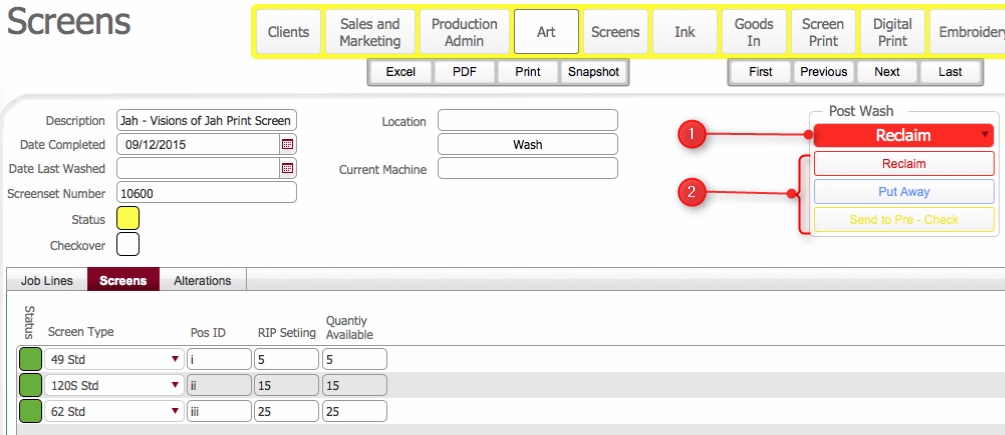
At this stage, the splits have been recorded on the screen-set - what happens next depends on the post wash usage indicator (annotated as (1) below)

If this indicator states File, proceed to step 12); if Reprint, proceed to Sending a Part Set to Pre-Check for a Re-Print section below.
Filing a Part-Set
Sending a Part Set to Pre-Check for a Re-Print
The part-screen set should be sent to Pre-Check by clicking on the Post Wash > Put Away button.
This will update the screen-set status to Part Set (Pink) and set the Checkover flag to enabled.
Splits that occur in Pre-Check
At this stage in the screen life-cycle, the screen(s) are job related (they have artwork images exposed onto them) and have been forwarded to the Pre-Check area for a series of up-front checks before they are used again.
it is worth appreciating the following:-
The screen-set may have originated directly from wash or may have been retrieved from filing
The screen-set may be already be a part-set - that is, there may have been splits recorded on it.
If more splits are discovered in pre-check they need to be recorded.
The process to record splits that occur during pre-check can be illustrated schematically, and involve the following steps:- :-
Procedure

Related Topics
Understanding the Life-cycle of a Screen
© Copyright ,Strokeone Software Limited 2018