Raising a Purchase Order for Screens
Background
There are two main scenarios when you may need to raise an order for screens:-
- When they become damaged - typically the mesh splits - and they require restretch repair
- When you need to order more of a particular frame-size / mesh-count as you have, or will soon have insufficient quantity.
Note: it is possible to recycle some of the existing archived screens by reclaiming them, in order to mitigate the above two scenarios.
About this task
This topic will instruct you how to select one or more screens that you wish to raise a purchase order for.
Prerequisites
Ensure that you have opened the Screens Control list layout within strokeone.
Procedure
- Filter the screen contents to only display the screen(s) that you wish to order. You can filter the entries by doing the following:-
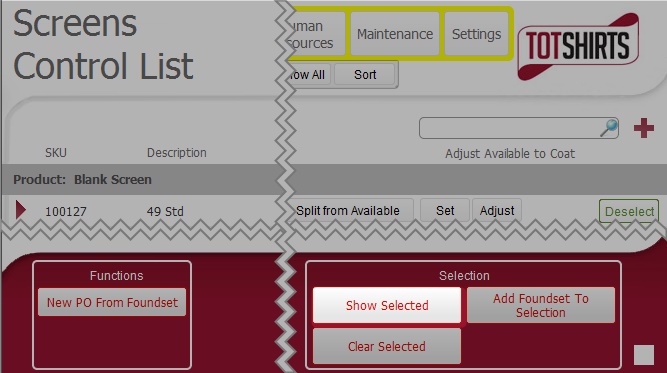
- Click the Select button besides the SKU's that you require. Note how for selected items, the text on the button toggles to Deselect. Click for example
- Once you have selected your required screens, filter the displayed records to only selected records, by clicking on the Show Selected button in the Selections section at the bottom of the layout. click for example
- if the blank screen you require does not exist, you can create it.
- Click the New PO from Foundset button on the bottom left of the layout.
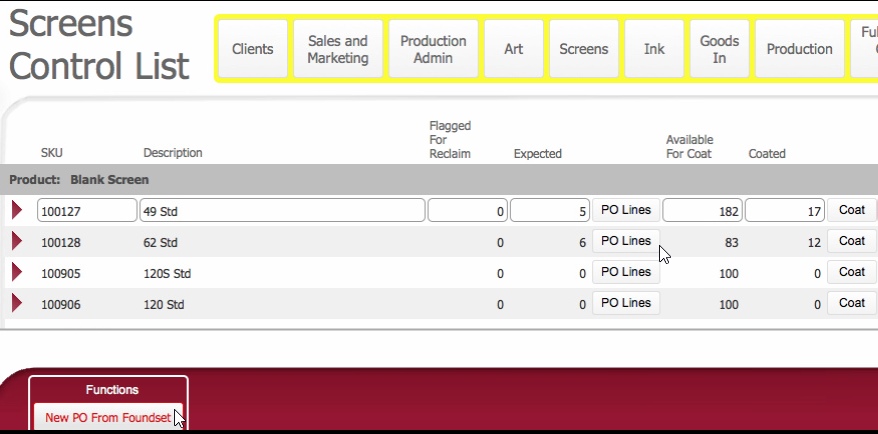
- A warning prompt is displayed by strokeone that you are about to raise a purchase order for X items
(where X equals the number of blank screen records that were displayed at the end of step 1.)
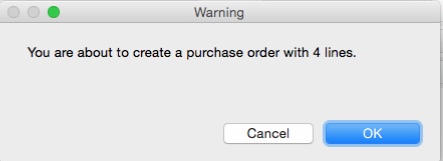
- Click OK to continue.
- A Purchase Order is created for the found-set from step 1)

- For each screen SKU added to the purchase order, two vital pieces of information need to be recorded correctly.
- Ensure that Type is recorded correctly. Use New if the screen being ordered is a brand new item (i.e. a new addition to stock) item;
Use Restretch if it is an existing split screen that is being sent for repair.
- Ensure that you populate the Quantity Ordered field with the numerical quantity of the screens being ordered.
- Complete the rest of the Purchase Order data fields as outlined in Populating and Sending a Purchase Order
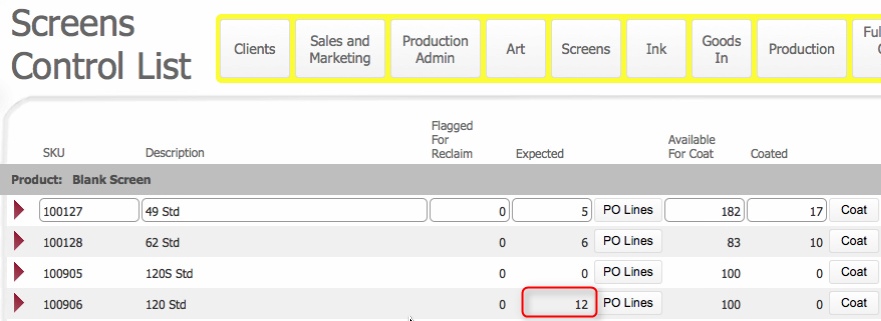
- Once you send the Purchase Order, the Expected total for the screen in the screen controls list. is incremented by the quantity ordered for the screen SKU
Click to see example
Related Topics
Populating and Sending a Purchase Order
Order Receipt and Preparation


 -
-