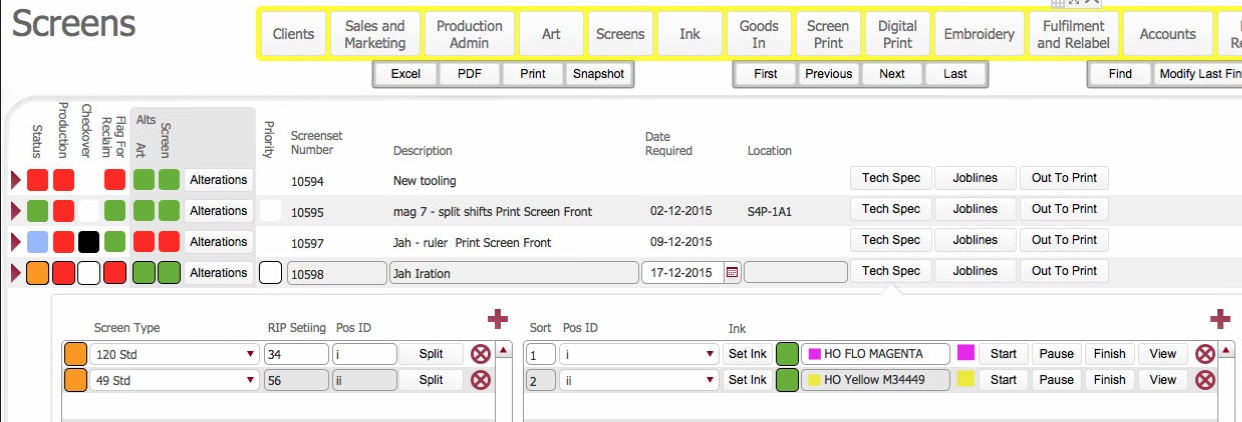
When a production job order has a print screen process it will require an artwork, and a related set of screens - a"screen-set" that are required to facilitate the screen printing of that artwork onto a garment.
The Stencils Required layout shows all the screen-sets which have been recorded in strokeone together with a series of important information, such as:-
Additionally this layout allows you to flag screen-sets as a priority, or that they should be reclaimed and the ability to drill down to the screen-set record detail layout from where you can perform additional actions.
One of the primary purposes of this layout it to show screen-sets that are required to be manufactured for usage on upcoming job-orders.
This topic will instruct you how to understand the contents of, and the actions allowable from, the Screens Required layout.
Ensure that:-
However, you can enter find
mode, and by using criteria, search for any screen-set that has been recorded
in strokeone.
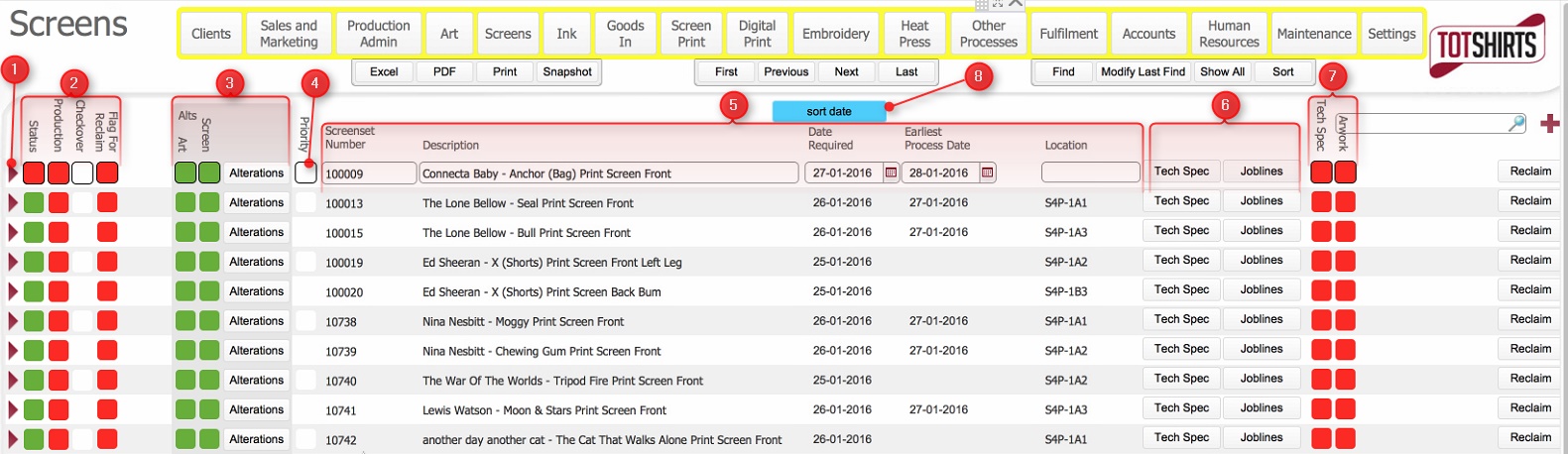
This layout is composed of the following elements :-
(Note: In the below sections/text, the numbers in (bold parenthesis) refer to the annotations in the above screen-shot)
Specifically,
for each
screen-set record listed, the following
information is displayed / actions are allowable. The numbers in parenthesis
below refer to the annotation icons in the above screen-shot.
(1) Will open the screen-set detail record,
from where you view additional information regarding the screen-set and
its underlying individuals screens and perform additional actions.
(2) Status Icons for the screen record. These can be summarised as follows:-
Icon Label |
Comments |
Status |
The status
of the screen-set itself. |
Production |
The aggregate status
of all the production jobs to which the screen-set is associated
to. |
Check over |
Denotes that the screen-set is in the pre-check area. |
Flag for Reclaim |
Denotes that the screen-set has been flagged for reclaim. That is, an evaluation has been made that the job order(s) which required the screen-set to be manufactured, are unlikely to be reprinted, and therefore the screen-set can be recycled. Marking a screen set as flagged for reclaim is the first step in reclaiming the screens. |
(3) Indicators that Alterations maybe required
Alterations can be requested in between when a production run and when a job order is repeated. They are typically requested according to two main scenarios:-
The job order is repeated, and the customer requests some alterations
When the original job order was completed, someone within Strokeone Software Limited evaluated that should the job ever be repeated, then making some alterations would result in a higher quality result.
In either case, alterations can be suggested at two levels:-
Changes to Artwork (which would result in an alteration to one or more screens)
The status indicators here denote whether the alterations are required for Artwork (which will automatically mean changes to some screens in the screen-set) or to one or more Screens in the screen-set.
Clicking on the Alterations button will show a pop up form that contains details of the requested alterations.
(4)
Pre-check Priority Indicator: This
flag denotes that the screen-set should be treated as a priority for pre-check.
That is, the screen-set is required on a repeat print job, so should be
drawn down from its current location and placed in the pre-check area
as a matter of priority.
The priority flag can be set
directly from within this layout.
(5) Screen-set record data fields. Specifically, for each screen-set record, the following basic data fields are shown.
Field |
Comments |
Screenset Number |
The unique internal reference number for the screen-set. This is taken from the tooling number field on the technical specs for the artwork on the corresponding job order. |
Description |
The description of the job order print screen process to which the screen-set are associated. |
Date Required |
The date which the screen-set needs to be manufactured for.
This is set in the technical
specs of the job order. |
Earliest Process Date |
Lists the earliest date required from all the process line records that are associated to the job order. This can be used to aid rescheduling stencil creation (see below) |
Location |
The storage location where the screen-set is currently physically located. |
(6) Pre-scripted Action buttons. The functionality for these buttons is as follows :-
Button Name |
Comments |
Tech Specs |
This will display a pop-up of the technical
specs for the artwork record which requires this screen-set |
Job Lines |
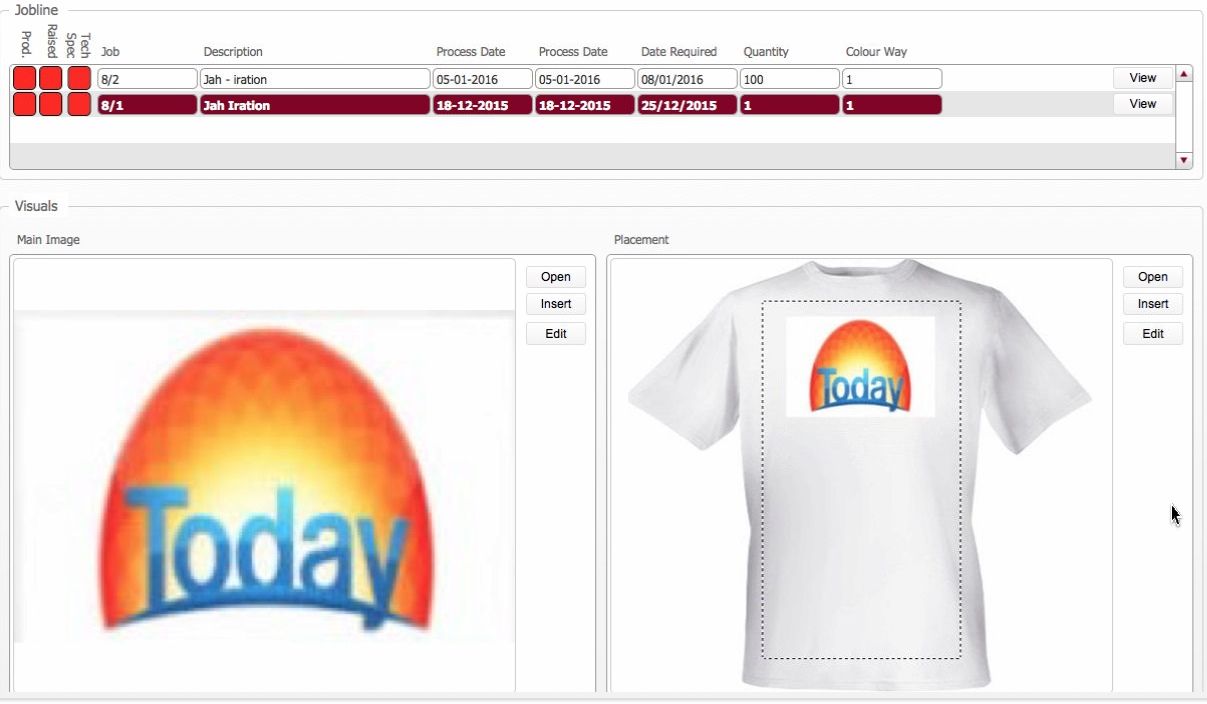
This displays a pop of the job order process lines which
the screen-set is required on. |
(7) Status Icons related to Artwork
Icon Label |
Comments |
Tech Spec |
The status of the technical specification for the artwork that requires this screenset. Where the status is red, it means that the technical specification has not been completed. |
Artwork |
The status of the artwork that requires this screenset. |
(8) Sort by date button
Clicking this button will sort and group the records by the Date Required fields.
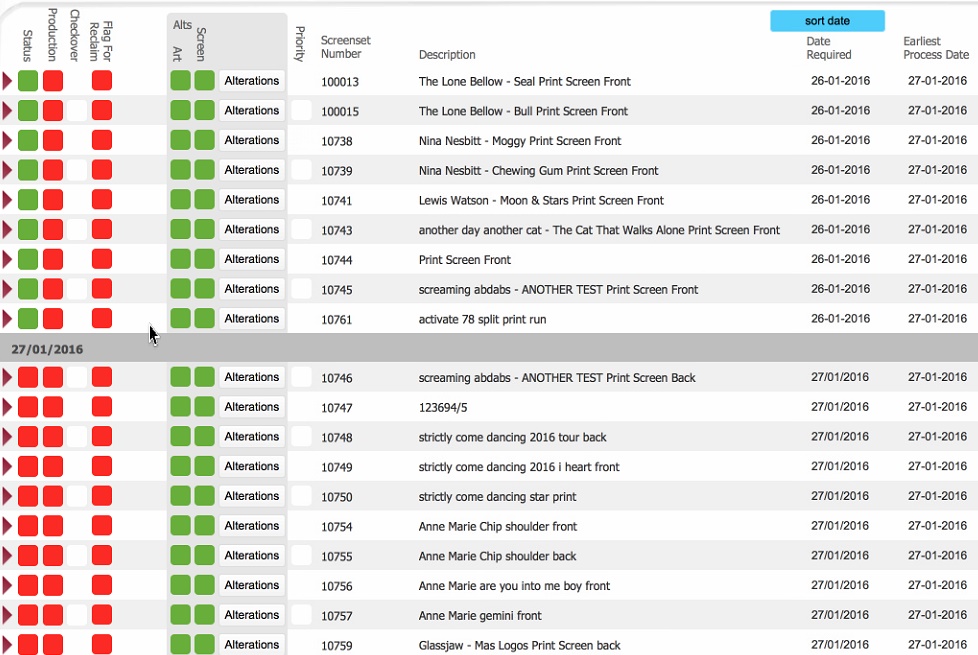
This layout allows you to re-schedule stencil required records. You may wish to do this to ensure that screen-sets required for production jobs is created at least a day or two prior to the production process that require them., and / or shift stencil required records according to workload and capacity
Tip: It is much easier to see what items should be re-scheduled once you have applied the Sort Date button
Consider the following simple example - it is 25th Jan, and you have
workload capacity in the screen-room.
You can see that there is a series of stencils required to be created by
the 26th January, but the earliest date required for a process on the
job order is also 27th January which is only a one day window.
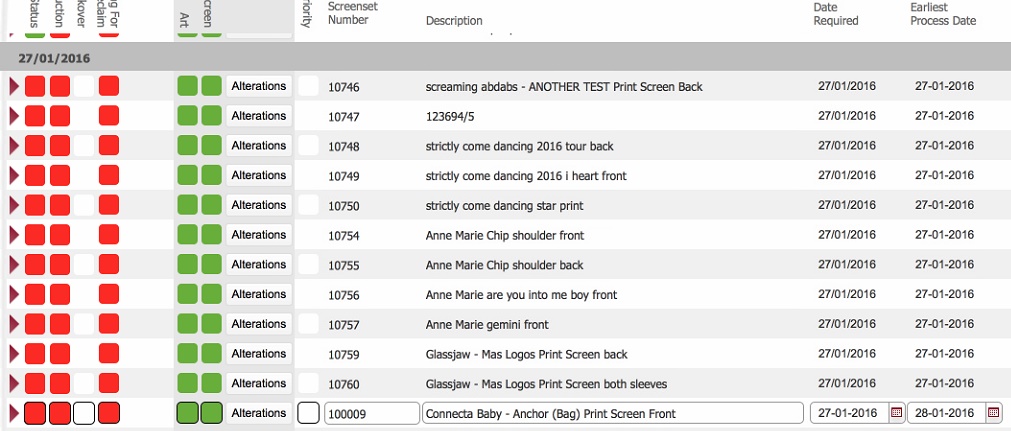
As you have workload capacity today, and would like to manage a two day
buffer, you decide to move a series of stencil required records to today.
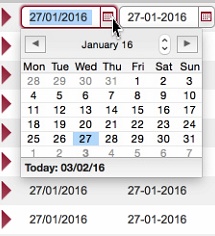
To alter the Date Required on a stencil required record from this layout,
follow these steps.
Related Topics
Screen and Screen-Set Record Statuses
Opening the Detailed Record for a Screen-Set
Flagging a Stencil Set for Reclaim
Marking a Stencil Set as Pre Check Priority