(Company name field has been deliberately obscured in the screen-shot)
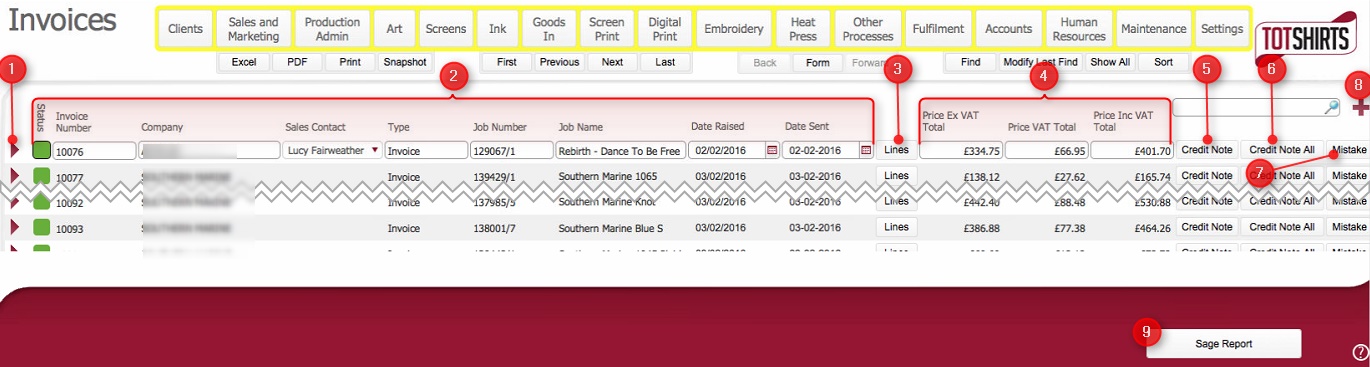
The Invoices List Layout displays invoice records which have been raised (in respect of job orders and/or fulfilments) in strokeone, together with their current status.
This topic will instruct you how to open, interrogate and understand the actions that can be performed within the Invoice List Layout
Ensure that:-
(Note: In the below sections/text, the numbers in (bold parenthesis) refer to the annotations in the above screen-shot)
The layout is composed of the following elements.
(1) Open record icon: will navigate you to the detailed layout for the corresponding invoice record.
(2) Invoice Record Data Fields. Specifically,
for each invoice record shown, the following data fields are listed.
Field |
Comments |
Status |
The current status of the invoice record. There are five statuses ranging from raised to completed. It worth noting that invoices that have been marked as ready are locked down and can't be amended. |
Invoice Number |
The internal (TOT Shirts Limited) reference number for the invoice record. When an invoice is raised, it is allocated the next number in the counter. |
Company |
The entity whom owes the amount detailed on the invoice in respect of goods and services that they purchased from TOT Shirts Limited.. |
Sales Contact |
The internal (TOT Shirts Limited) sales person contact for the Company. |
Type |
TBC: The type of invoice *** ? |
Job Number |
For invoices that were raised from job orders, this field details the corresponding job order. |
Job Name |
A concatenation of the category and description fields taken from the Job Number record. |
Date Raised |
|
Date Sent |
The date on which the invoice was sent to the Company. |
(3) Lines button. Clicking this button displays a pop up form which contains two sets of data
Invoice Lines this
outlines the details of each chargeable
element (sourced the job lines) which has been added for inclusion
in the invoice.
(See Understanding
Invoicing at TOT for details
on what makes up chargeable elements)
Job Lines: this
outlines details of all the chargeable
elements of the job order.
Click to see
more details of the specific fields.
(4) Invoice Monetary Value fields.
Specifically,
for each invoice record shown, the following data fields are listed.
Field |
Comments |
Price Ex Vat Total |
Calculated field: The total cost of charges included on the invoice without VAT |
Price Vat Total |
Calculated field:The VAT applicable on the charges that make up Price Ex Vat Total |
Price Inc VAT Total |
Calculated field:Price Ex Vat Total + Price Vat Total |
(5) Credit Notes button.
- allows you to create a Credit Note for a Customer.
(6) Credit Note All button - TBC: To Do
(7) Mistakes button - navigates you to the Job Line Mistakes form, where you can see, edit or create a record of a mistake on the job order.
(8) New Record Icon: Will allow you to create a Stand Alone invoice
(9) Sage button TBC: but - creates export ? ***
Related Topics
Creating a Stand Alone Invoice
Creating a Credit Note