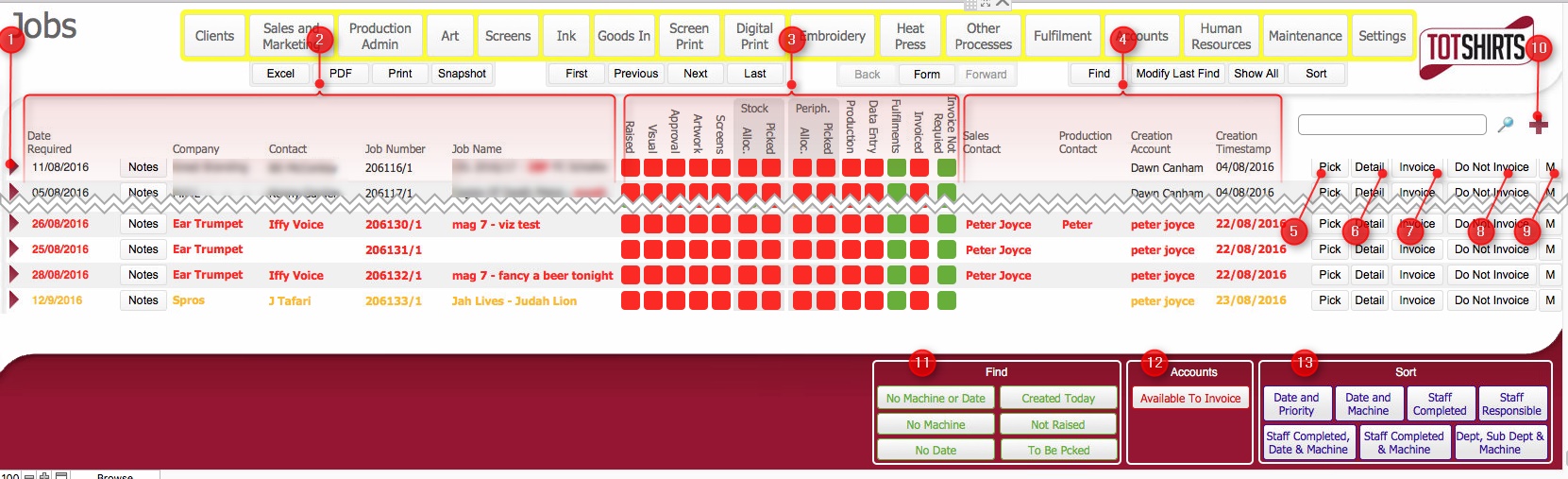
(Note: In the below sections/text, the numbers in (bold parenthesis) refer to the annotations in the above screen-shot)
(Note: for this topic certain field values have been deliberately obscured in the screen-shots)
The Jobs list layout shows job orders that have been entered into strokeone, together with a series of other pertinent information , such as contact points, and the status of various job order related tasks.
This topic will instruct you how to view the jobs list layout, understand the data it contains, and what actions you can perform within it.
Ensure that you have logged onto strokeone, and that you can see and access the Production Admin button in strokeone's home banner.
(Note: In the below sections/text, the numbers in (bold parenthesis) refer to the annotations in the above screen-shot)
This layout lists all the active jobs that exist in strokeone,
together with the current status of their associated processes.
Any selected
job order is indicated by a border
line around the fields in the data row.
The layout is composed of the following elements.
(1) Click on the open record icon to drill down to the Job order Detail form.
(2) Data fields from the Job
Order records. These are taken from
the job order header fields.
Specifically, for each job order shown, the following data fields are
displayed:-
Field |
Comments |
Date Required |
Date by which the customer's job order must be completed |
Notes Button |
Clicking this button will display a pop up form with the
Date
Required Notes field. |
Company |
The organisation placing the job order Note: If a company has
been flagged as on
hold or has exceeded their credit limit their name
will be formatted in red bold
font to denote that additional checks should occur before proceeding
with a job order and/or sending fulfilments. |
Contact |
The person at the client company whom the order originates from |
Order Number |
The automatically generated internal sequential number for a job order. A suffix >1 denotes the job is a repeat of an existing job. |
Job Name |
A concatenation of the job order category and description fields. |
(3)
Status Icons: this section contains
a series of icons that denote the current status
of various processes connected to the job order.
These can be summarised as follows:-
Icon Label |
Comments |
Raised |
Denotes the raised status of the job. When set red (which is the default) denotes to all other departments that the job order should not proceed for any reason. It can therefore be conceptually thought of as a safety valve. |
Visual |
TBC: Is this visual creation or approval. Ambiguous, and not working? |
Approval |
TBC: what approval ? - aggregate of process lines / colour visuals ? |
Art Work |
TBC: ArtWork creation ?? - again not working if that's the case |
Stock Allocated |
The status of blank garments allocated to the whole job order. |
Stock Picked |
Denotes the status of blank garments picked for the whole job order. |
Peripherals Allocated |
The status of peripherals allocated to the whole job order. |
Peripherals Picked |
Denotes the status of peripherals picked for the whole job order. |
Production |
Indicates the aggregate production status of the Job Order. It is updated to Green when all production processes have been completed. |
Data Entry |
When the last process line on a production order completes, the final quantities produced are recorded. This status light denotes the status of recording that data entry. |
Fulfilments |
Denotes the status of the fulfilment records added to the job order. |
Invoiced |
Denotes the status of invoicing on the job order. |
Invoice Not Required |
If a job order is manually marked as do not invoice, the Invoice Not Required status is updated to Purple to denote this. |
(4) Additional Data fields
from the Job Order records.
Again, these are taken from the job
order header fields.
Specifically, for each job order shown, the following data fields are displayed:-
Field |
Comments |
Sales Contact |
The internal sales-person responsible for the Company / Job order and therefore whom should be contacted first before the client is contacted regarding any job related matters. |
Production Contact |
Similar to above, except that it is the internal production staff member responsible for the job order. |
Creation Account |
The staff member who created the job order record. |
Creation Timestamp |
Time & Date Stamp of when the job order record was initially created. |
(5) Pick button. This allows you to pick the stock needed for this job order..
(6) Detail button. Clicking this will display a pop up window showing - *Bug/TBC not really anything demonstrable in this yet @ Aug
(7) Invoice button.
This will raise
an invoice for the job.
(8) Do Not Invoice button. Clicking this will mark the job order as not eligible for invoicing.
(9) M(istakes)
button. Clicking this will navigate you to the Job
Line Mistakes layout, and insert a mistake record for the job order.
(10) The new record icon will raise a new or duplicate job order depending on whether an existing job order is highlighted or not. See How to Raise a New or Duplicated Job for details.
(11) Scripted find buttons. These perform a series of finds as per their text label. Specifically:-
Click button... |
To do the following... |
No Machine or Date |
find Job Order records that have a process line record, but do not have any associated machine scheduling record, or have a machine record but no scheduled date on it. |
No Machine |
find Job Order records that have a process line record, but do not have any associated machine scheduling record. |
No Date |
find Job Order records that have a process line record, but do not have any scheduled date on the associated machine scheduling record. |
Created Today |
find Job order records with a Creation Date value equal to Today() |
Not Raised |
find Job Order records where the Raised status is equal to Not Raised (Red) |
To Be Picked |
find Job Order records where stock can potentially be picked, i.e. any that match one of the following criteria :-
|
(12) Accounts
Available to invoice button. Clicking this will find job orders
that are ready to be invoiced, i.e.:-
Data Entry is completed, and Invoice has not yet been raised
Dev: Query the existing logic - not sure it is correct.
(13) Various Scripted sort buttons - these perform sorts of the existing found-set according to the criteria outlined on the button labels.
Related Topics